This support article teaches how to set up native UTM tracking in Yay! Forms, making it possible to identify which campaign, ad set, or ad generated each form response.
If you want, we have a video tutorial explaining step by step how to do this configuration:
1 - Enabling UTMs in Yay! Forms
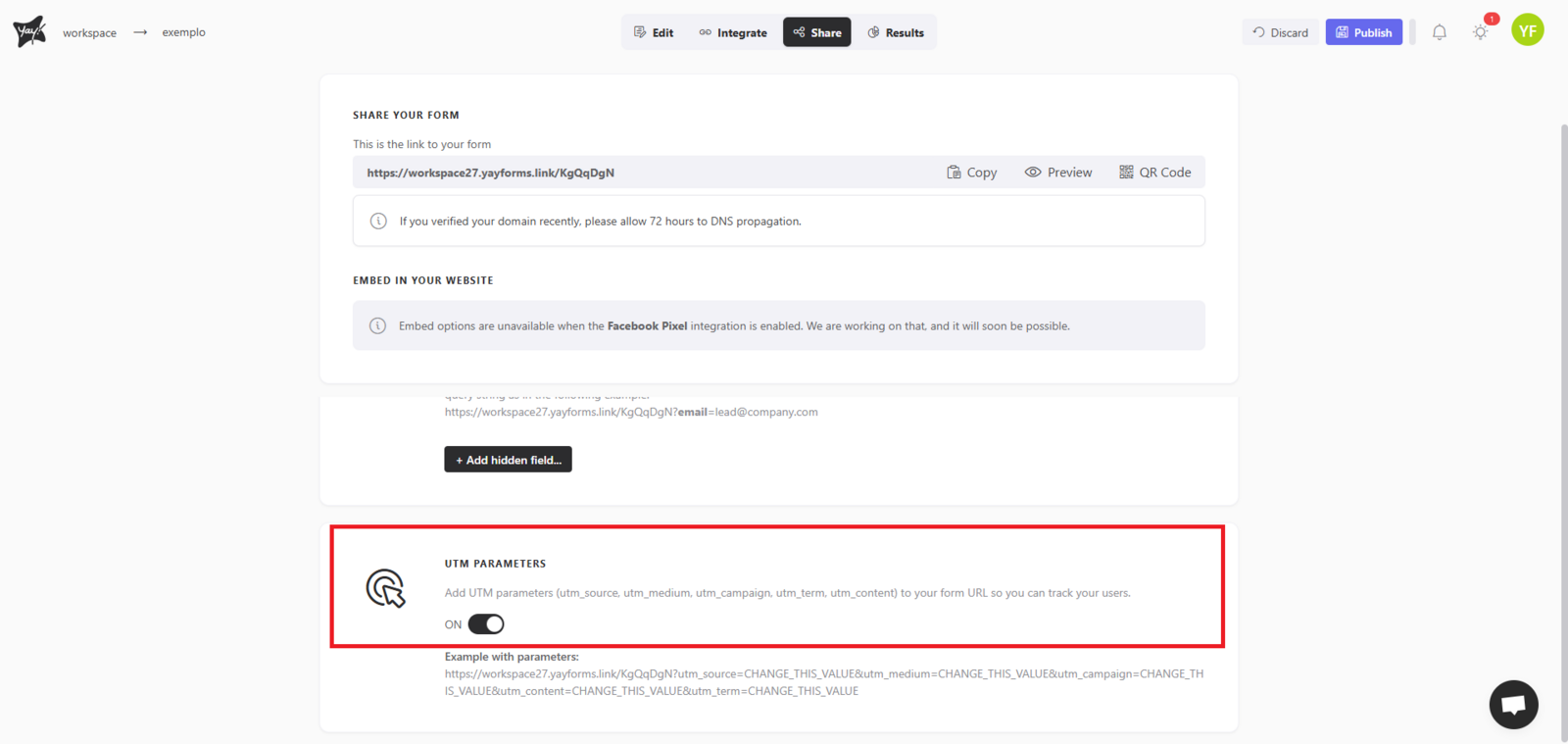
First, you must access the form sharing area and enable the "UTM Parameters" option, as shown below:
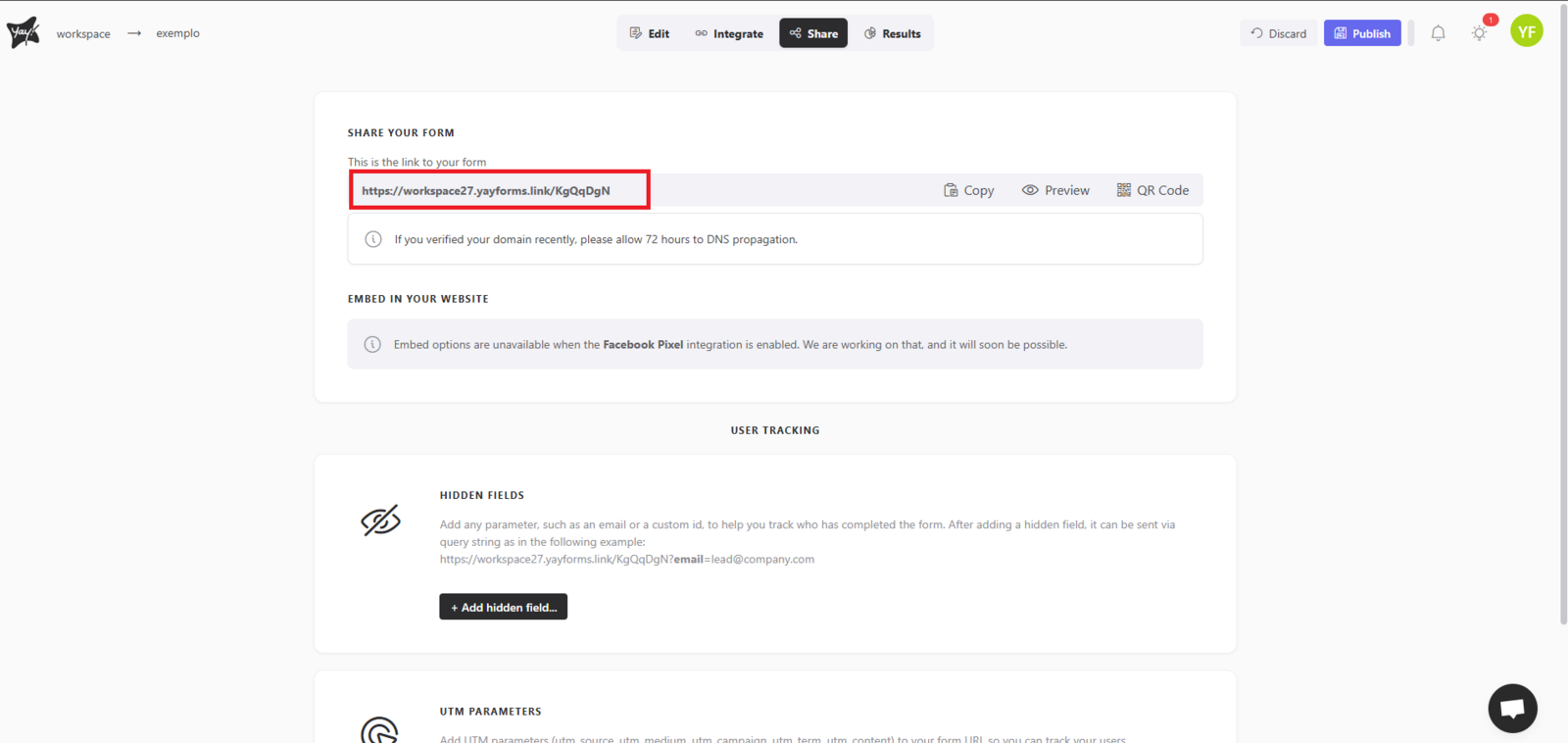
Next, copy the form link, as shown below:
2 - Configuring UTMs in the Meta Ad
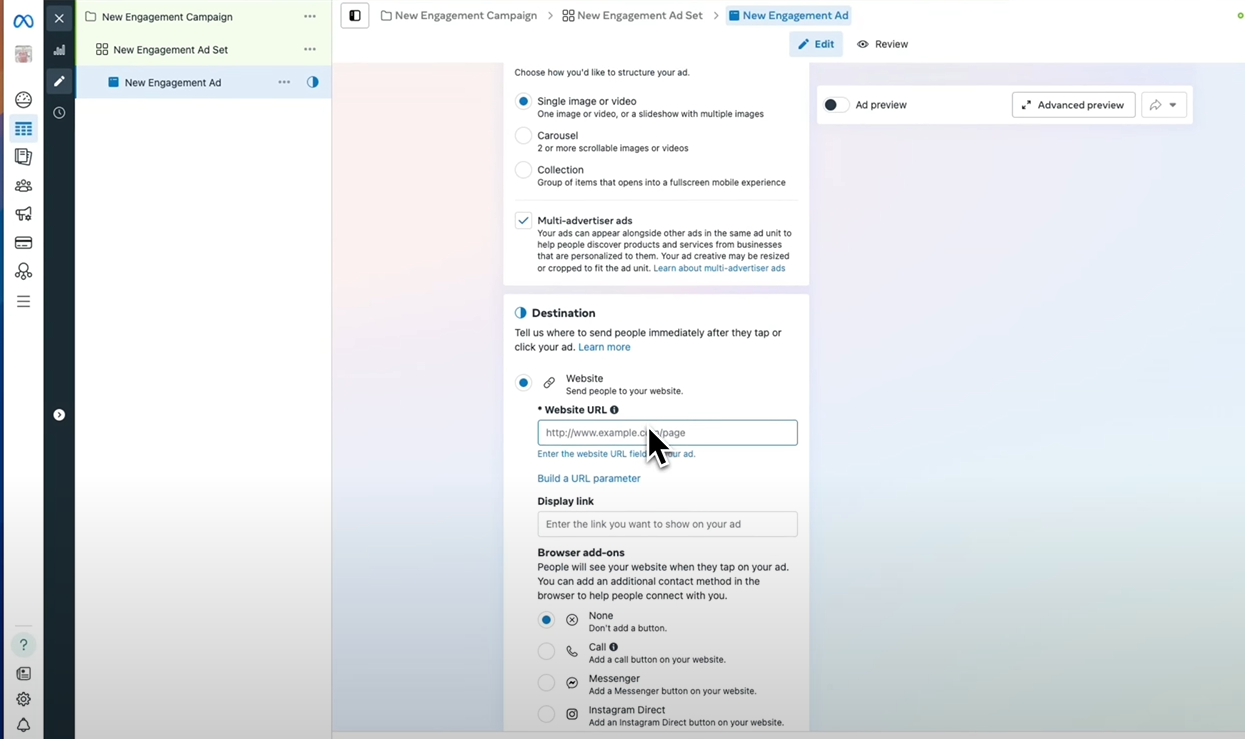
First, access Meta Ads Manager and open the ad editor. In the destination link field, paste the Yay! Forms form link (without UTMs), as shown below:
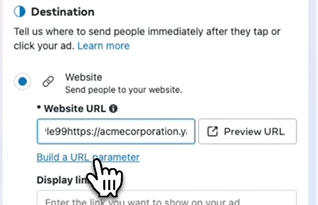
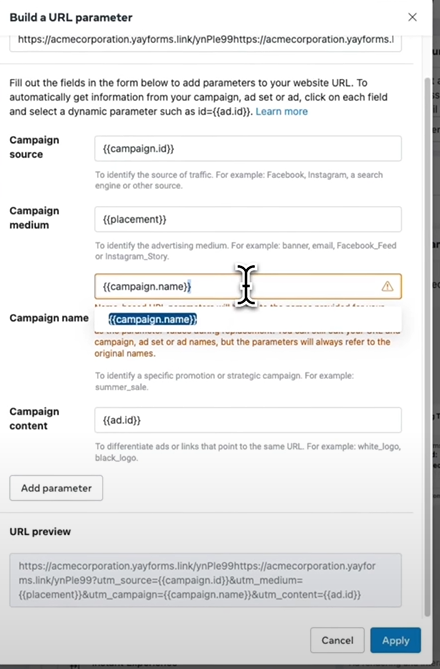
Right after that, click the Parameter Builder option to add the UTMs.
Configure the parameters using dynamic variables suggested by Facebook, as shown in the example below:
3 - Viewing UTMs in Responses
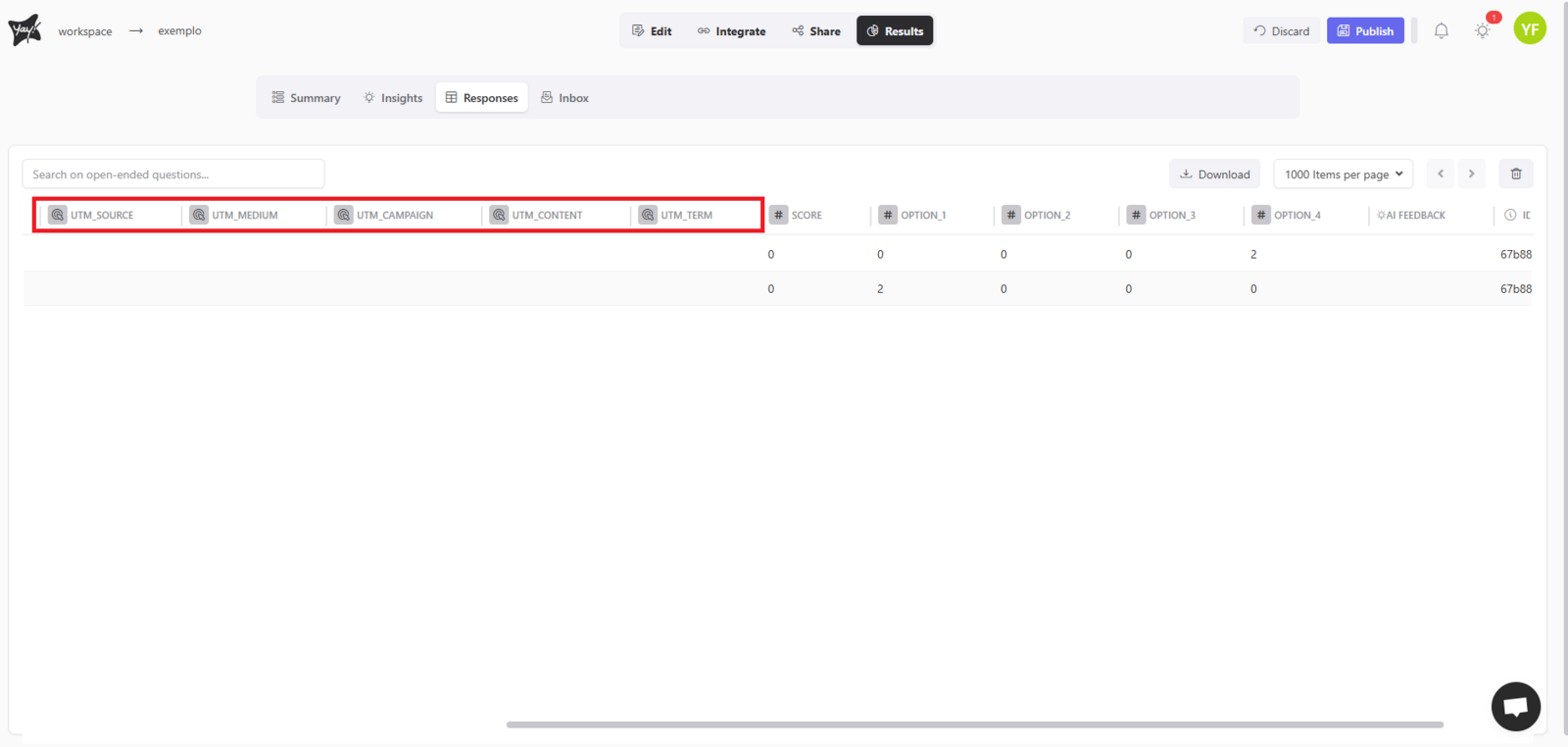
- Go to the Results menu of your form in Yay! Forms.
- The columns corresponding to the UTM parameters (utm_source, utm_medium, etc.) will be displayed automatically.
- The values will be filled dynamically based on the information received from the Meta ad.
4 - Best Practices
- Do not use fixed UTMs directly in the link copied from Yay! Forms.
- Always use Meta's parameter builder for automation.
- Create a reference spreadsheet to identify campaigns based on IDs.
- Verify that the final link is correct and working before publishing the ad.
Conclusion
This setup ensures that each response received in Yay! Forms is correctly associated with the ad source, enabling a complete analysis of your campaign performance.