This article will help you set up and use email feedback by connecting a SendGrid SMTP account in Yay Forms, including how to create and copy a SendGrid API key and where to enter it in Yay Forms.
Prerequisite: Understand email feedback setup
First, you need to understand how to set up email feedback and how it works by following this link Como enviar um feedback para o email do usuário.
Connect your SMTP account in Yay Forms
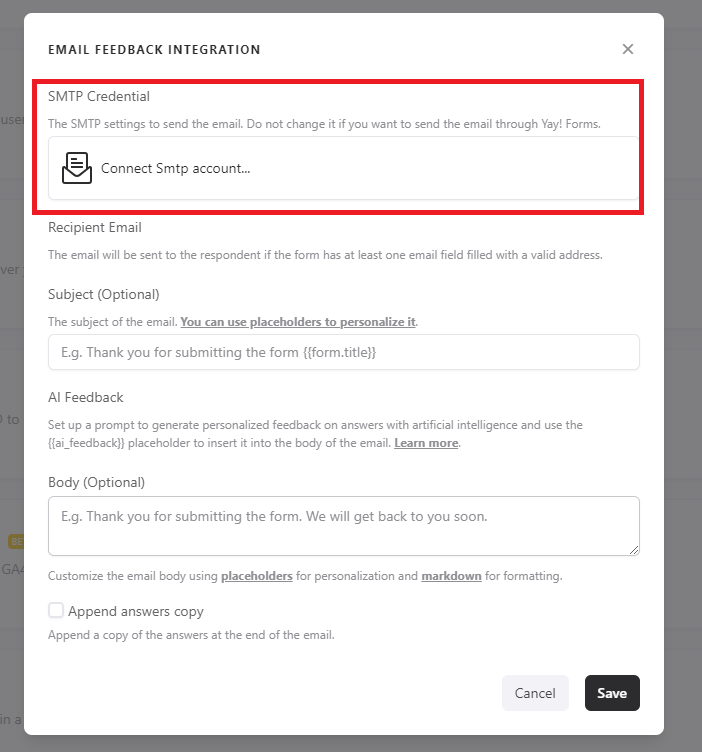
Right after that, you should click on Connect SMTP account as shown in the image below:
Create and copy your SendGrid API key
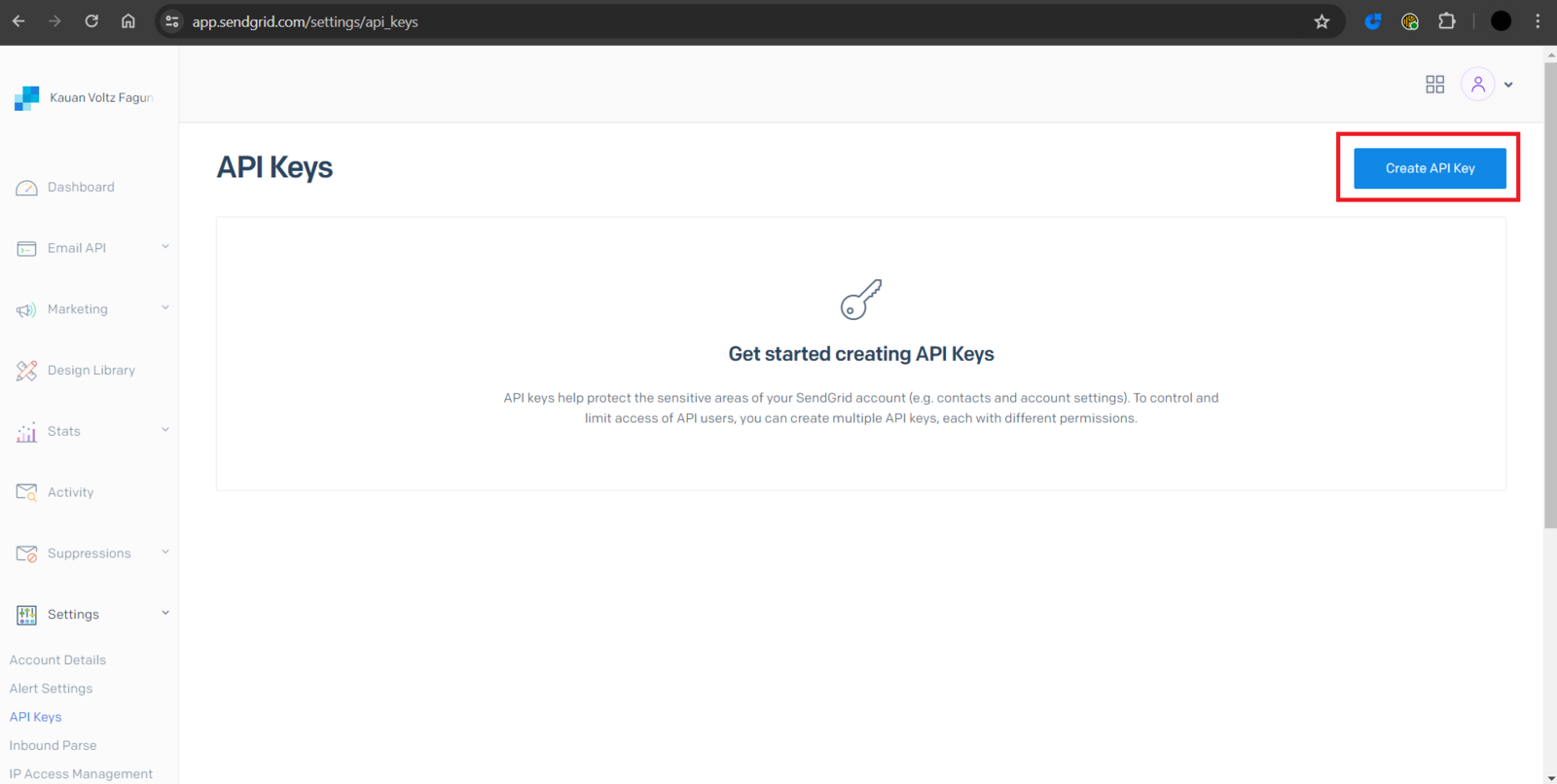
Next, you need to get your SendGrid API key. To do this, simply access this link and click 'Create API Key':
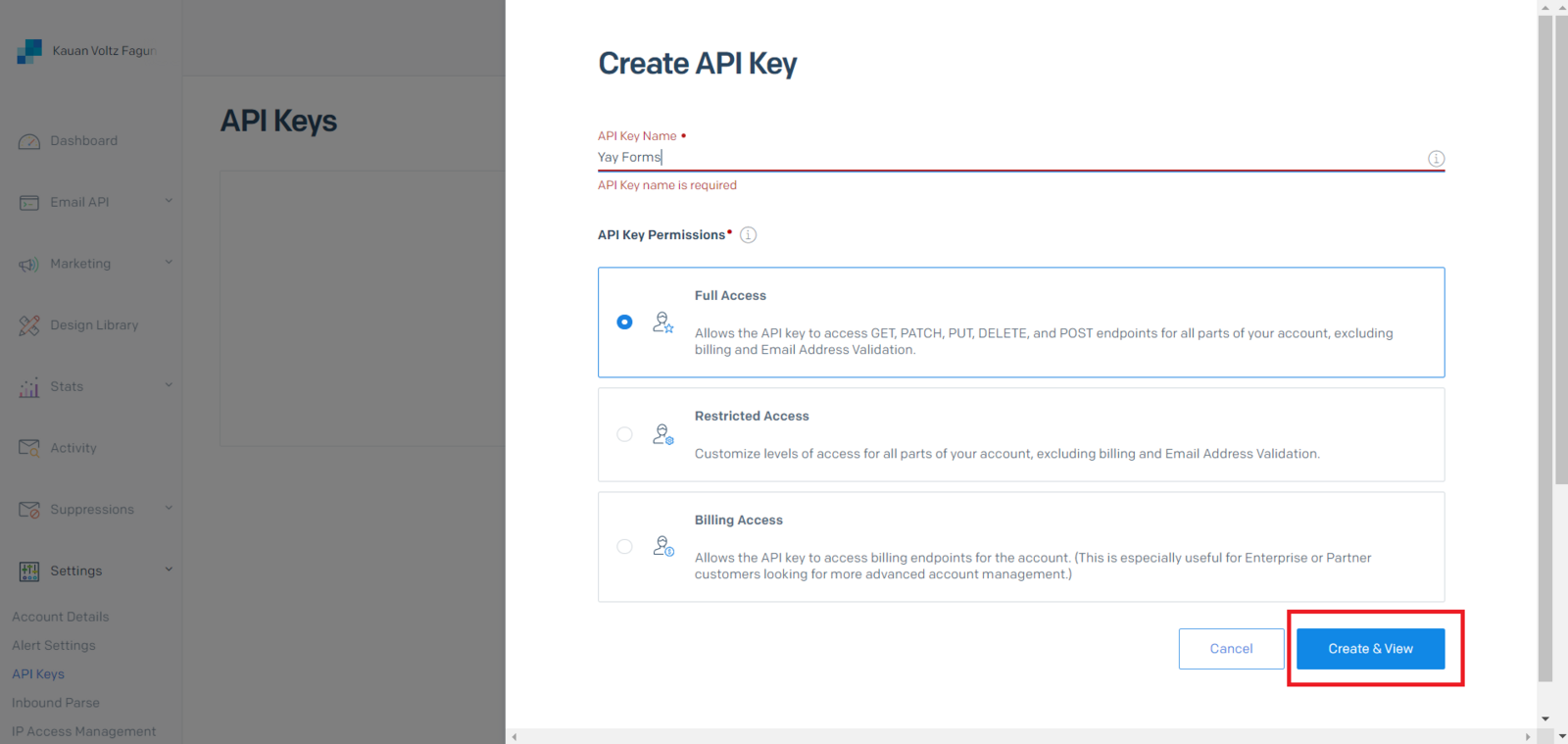
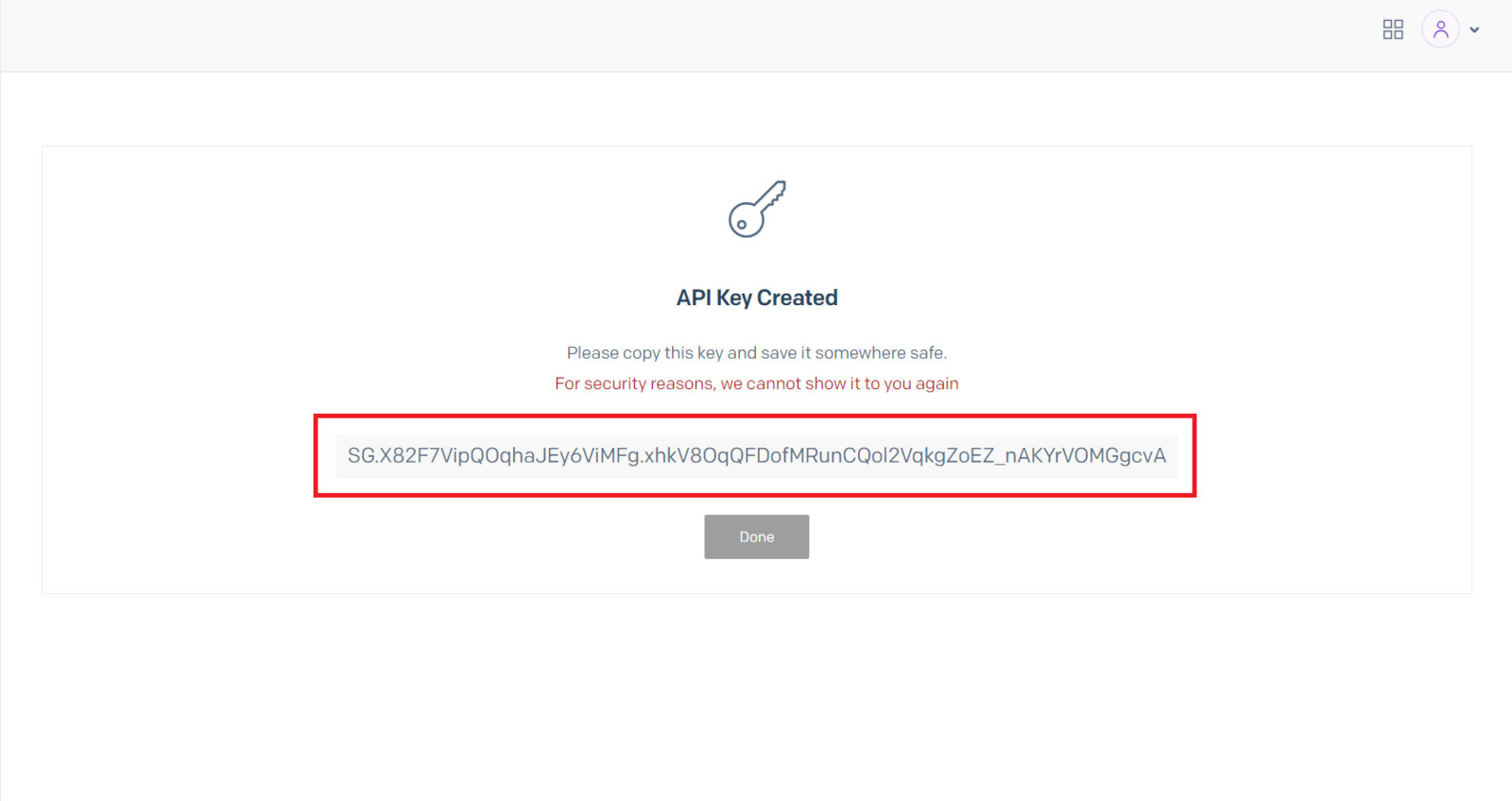
After that, you will need to name your API key, create it, and copy it:
Enter the SendGrid API key in Yay Forms
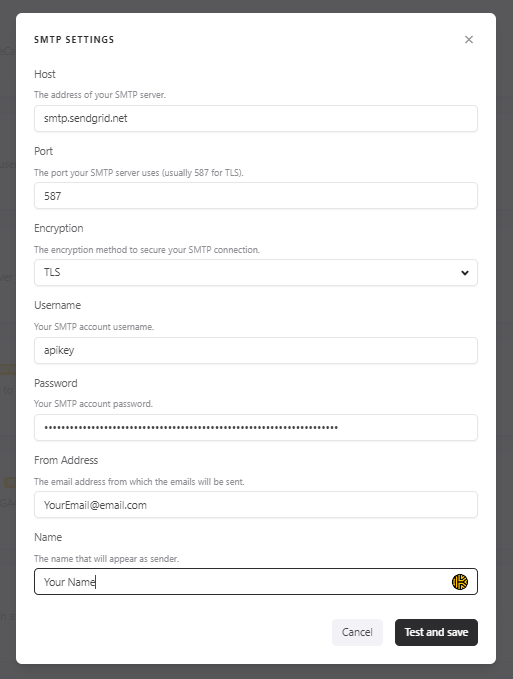
After obtaining your API key, simply go back to Yay Forms and fill in the information below. Remember that the password will be your API key copied earlier:
Support and contact
We hope you enjoy the new integration :)
If you have any questions or suggestions, send an email to [email protected].
Conclusion
You learned how to connect a SendGrid SMTP account to Yay Forms for email feedback, including where to create a SendGrid API key and how to use it as the password when filling in the SMTP connection details.