This article explains how to create an image choice question, where users can select an answer from a list of options that include attached images. It also covers how to add or select option images, create additional choices, adjust settings like multiple selection and randomized ordering, and customize image alt text.
Image choice question type
In this type of question, users can choose an answer with an image attached in the list of options.
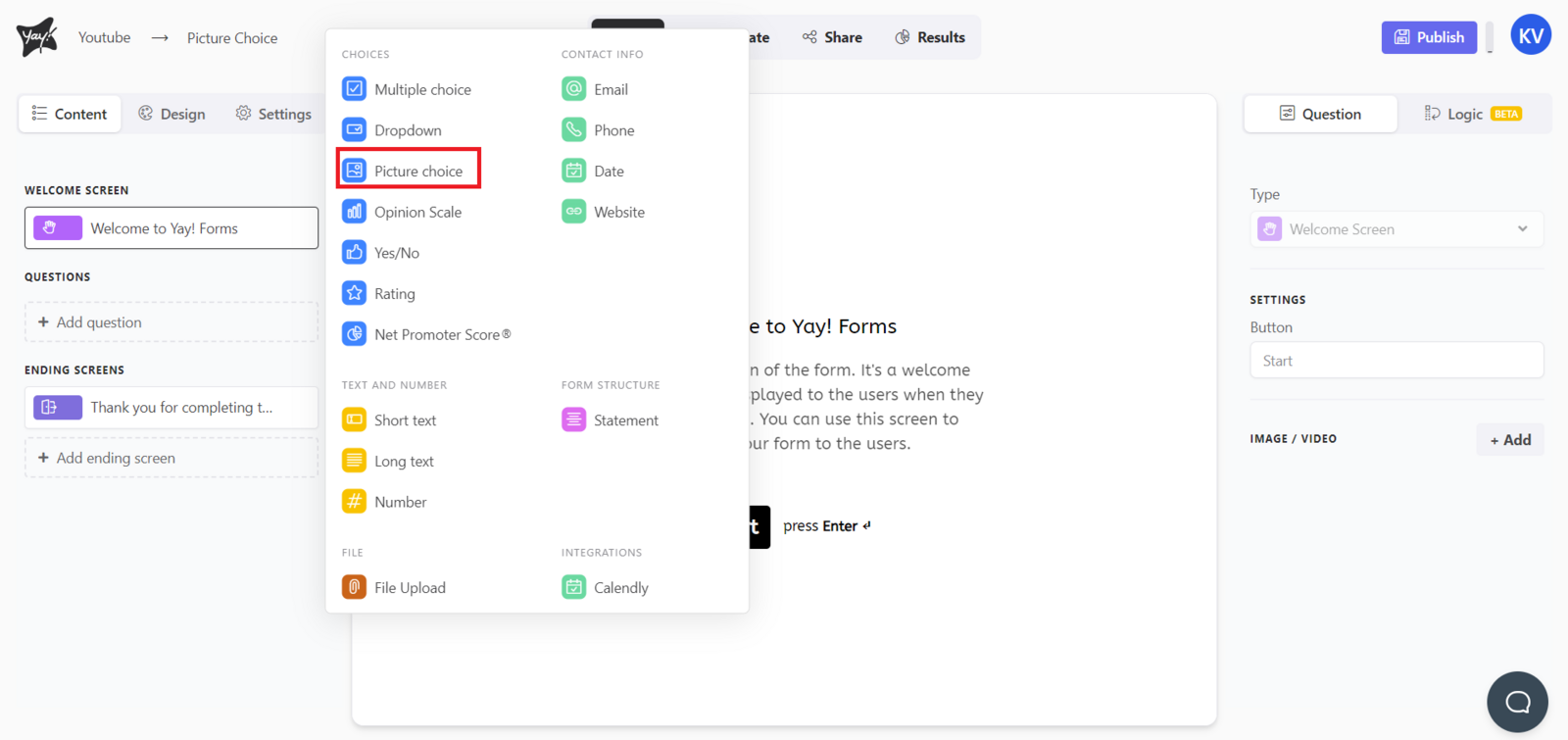
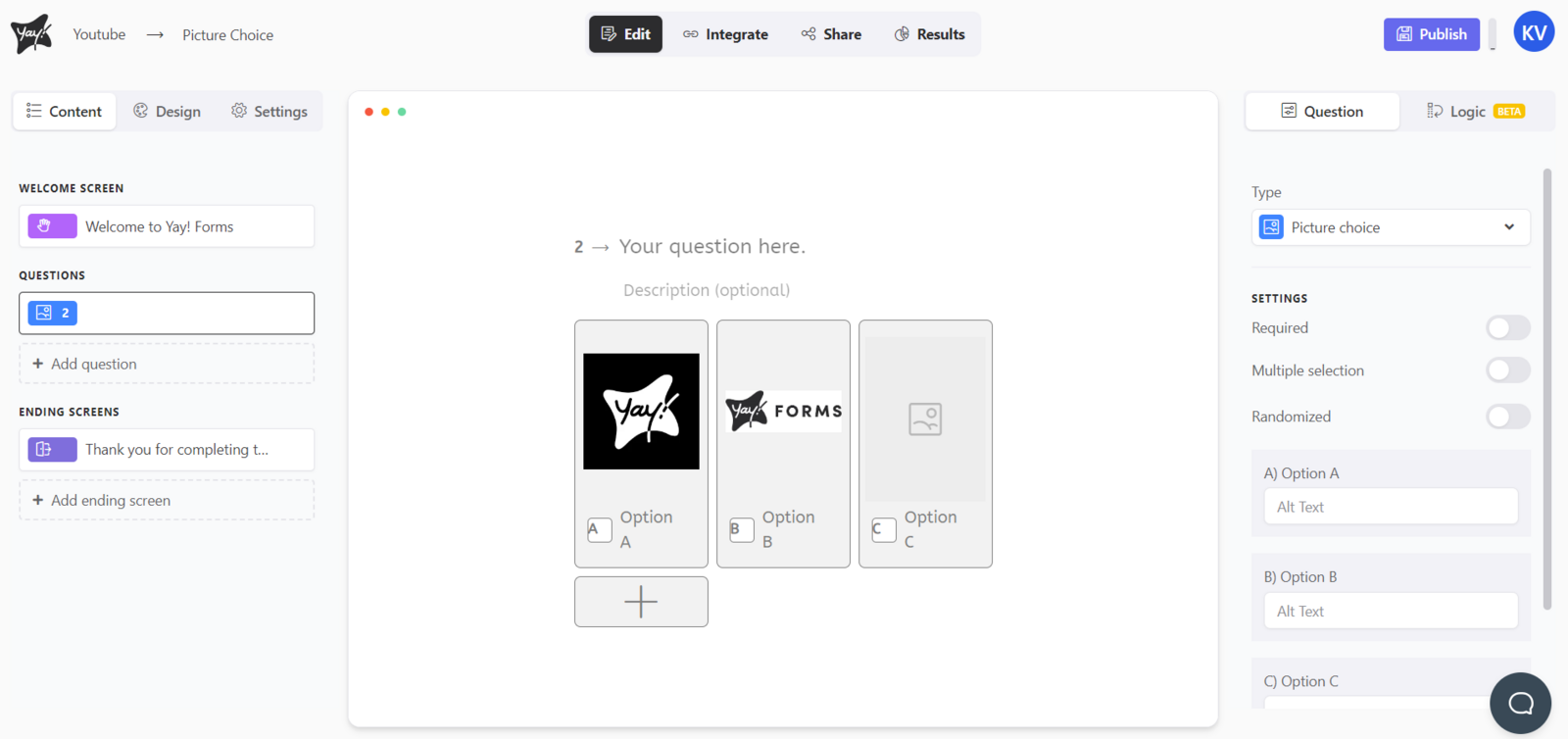
First, choose the 'Image choice' type.
Adding or selecting images for options
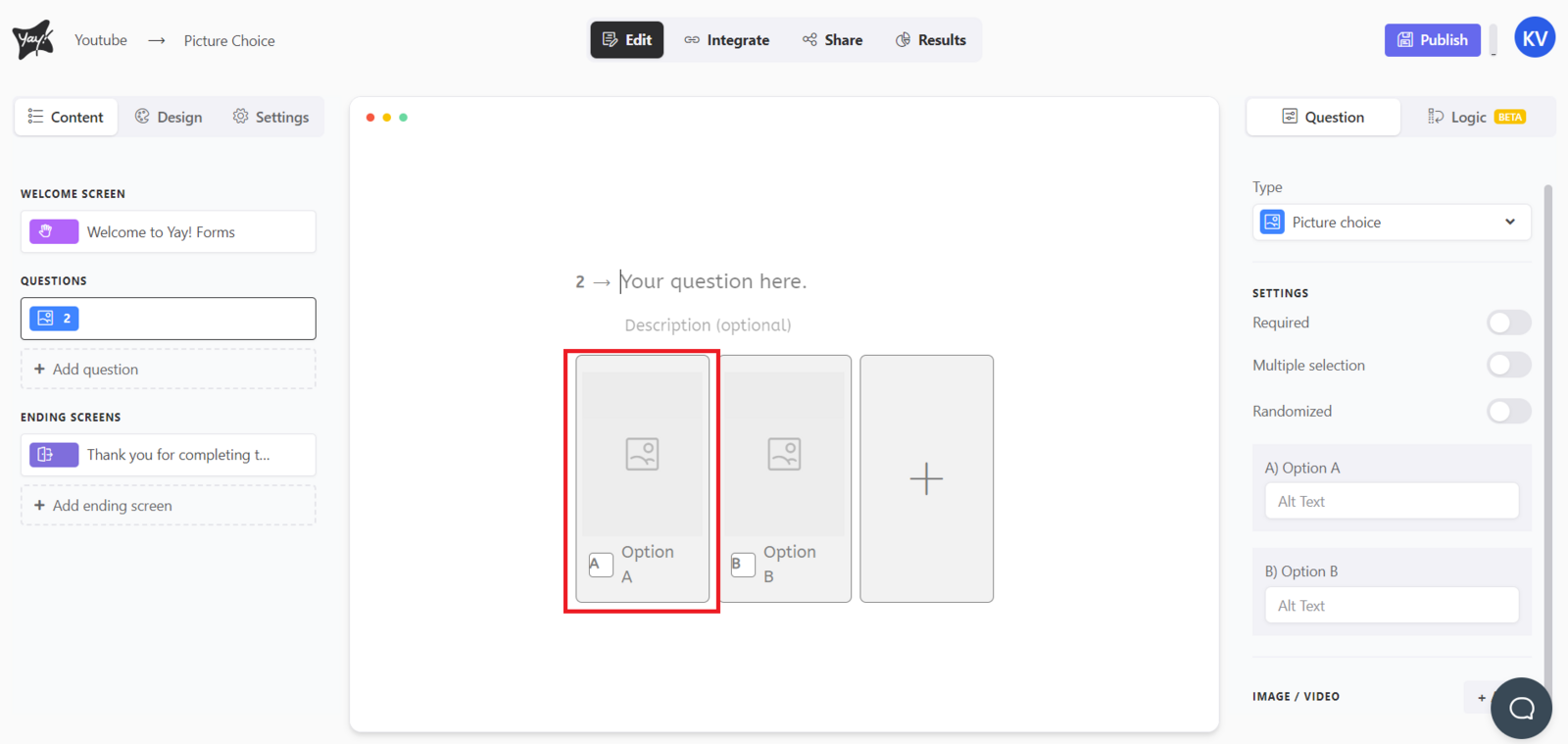
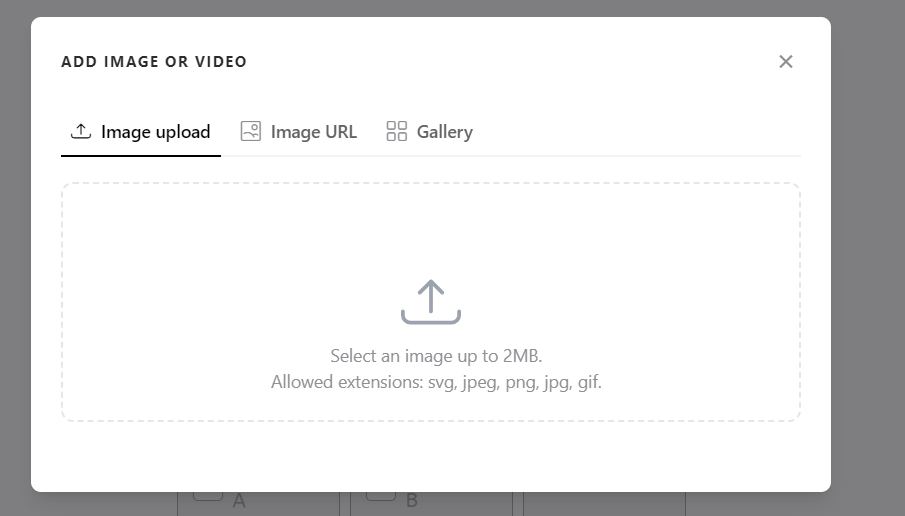
By clicking the option image icon, you can add a new image or select an image from your gallery.
Adding new choices
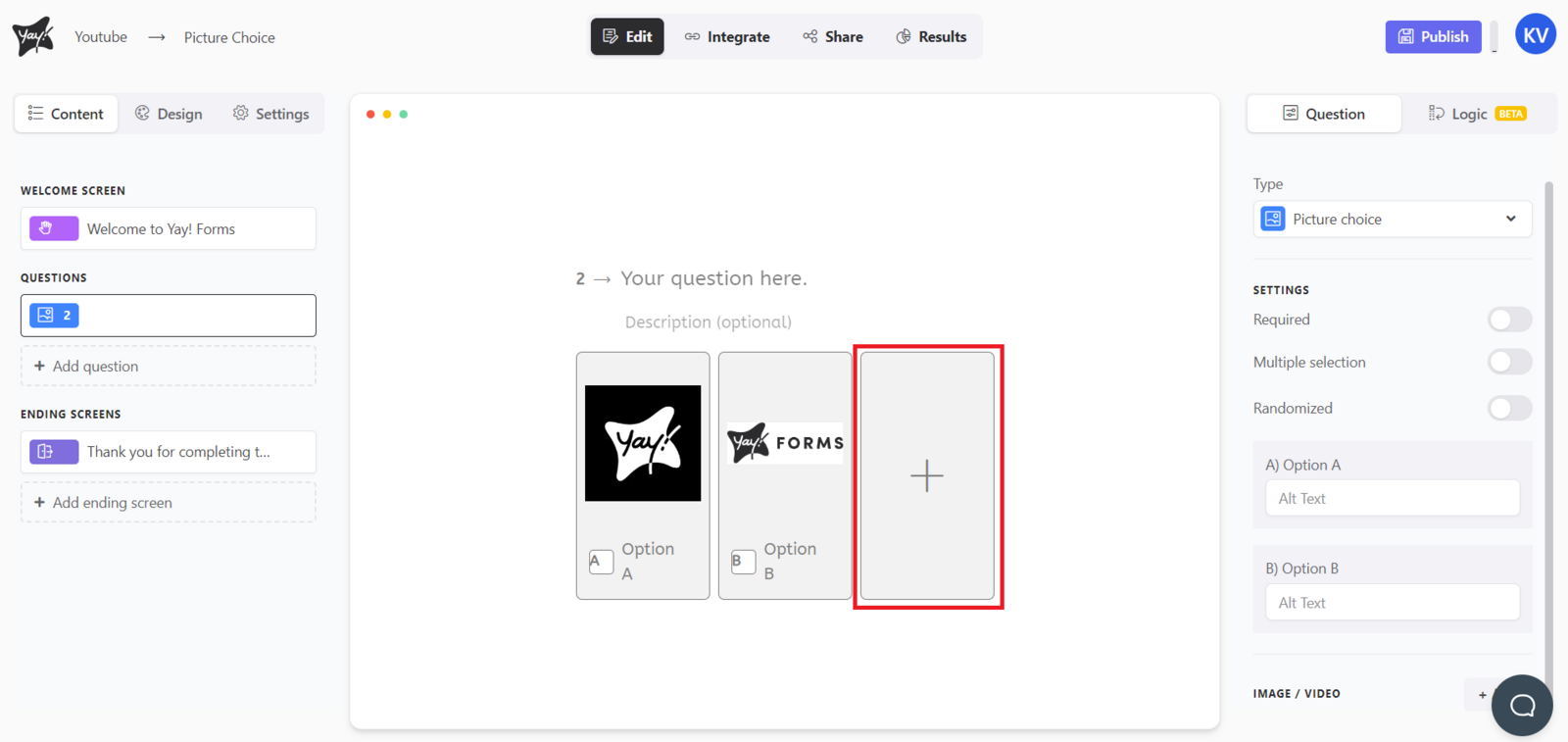
To add a new choice, just click the + sign next to your last option.
Configuring option behavior
You can also change the settings according to your preference.
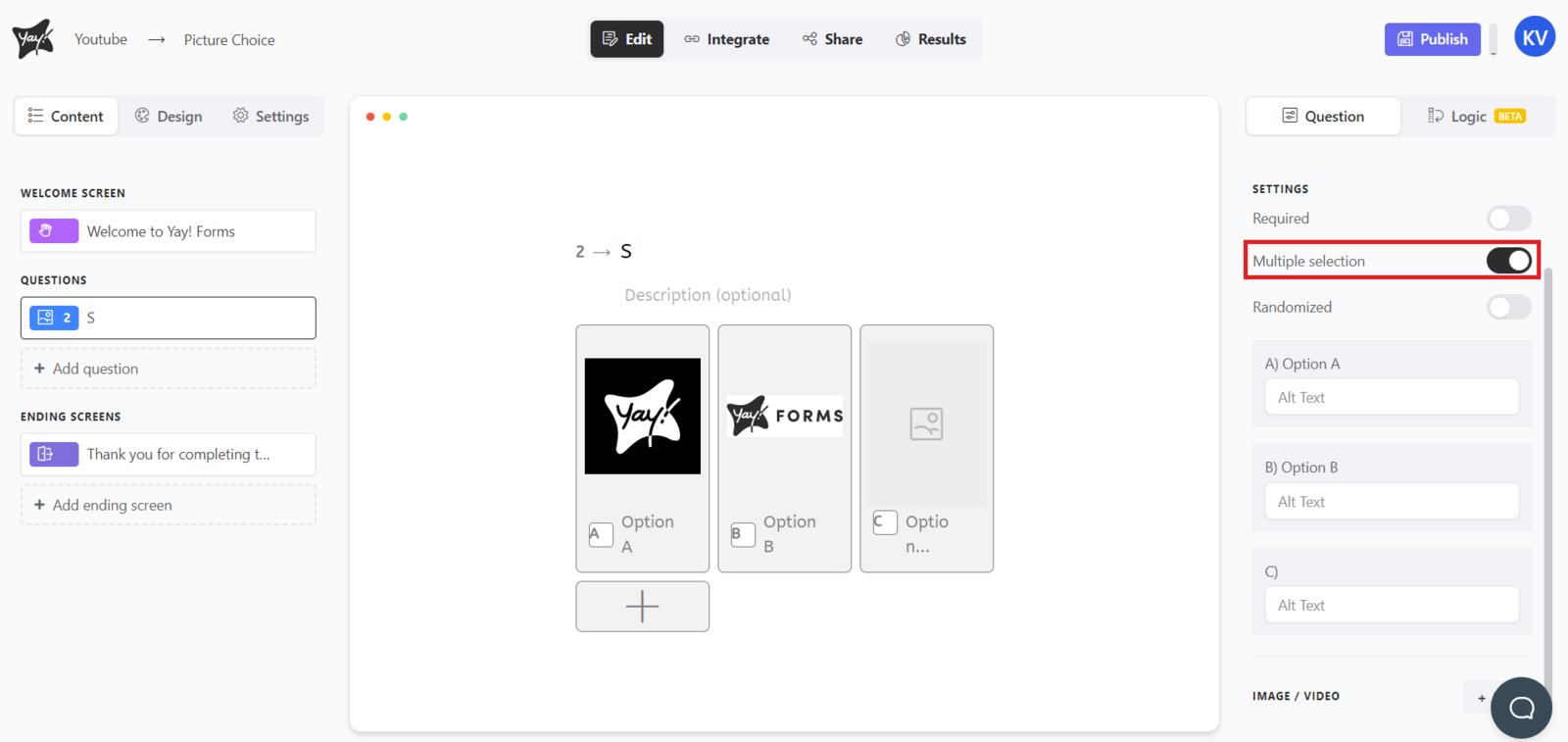
'Multiple selection' allows users to select multiple answer options.
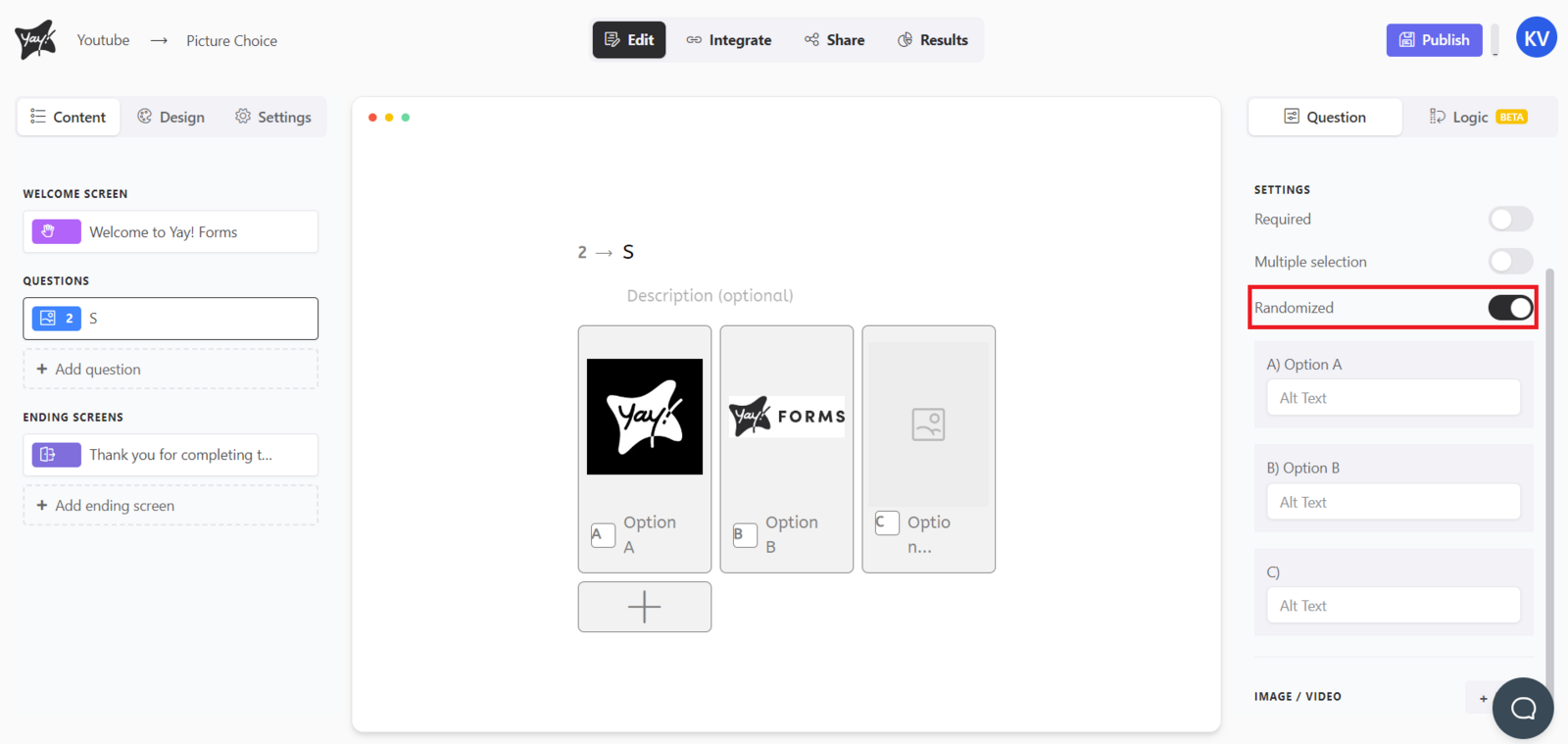
'Randomized' randomizes the order of the options.
Customizing image alt text
You can also customize the image alt text on the right side of the form.

Conclusion
You learned how to set up an image choice question, attach or select images for each option, add additional choices, adjust selection and ordering settings, and edit the image alt text within the form.