This article explains how to create and configure a multiple choice question, including how to edit the question text, add an optional description, manage answer choices, and adjust settings such as allowing multiple selections, randomizing choices, and adding an “Other” option.
Multiple choice question type overview
In this type of question, users can choose an answer from a list of options.
Selecting the question type
Choose this question type by selecting Multiple choice from the dropdown menu under Type in the upper-right corner of the screen.
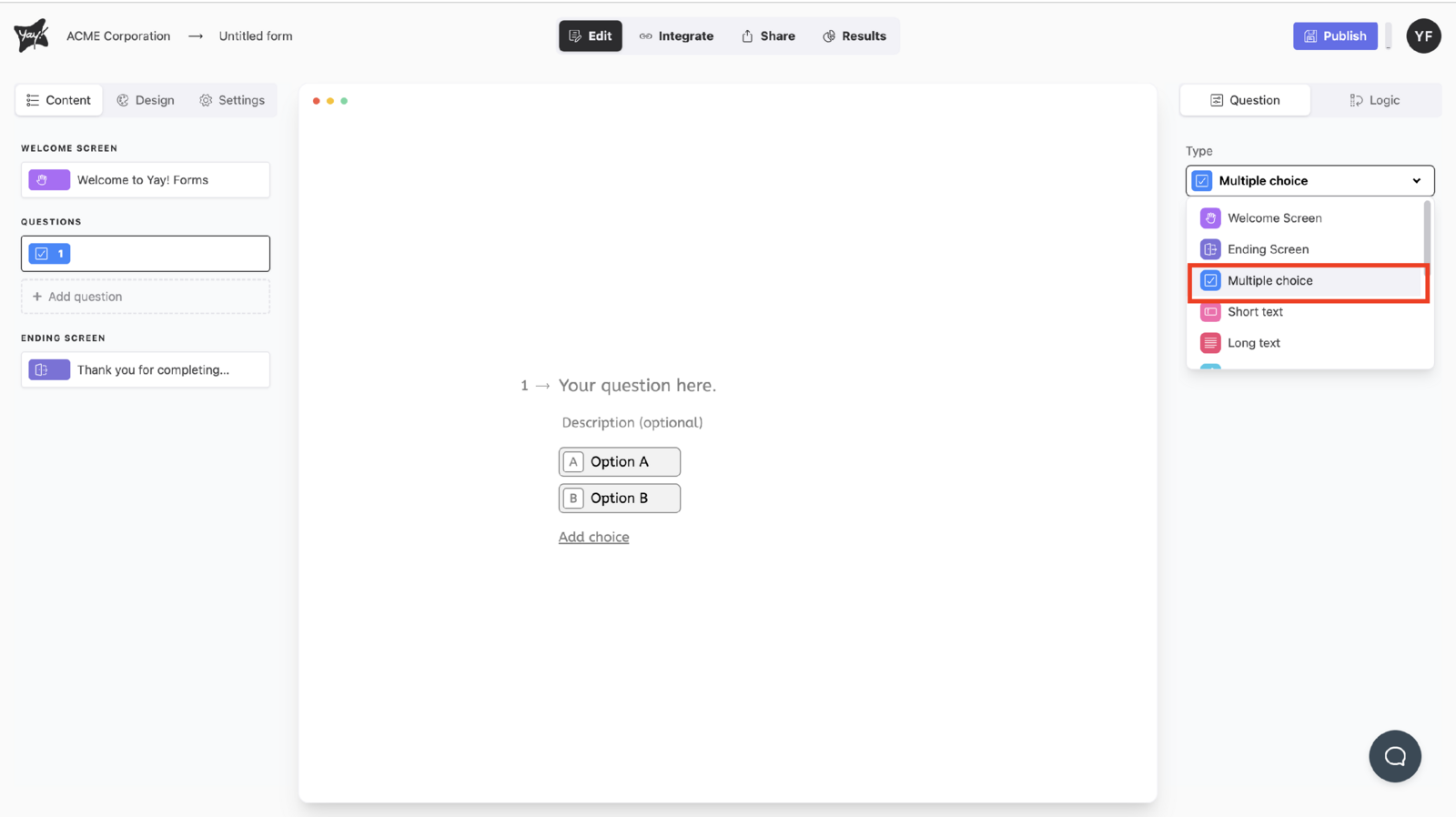
Editing the question and description
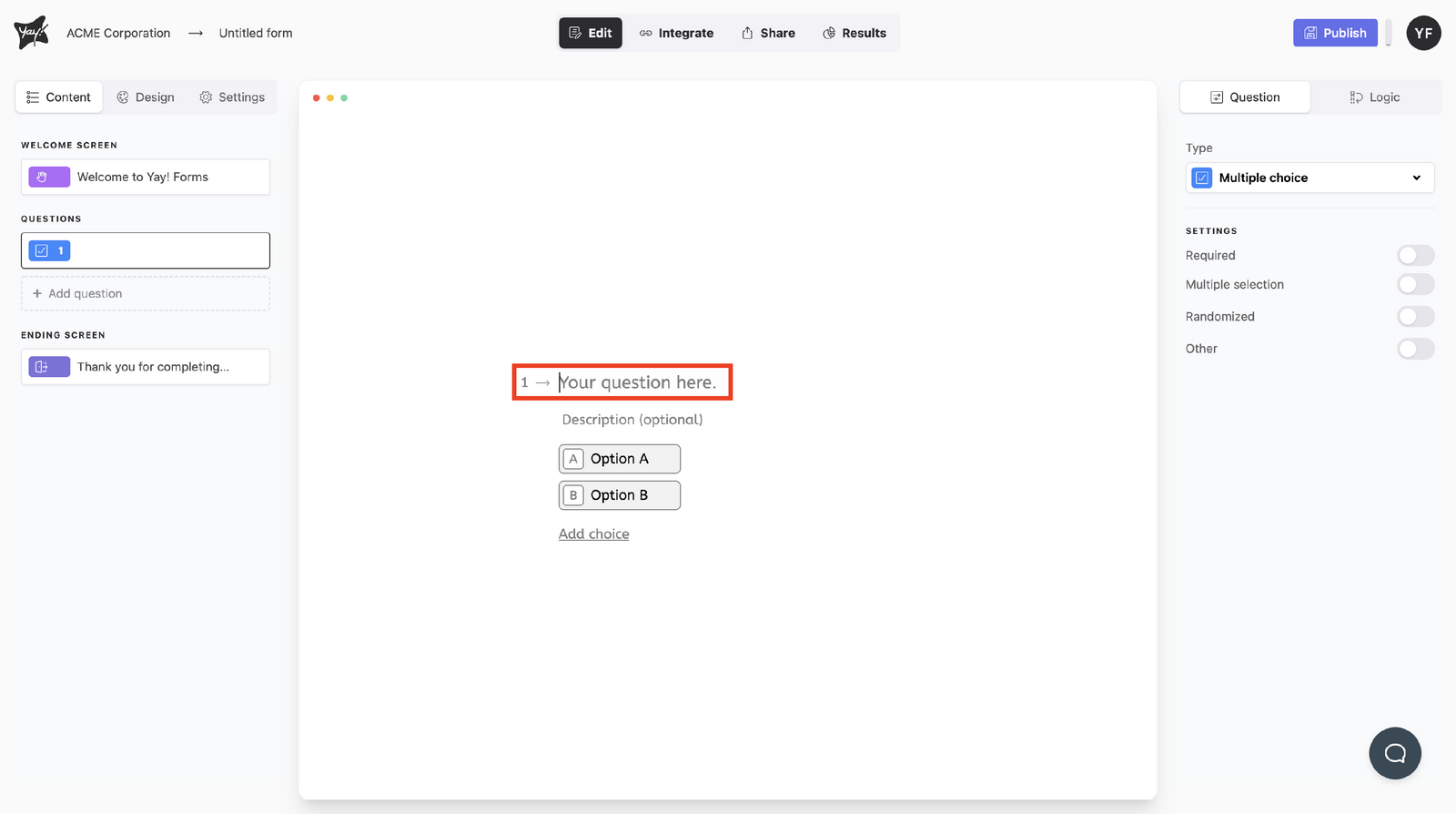
Edit the question by typing in the "Your question here" field.
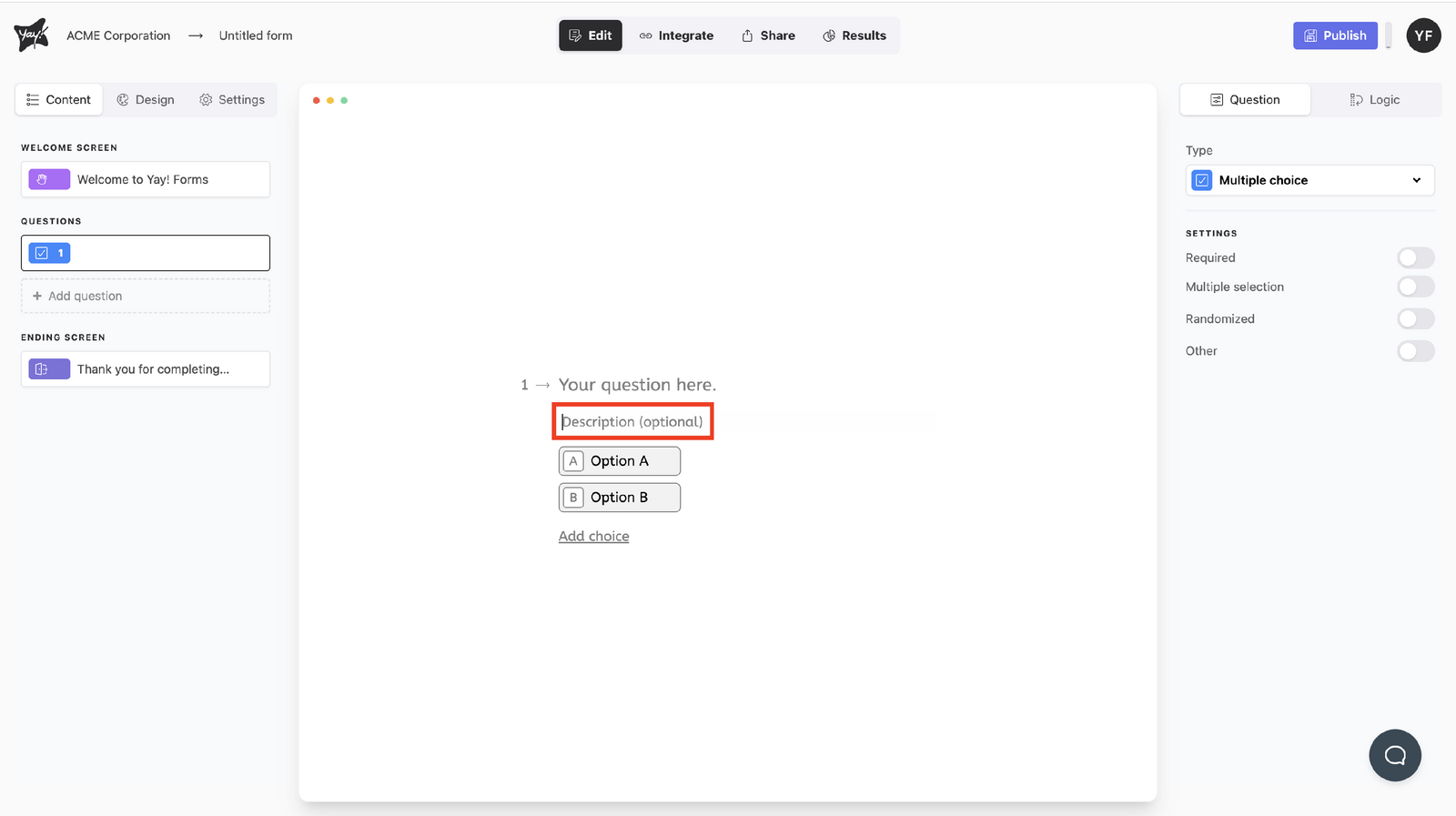
If you’d like, add a description by typing in the description field.
Managing answer choices
Edit the answer choices by typing in the choice fields.
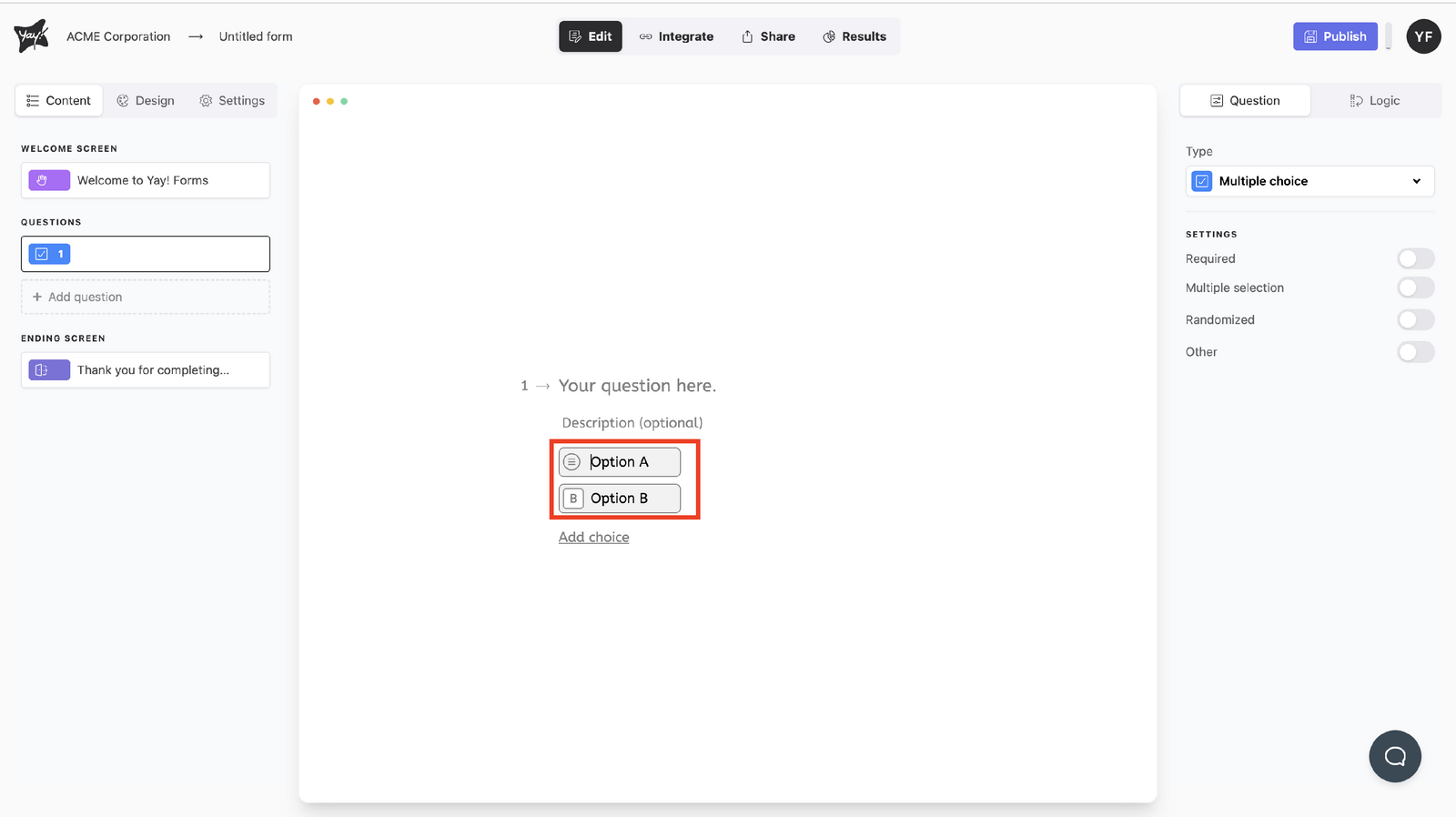
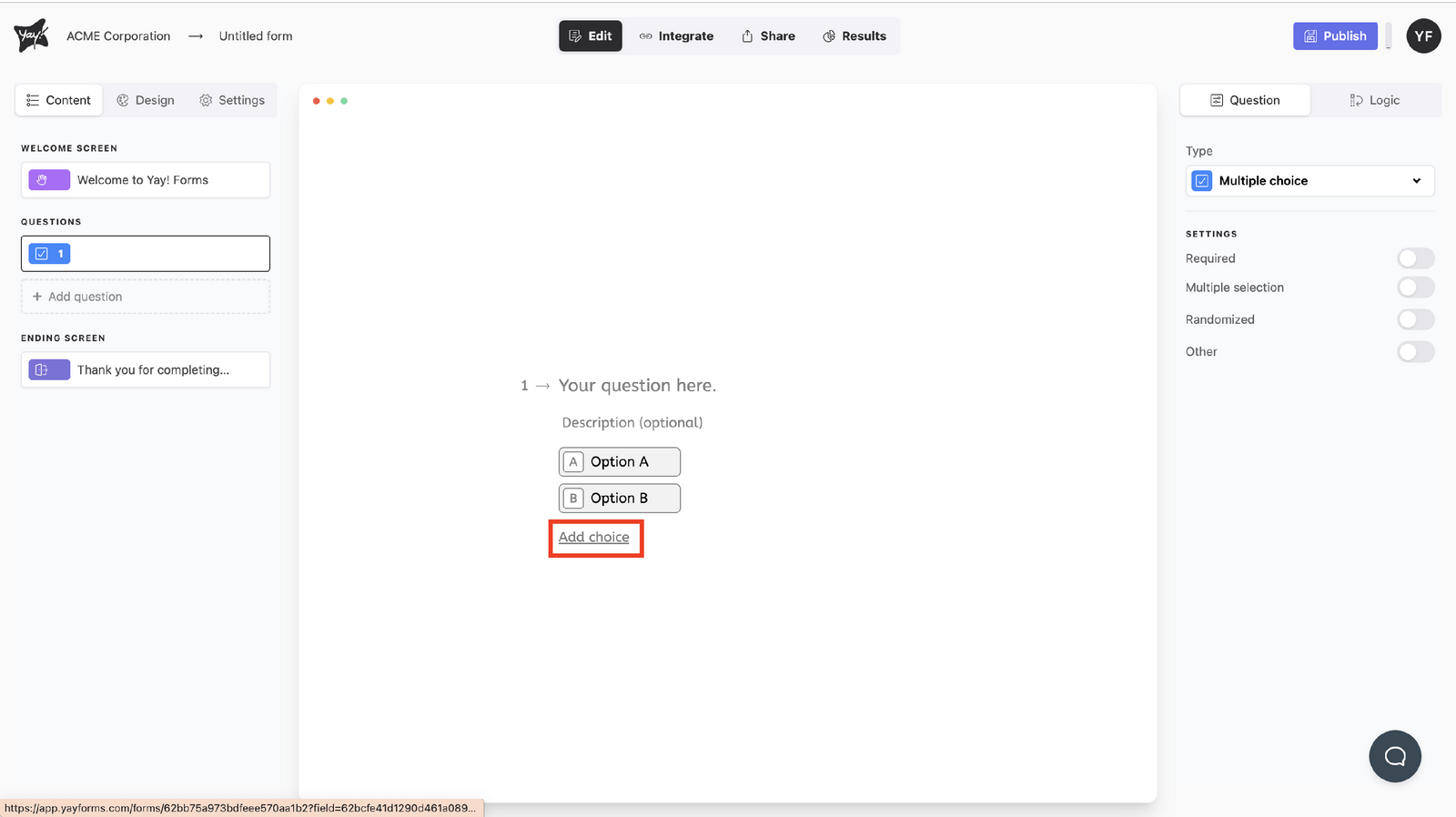
Add choices by clicking the Add choice button at the bottom of the screen.
Configuring question settings
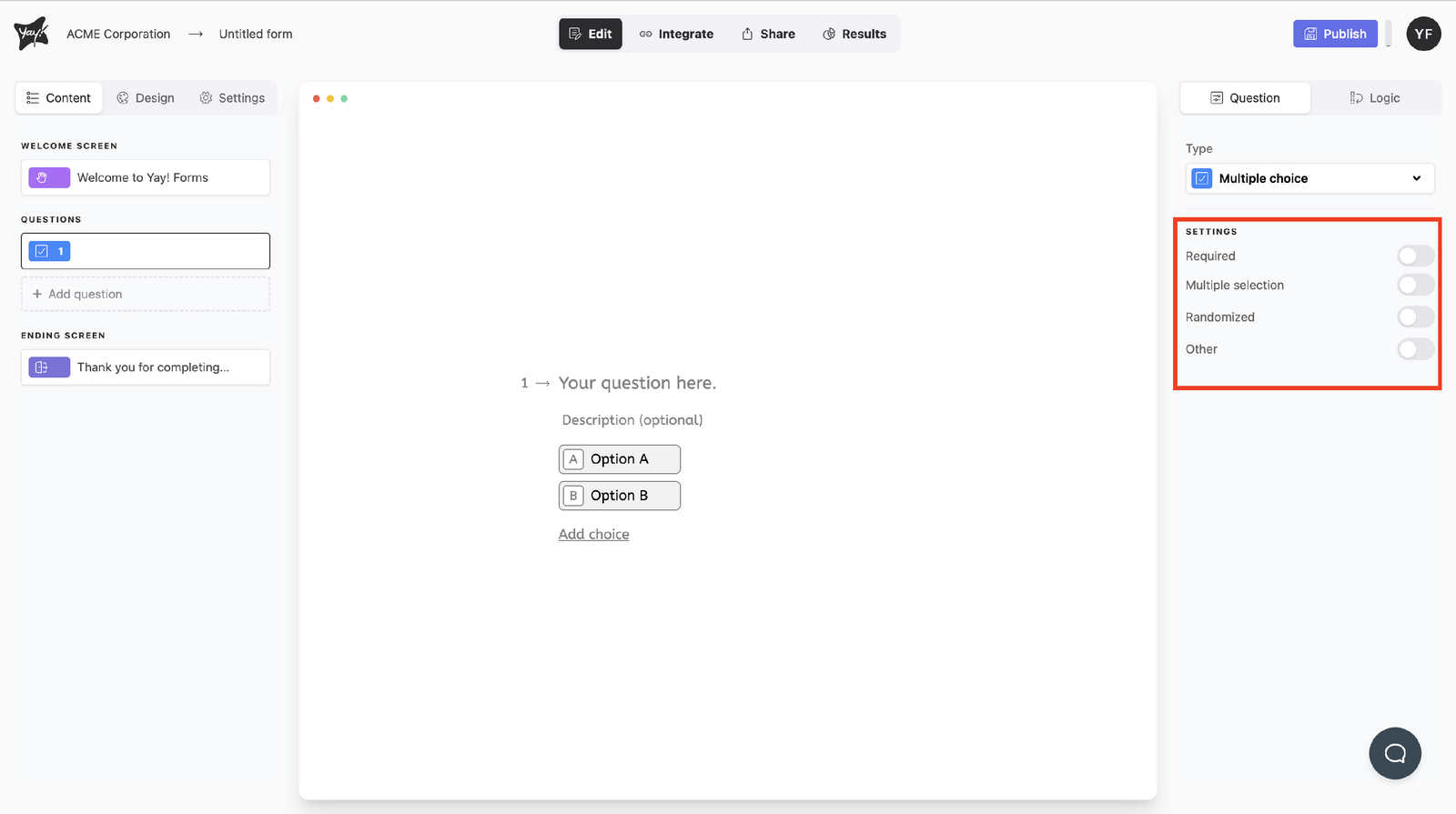
Change the question settings to your liking.
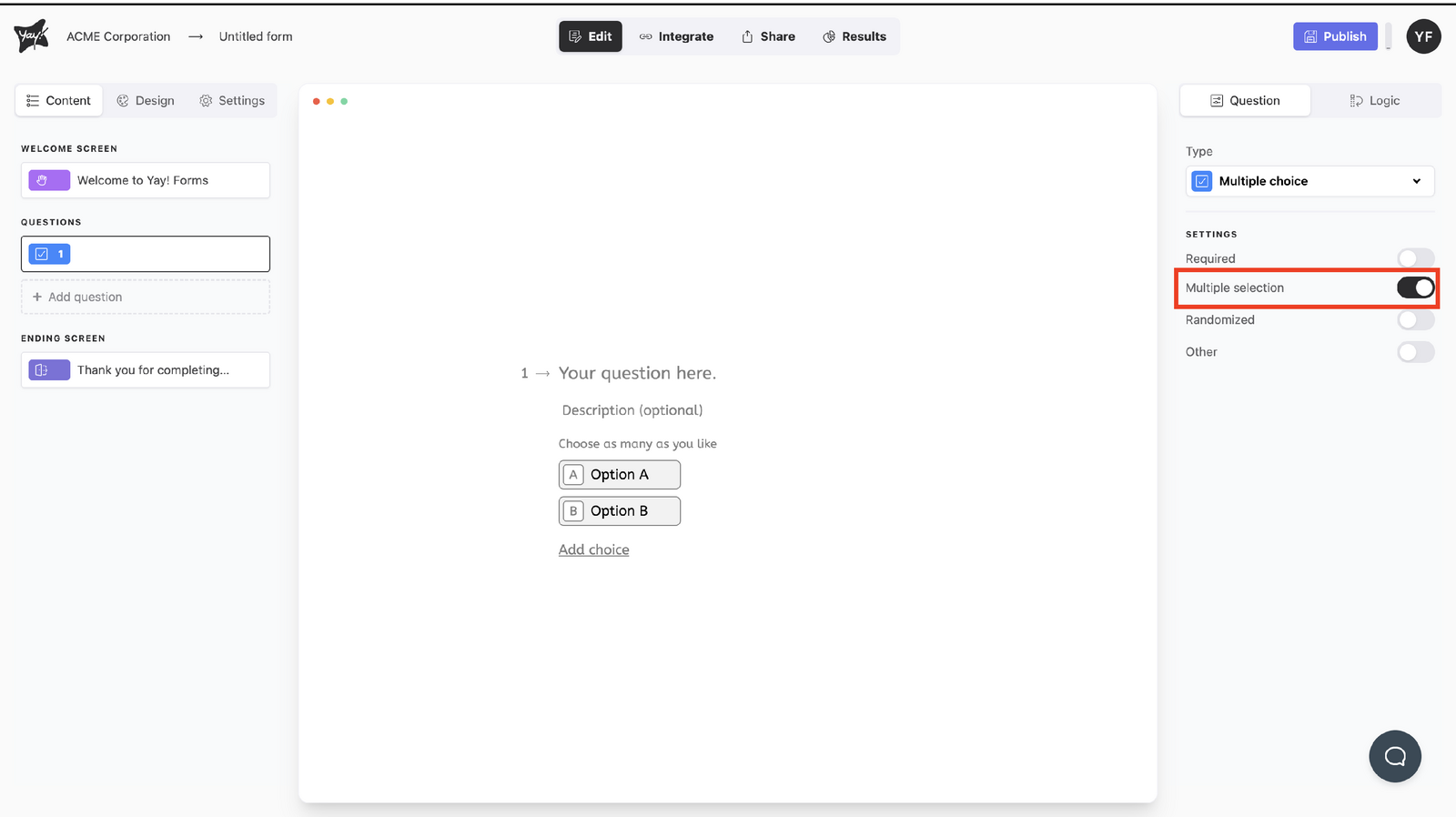
Multiple selection
Multiple selection allows users to select multiple answer choices.
Randomized
Randomized randomizes the order of the answer choices.

Other
Other adds an “other” option to your answer choices.

Conclusion
You learned what a multiple choice question is and how to set it up by choosing the correct type, editing the question and description, managing response options, and adjusting settings like multiple selection, randomization, and an “Other” choice.