This article explains how to use the Short text question type, where users can type a brief response. You will learn how to select this question type, edit its basic fields, and enable key settings such as keyword extraction, text analysis, and automatic response classification.
Short text question type
In this type of question, users can type a short answer to your question.
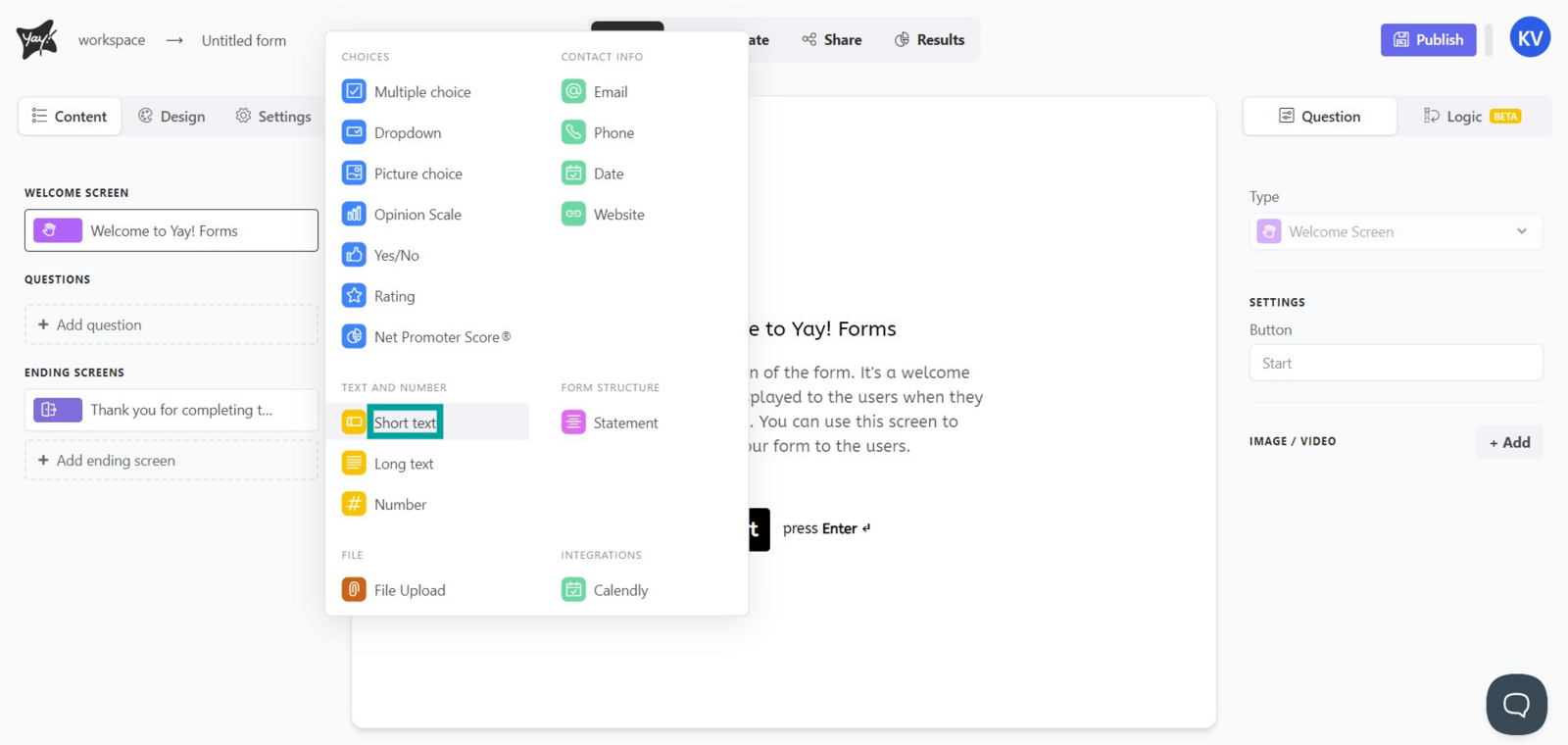
Choose this question type by selecting Short text.
Editing title and description
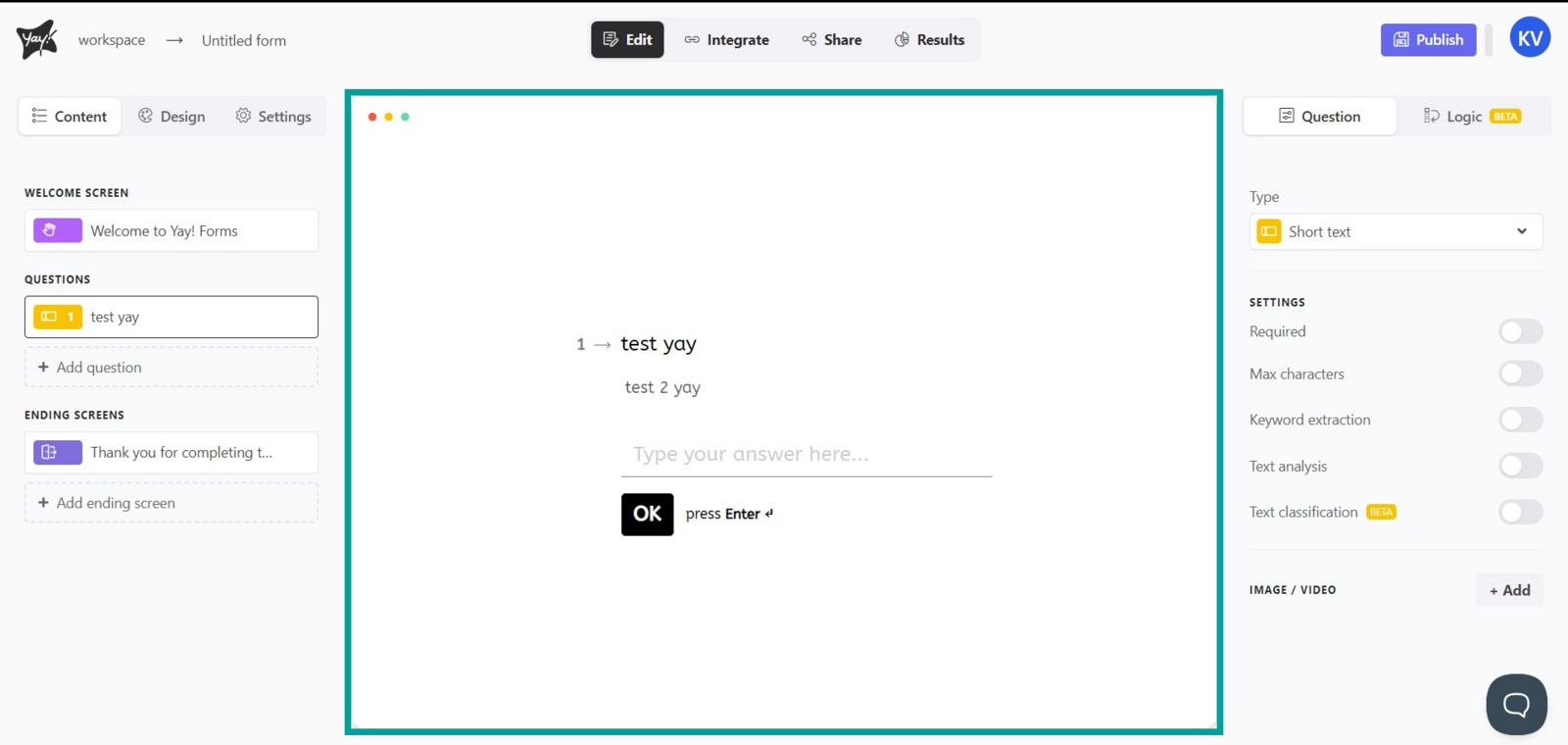
You can edit the title and description by clicking the corresponding fields.
Key settings
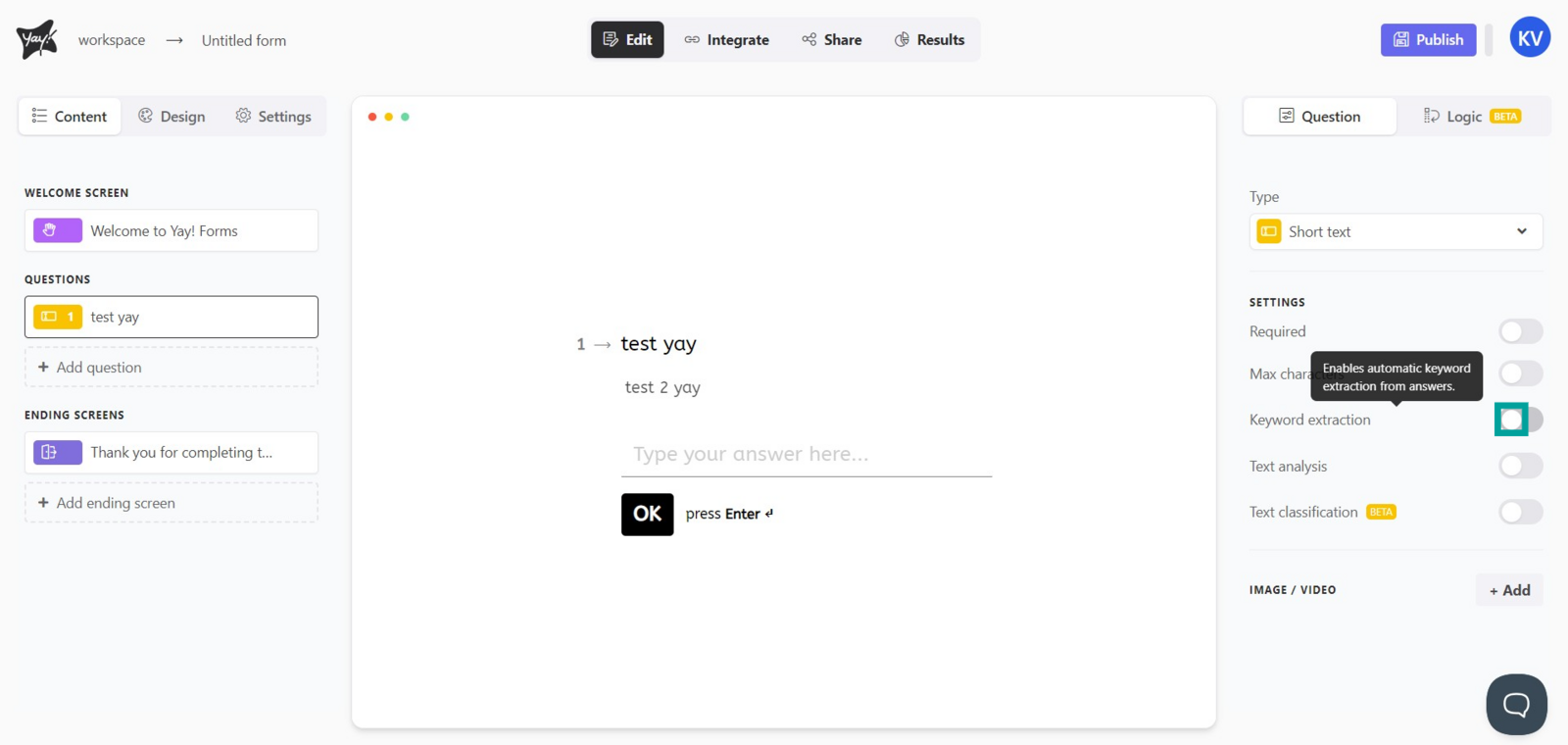
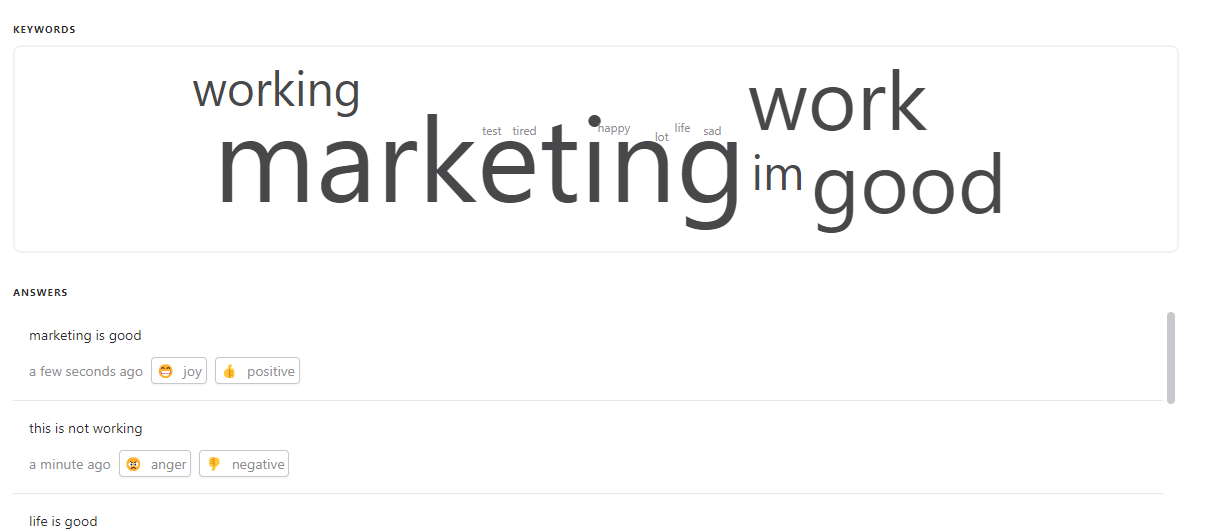
You have some key settings in your short text field, such as keyword extraction, which is used to extract words and create a word cloud from them. You can also filter questions using certain keywords identified by our platform.
Text analysis
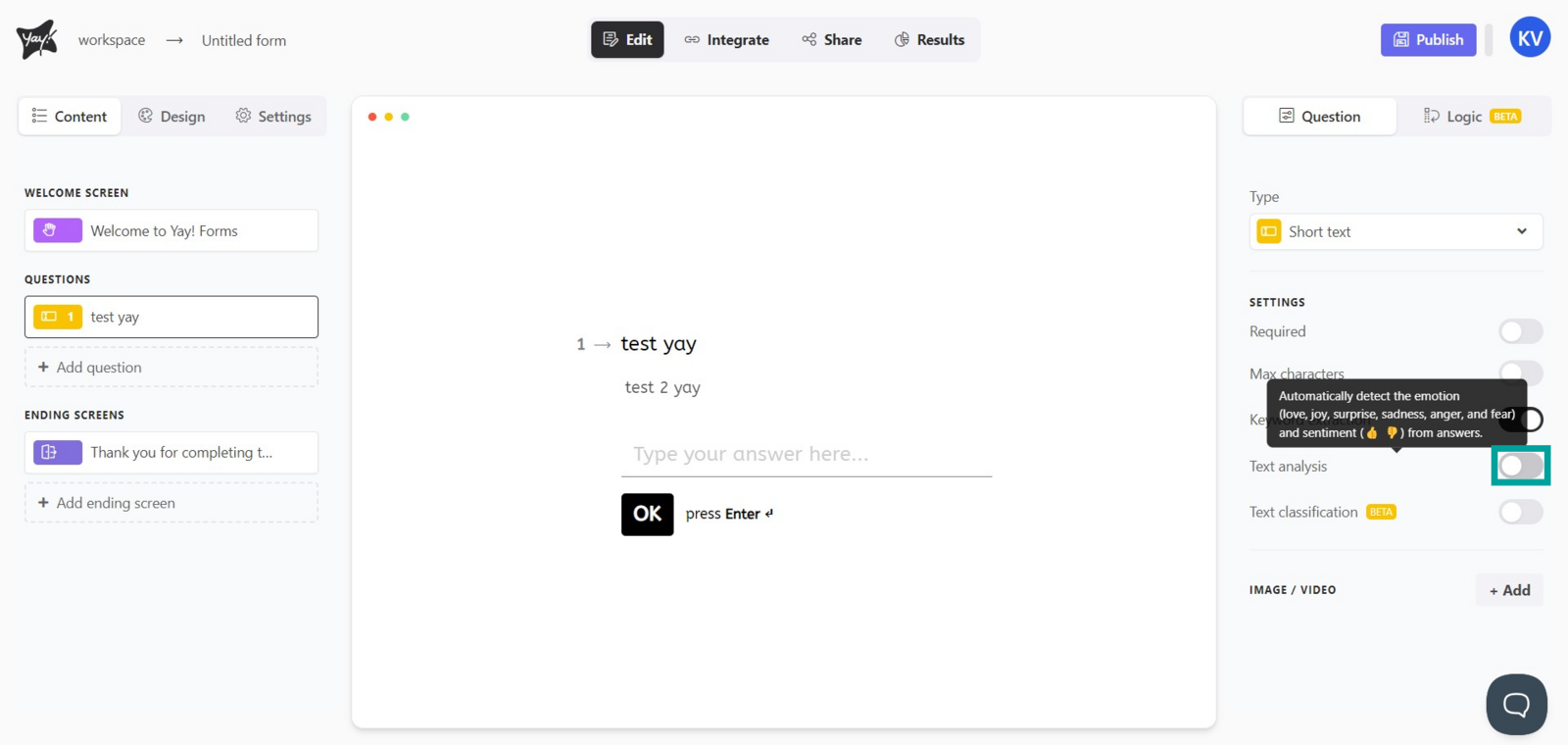
You can also enable the text analysis option, which is used to analyze and filter the sentiment of the user who answers the form and provide you with feedback on how they felt when responding to the form.

Automatic response classification
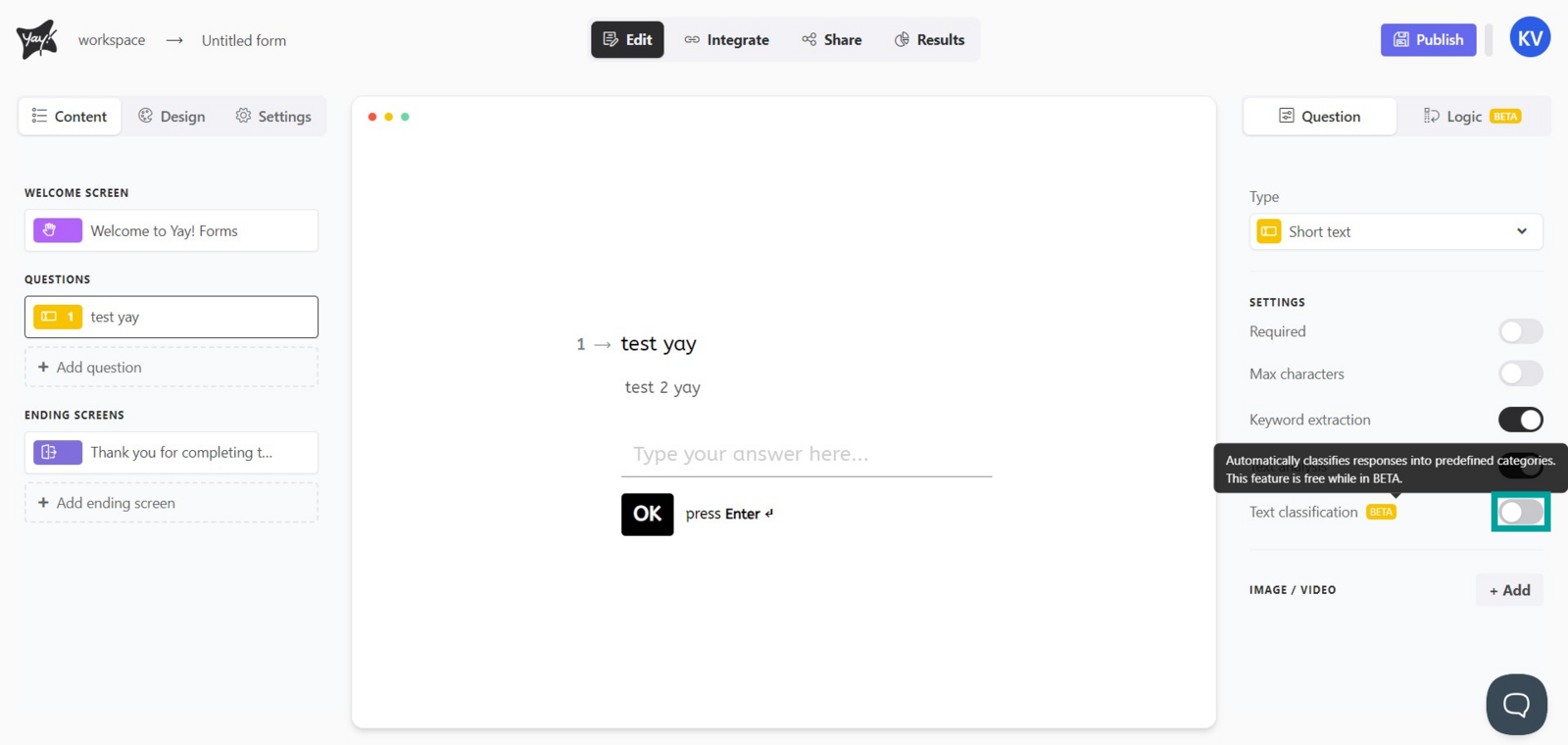
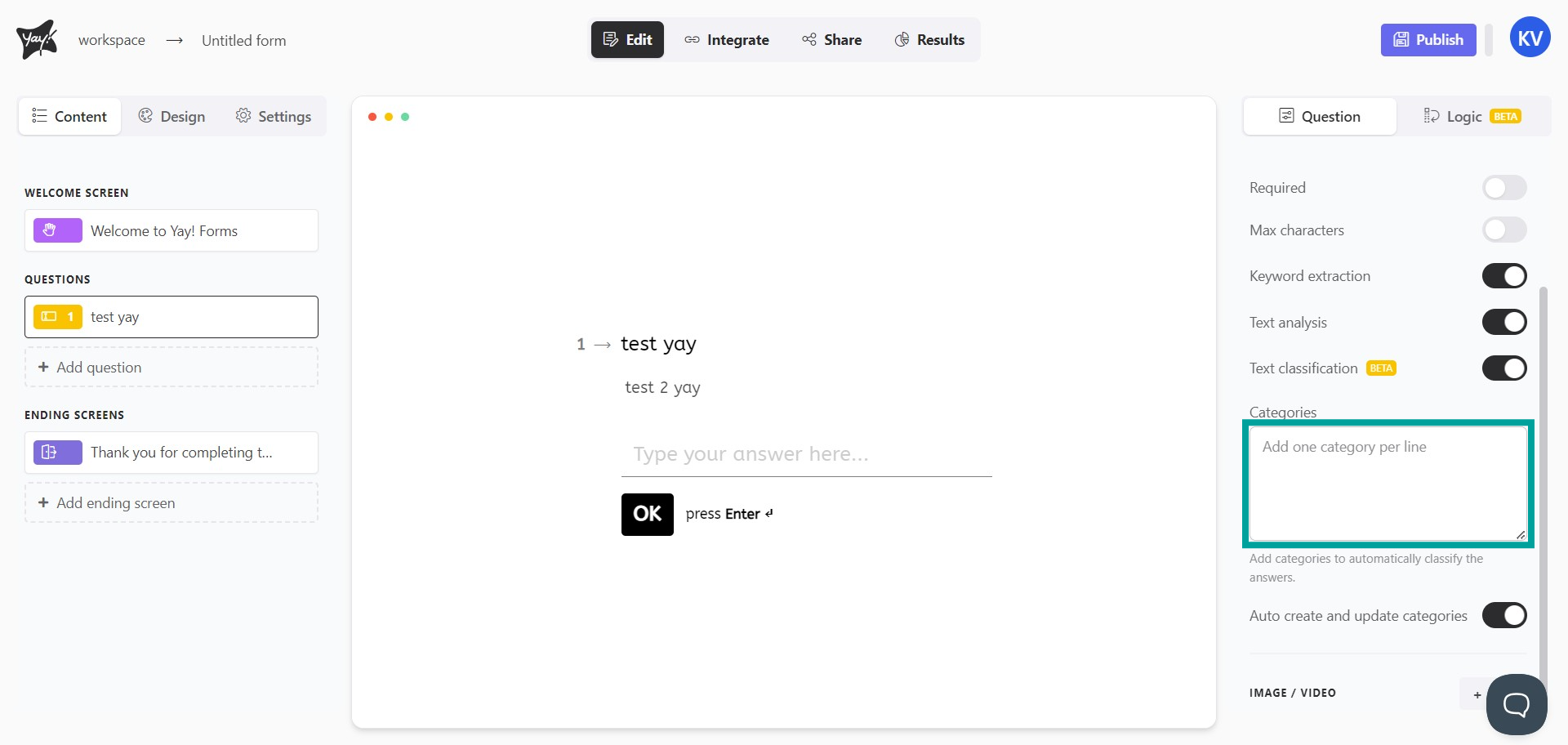
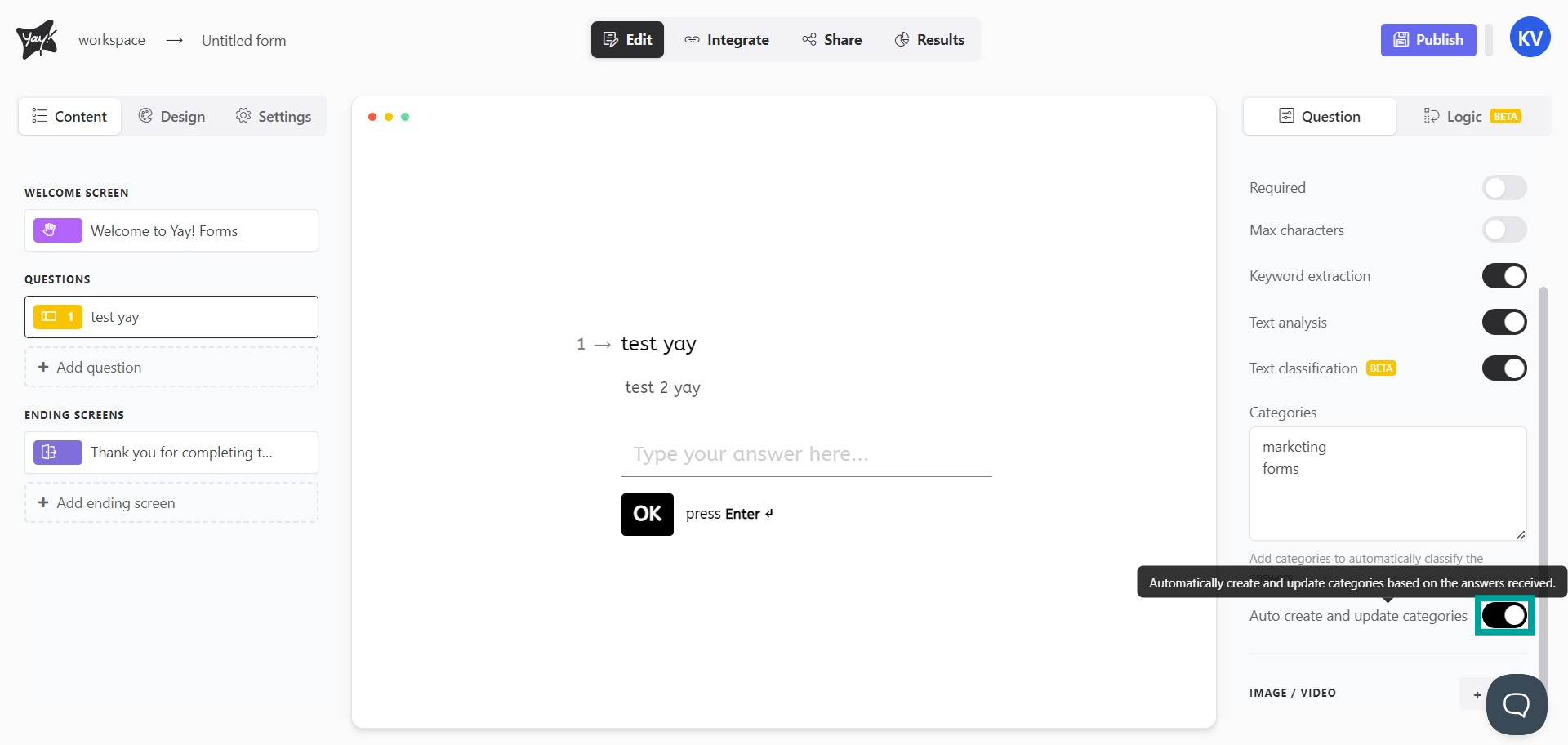
Finally, you can enable the Automatic response classification option, where you define categories to organize responses. In addition, if you prefer, you can enable the automatic category updates option. With this, as users respond to the form, new categories will be created automatically based on the responses received.

Conclusion
You learned how the Short text question type works, how to edit its title and description, and how to use features like keyword extraction, text analysis, and automatic response classification to better organize and understand user answers.