This article will help you choose and customize a theme for your form, including selecting standard themes from the gallery, creating and editing your own themes, and adjusting visual details like fonts, colors, and button rounding.
Choosing a theme
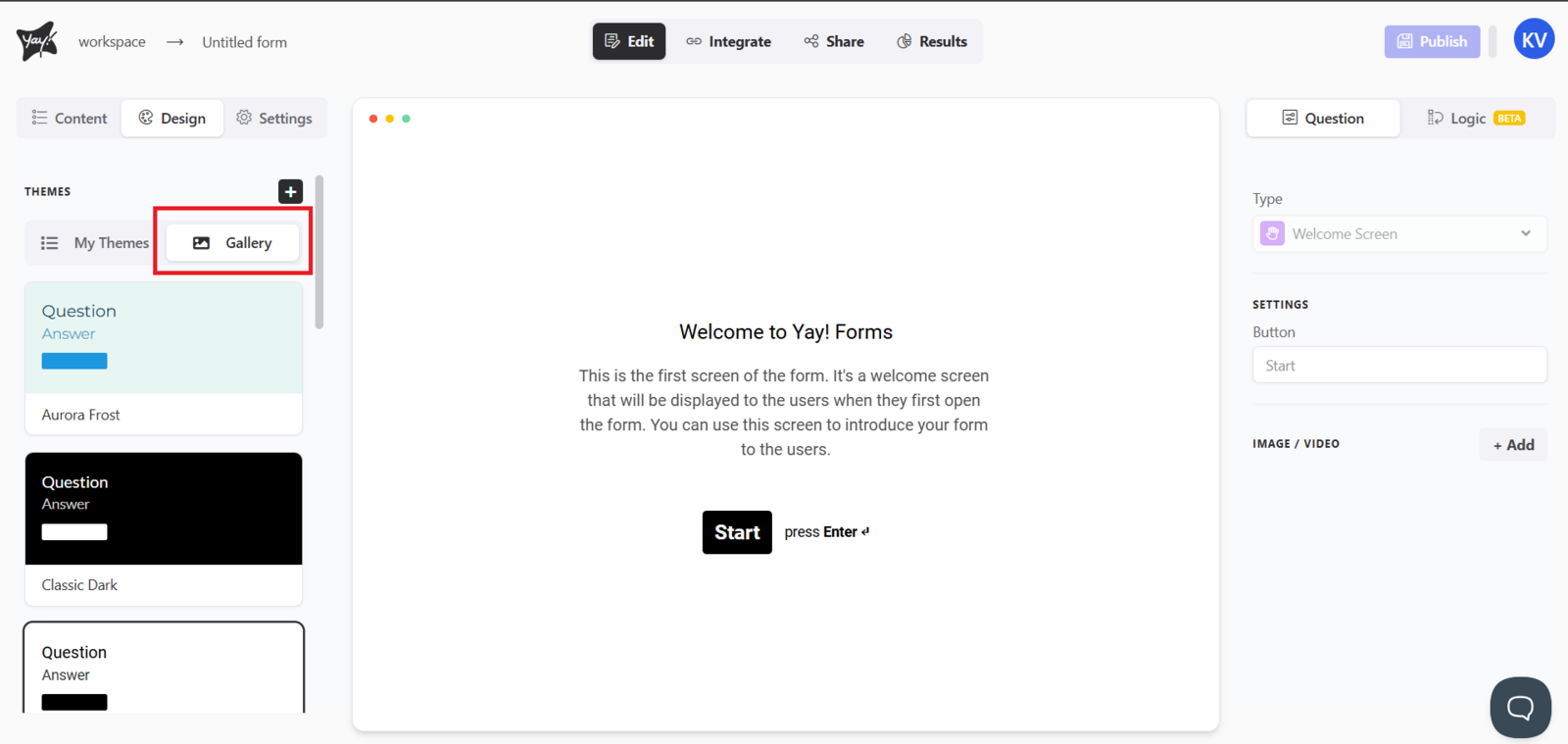
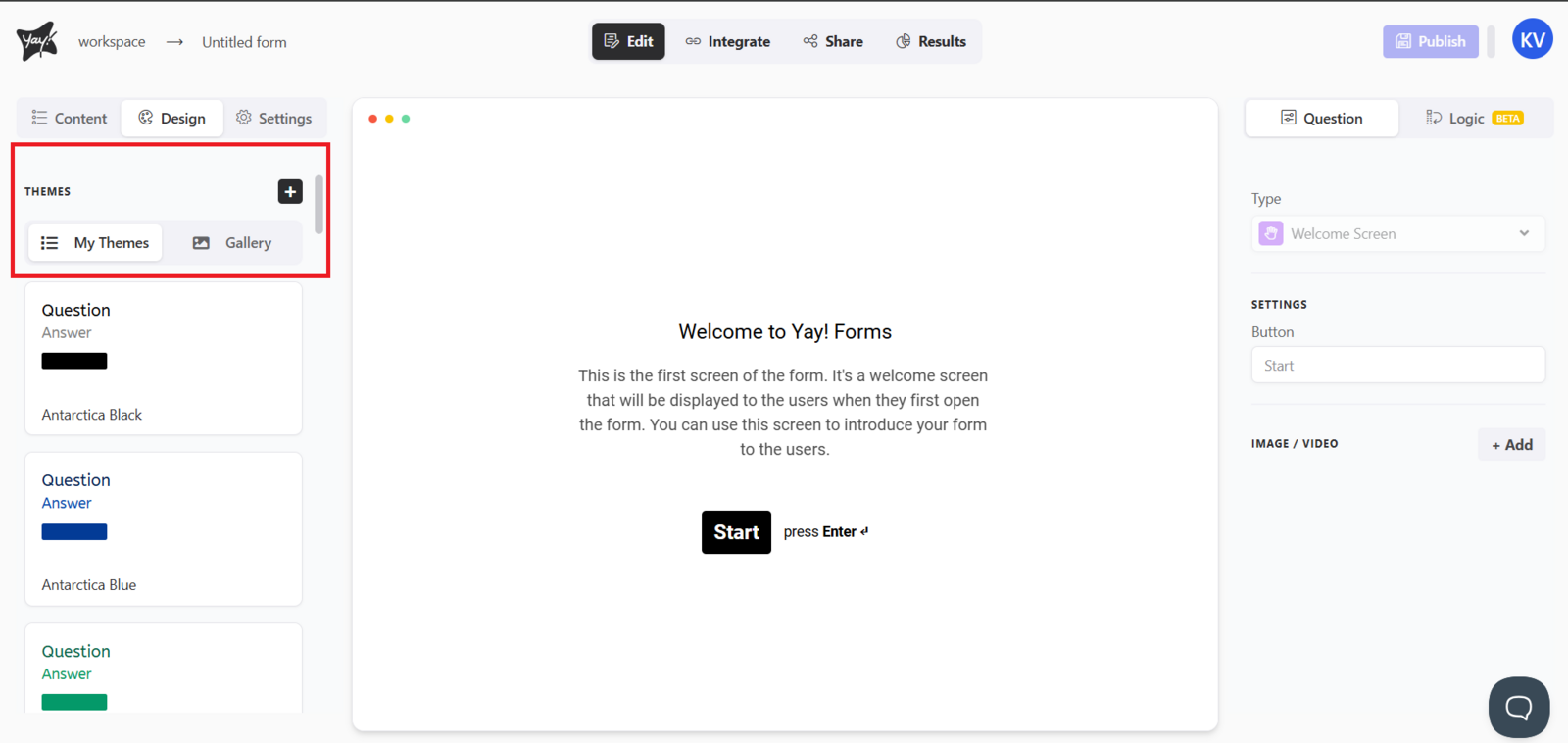
Choose a theme for your form from our wide variety by clicking Design in the upper-left corner of the screen. You can also create your custom theme by clicking My themes, but if you prefer to use one of the standard themes, simply select the Gallery tab.
Editing and duplicating themes
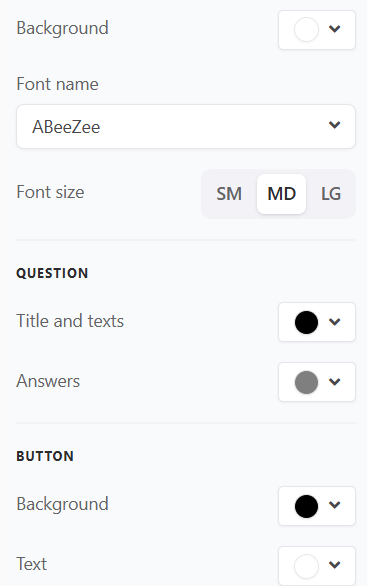
Within the My themes tab, you can click the edit option. This will open the screen below, where you can change the font and the colors of the elements. If you want to edit a standard theme from the Gallery tab, just duplicate it.
Customizing typography
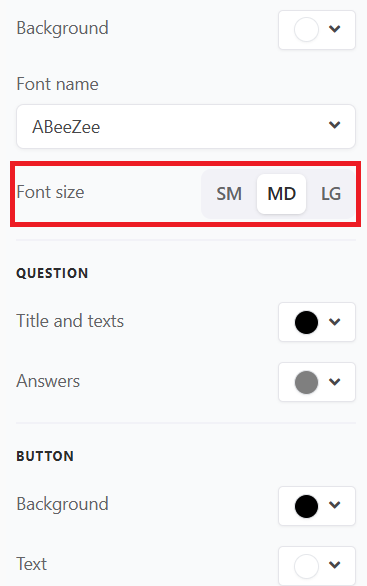
You can customize your form’s font. You have the options S (small), M (medium), and L (large).
Customizing the next button rounding
You can also customize the rounding of your form’s next button. You have 3 options: a button with no rounding, with slight rounding, and fully rounded.

Publishing
If you’ve finished your edits and want to publish your form, you can publish it.
Conclusion
You now know how to select a design for your form, create or duplicate themes, and adjust visual settings such as fonts, colors, and button rounding, so you can finalize the look of your form and publish it when ready.