This guide will help you change and personalize your subdomain for your workspace, so you can start using the subdomain you prefer.
Scope of this guide
Before you begin, we'd like to make it clear that this guide is only for changing the subdomain, not the main domain.
How to customize your subdomain
To customize your subdomain, first you need to click the three dots next to your workspace name.
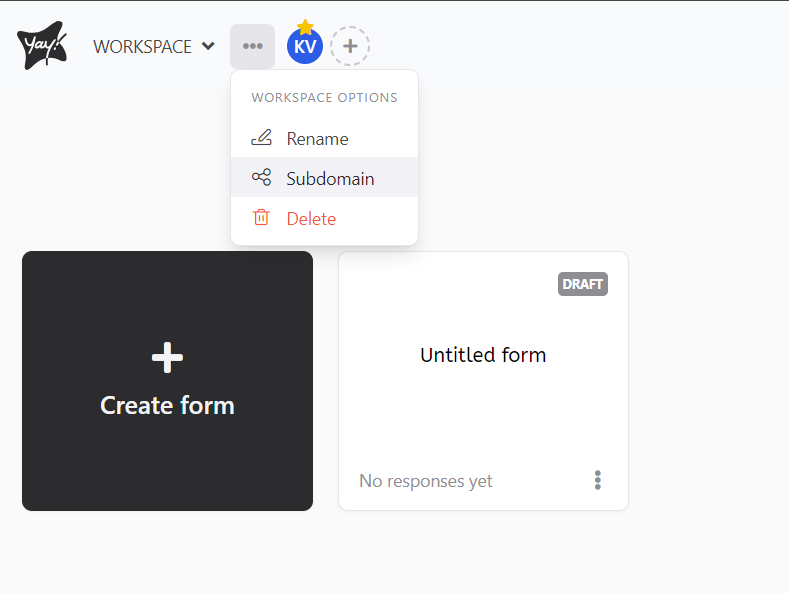
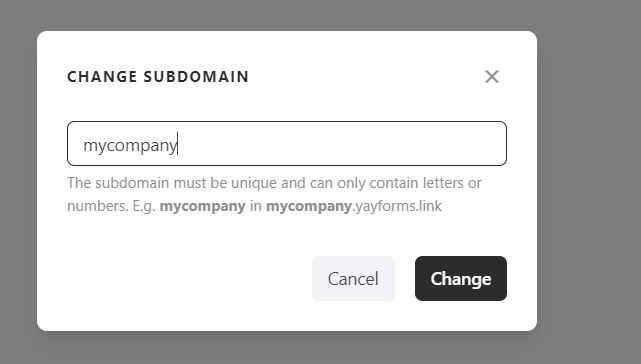
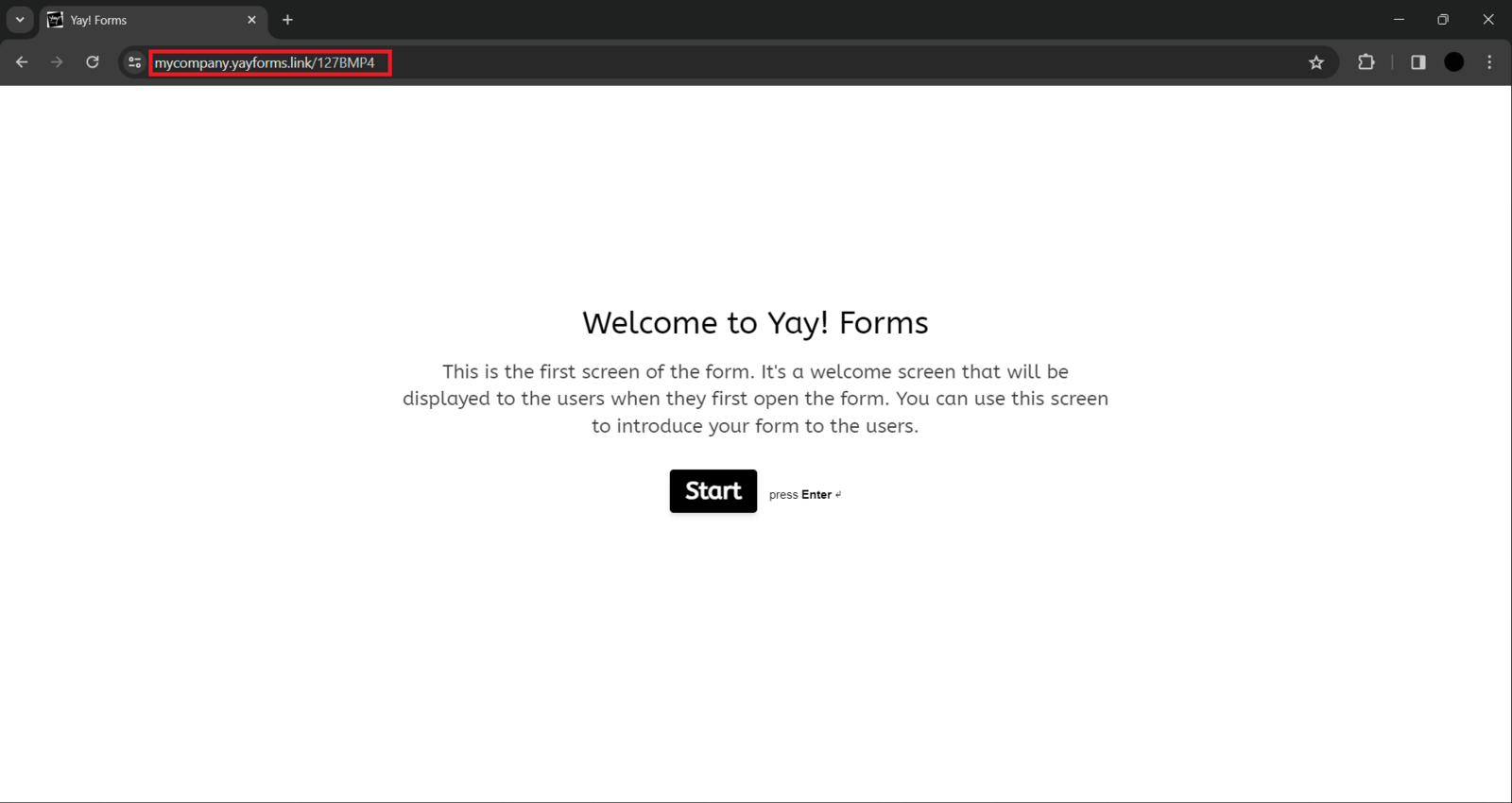
After that, just enter the subdomain you want and confirm. Then it will be ready for you to use your subdomain.
Plan availability
Remember that the subdomain change feature is available starting from the Plus plan.
Conclusion
You learned that this guide focuses on changing only the subdomain (not the main domain) and how to access the workspace option to set and confirm a new subdomain for use.