This article will help you diagnose why Meta/Facebook Pixel conversion events are not appearing in your campaign and how to address the most common causes in Yay! Forms, Meta Events Manager, and Meta Business settings.
View the Application Logs
The first step is to check your application logs to identify the problem and apply the solution based on the cause you find. You can access detailed instructions on how to view the logs at the following link: Como visualizar os logs das suas integrações.
The conversion event does not appear within the campaign
If events are not appearing on the campaign screen, this can have a few causes:
1. Events still in test mode
When events are configured as test, they do not appear in the campaign.
How to fix:
To do this, go to your Pixel integration inside Yay! Forms and clear the Facebook Pixel test field, as shown below:

After that, simply trigger a real event for the pixel and your events will appear in your campaign.
2. Event not approved yet
If the event has not been approved, it also will not appear in the list.
How to fix:
- You will see a ⚠️ icon next to the event.
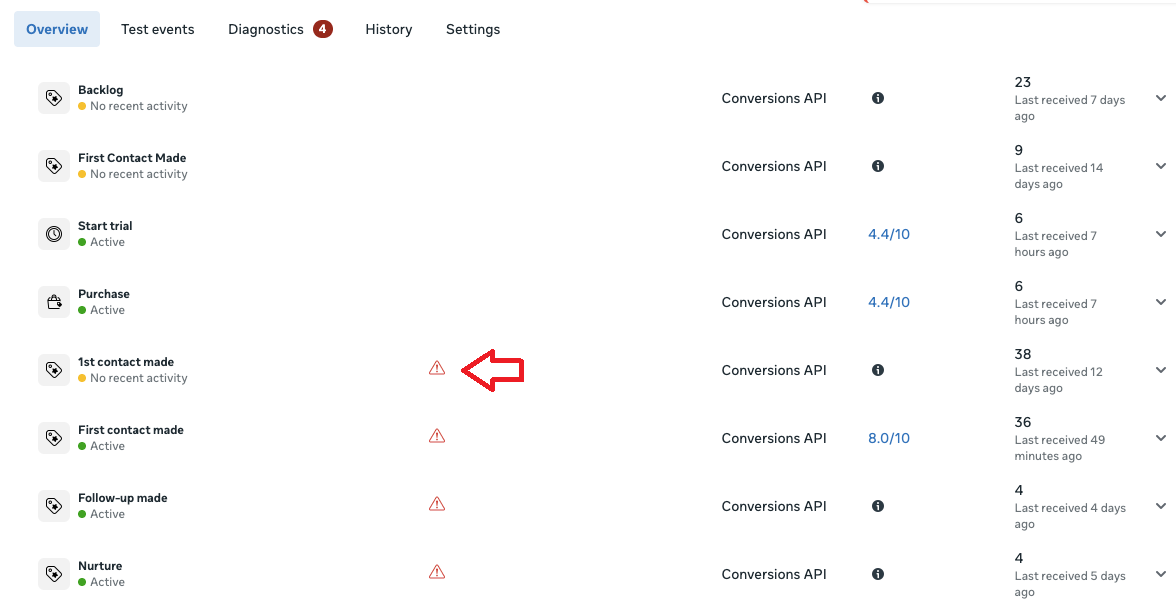
- Click this ⚠️ icon to review the event.
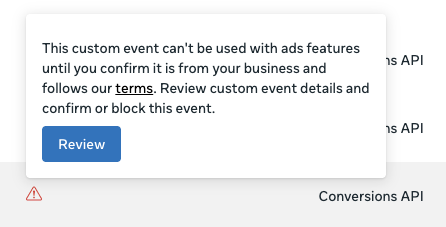
- Next, click “I acknowledge”.
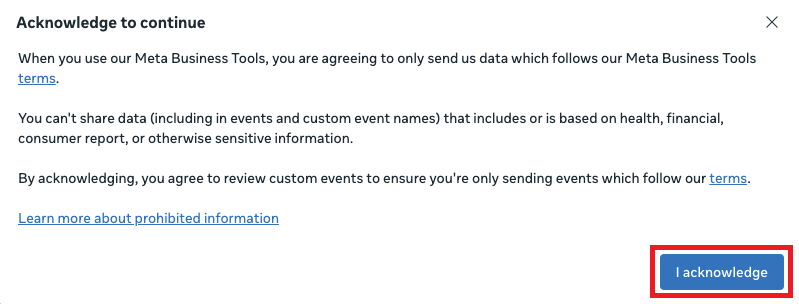
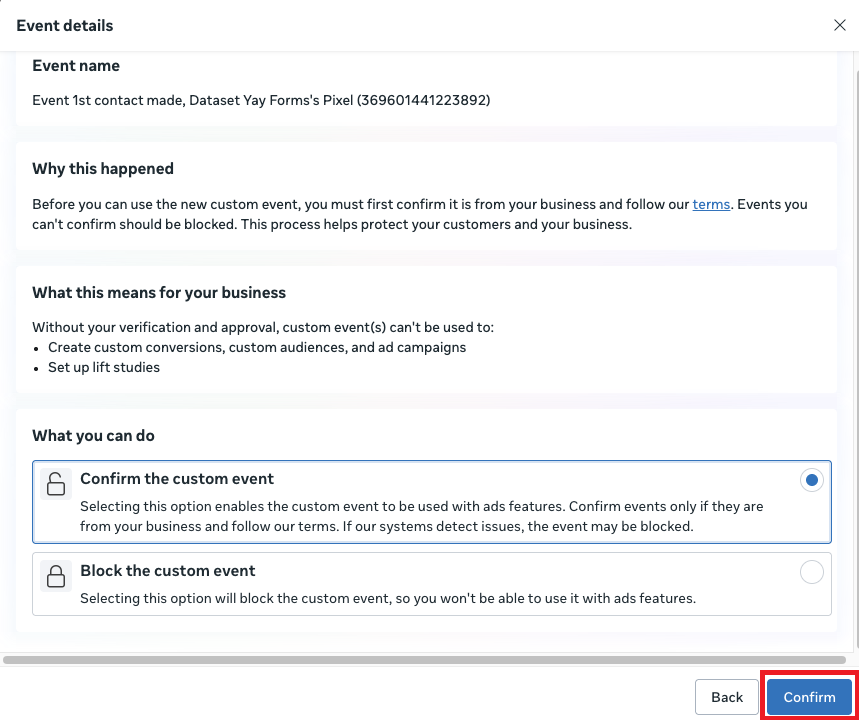
- Finally, confirm the event.
3. Meta update time
Even after configuring everything correctly, it may take some time for events to be displayed in the campaign. This happens because Meta needs to process and update the data.
What to do:
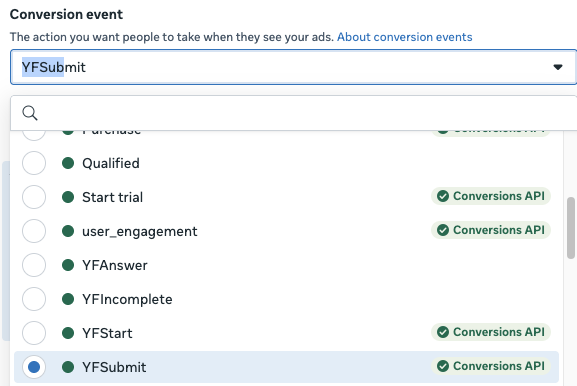
Wait a bit — soon the events will appear normally, as in the example below.
Custom Event Not Created Correctly
Why does this happen?
If the custom event is not created correctly, it may not be recognized by Facebook and may not appear in your campaign.
How to fix?
- Go to Facebook Events Manager.
- Check whether the Yay! Forms custom event is listed correctly.
- If it is not, create a new custom event with the correct condition based on the form URL or captured data.
- Make sure the event was saved and is being recorded in Events Manager.
Form Subdomain Not Verified and Authorized in Meta
Why does this happen?
If the form subdomain is not verified, Facebook may block event tracking, preventing events from being used in campaigns.
How to fix?
- Go to Facebook Business Manager.
- In the left menu, click Brand Safety > Domains.
- Add the form subdomain used in Yay! Forms.
- Choose the verification method via Meta Tag: Copy the meta tag generated by Facebook. Paste this meta tag into Yay! Forms and save the changes.
- Return to Facebook and click the Verify Domain button.
- Facebook will access Yay! Forms to confirm the meta tag and complete the verification.
☝️ Meta tag verification is immediate, with no DNS propagation required.
Assets Not Shared with the Ad Account
Why does this happen?
If assets (custom events and subdomains) are not shared correctly with the ad account, the events may not be usable in campaigns.
How to fix?
- In Facebook Business Manager, go to Business Settings.
- Navigate to Data Sources > Pixels.
- Select the Pixel used in Yay! Forms and share it with the correct ad account.
- Repeat the process for custom events and subdomains.
Test Event Enabled in Yay! Forms Settings
Why does this happen?
If the test event is enabled in Yay! Forms, events may not be sent correctly to Meta and will not appear in the campaign.
How to fix?
- On the Yay! Forms integration screen, check whether the Meta/Facebook Pixel Test Event Code is filled in incorrectly.
- Make sure the Event Condition is set correctly to customize tracking.
- In Facebook, create a rule like URL contains yayforms.link for generic tracking.
- If you want to track a specific form, use URL contains yayforms.link/seu_formulario.
- Disable any test event configuration in Yay! Forms and save the changes.
Quick Checklist for Diagnosis
- Was the custom event created correctly?
- Is the form subdomain verified?
- Are the assets shared with the ad account?
- Is the test event disabled in Yay! Forms?
If all the steps above are followed correctly, the issue should be resolved. If it persists, check Facebook’s official documentation or contact the platform support team.
Conclusion
You learned how to identify why conversion events may not appear in Meta campaigns by checking application logs and validating key setup areas such as event approval and processing time, custom event creation, domain verification, asset sharing, and test-event settings in Yay! Forms and Meta.