This article will help you integrate Yay! Forms with Google Tag Manager, including where to find your GTM ID and how to add it to your form.
Video explanation (optional)
Accessing the integration settings in Yay! Forms
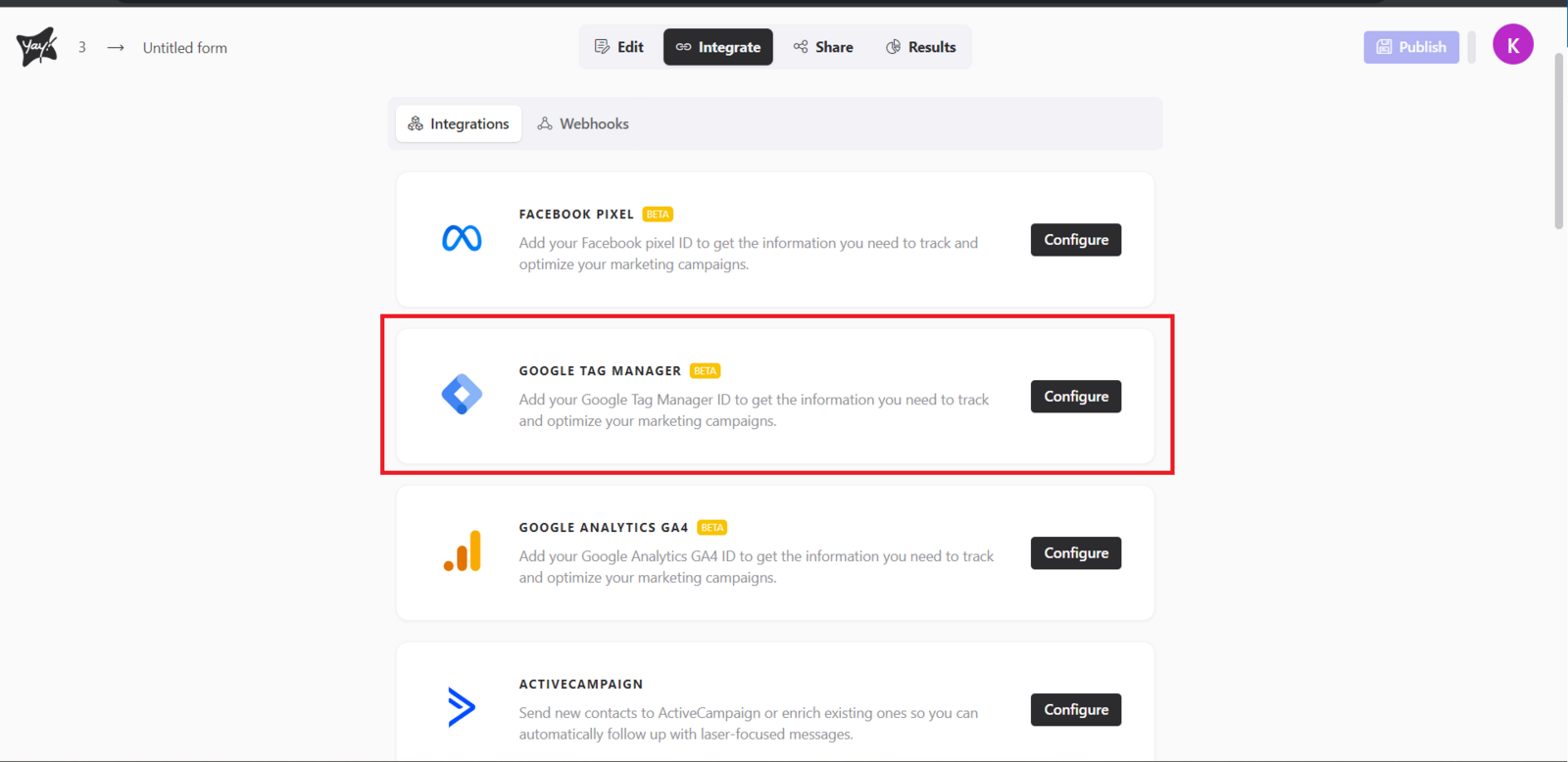
First, access the desired form and select the Integrate tab. At that point, you will find the Google Tag Manager option. Click Configure to proceed with the integration.
Creating or using a Google Tag Manager account
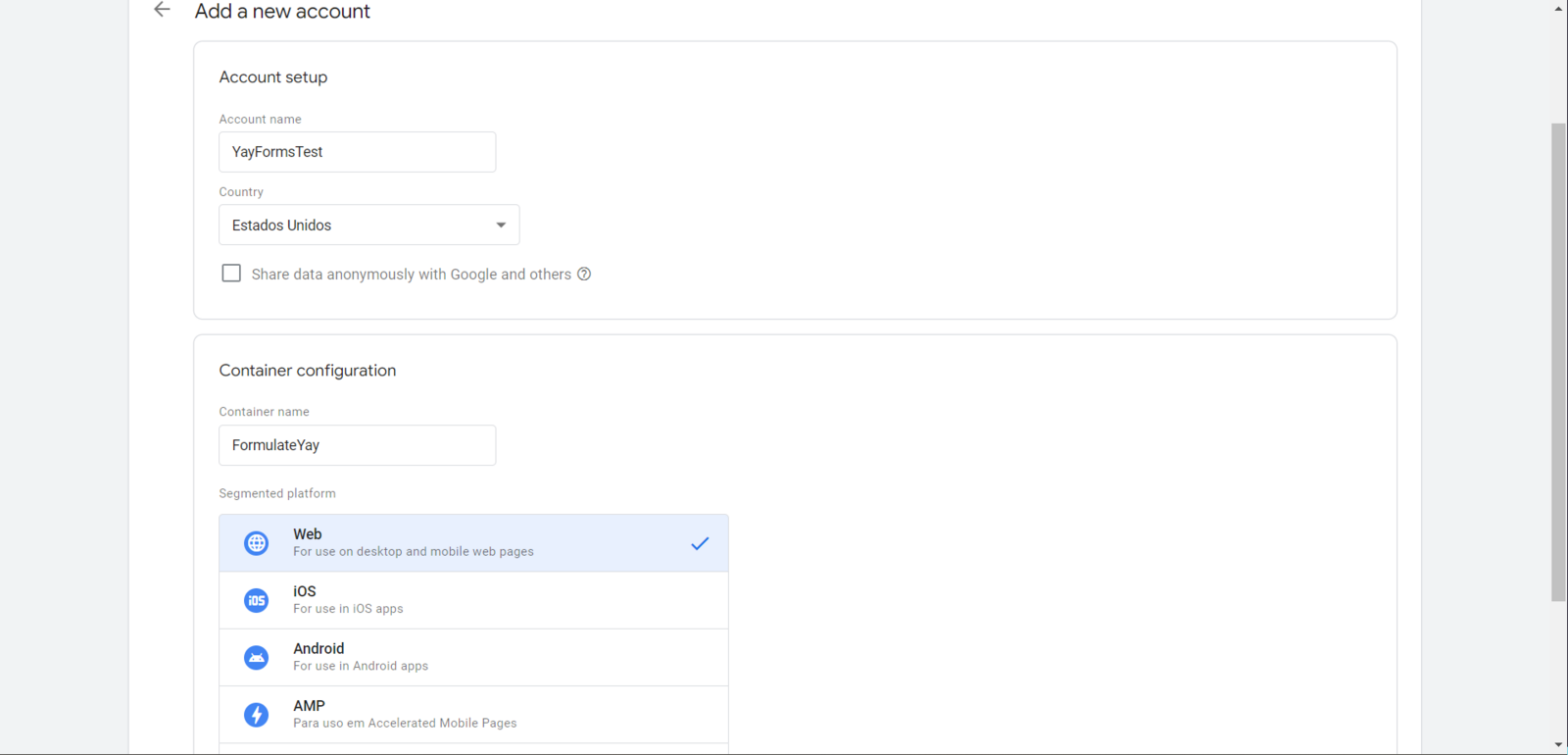
To complete the integration, you need a Google Tag Manager account. If you already have an account, skip this step. Otherwise, go to the Google Tag Manager website and click Create account. Then, fill in your account details with the desired information, as shown in the example below.
Finding your GTM ID
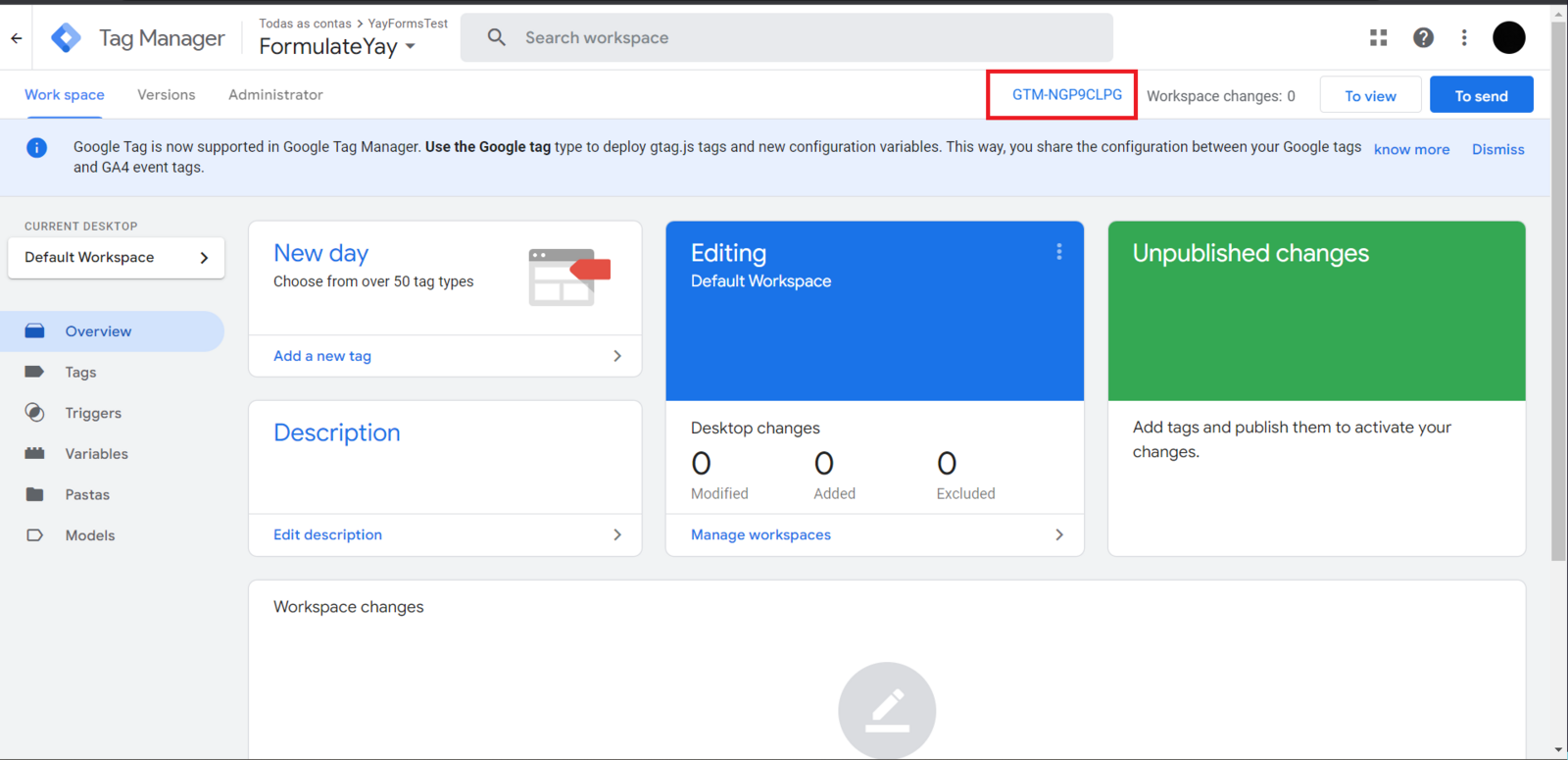
Once your account is created, you can access the desired container. In the workspace, you will find the GTM ID, as shown in the image below.
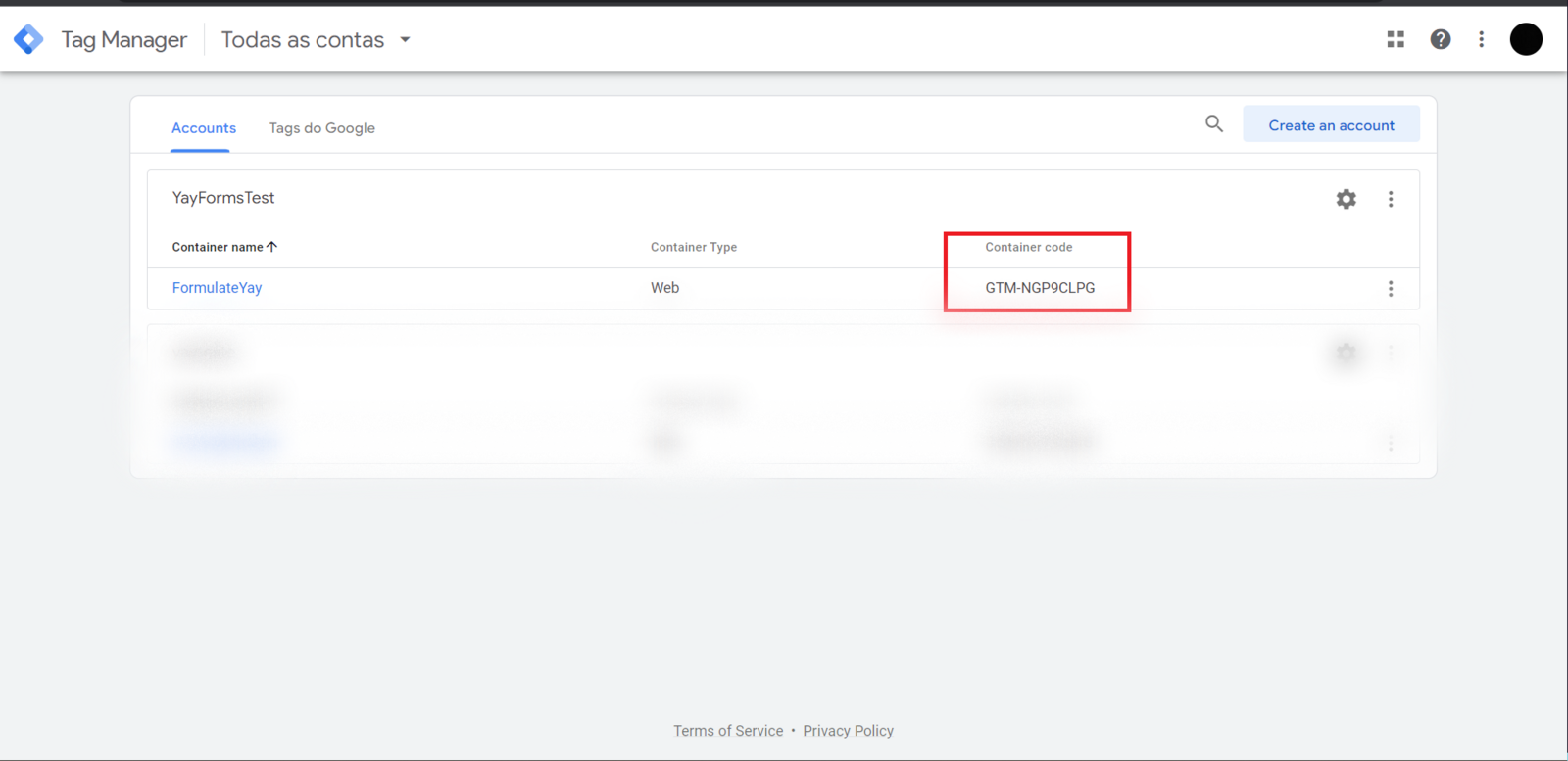
You can also find it on the Google Tag Manager home screen, as shown below.
Adding the GTM ID to your form
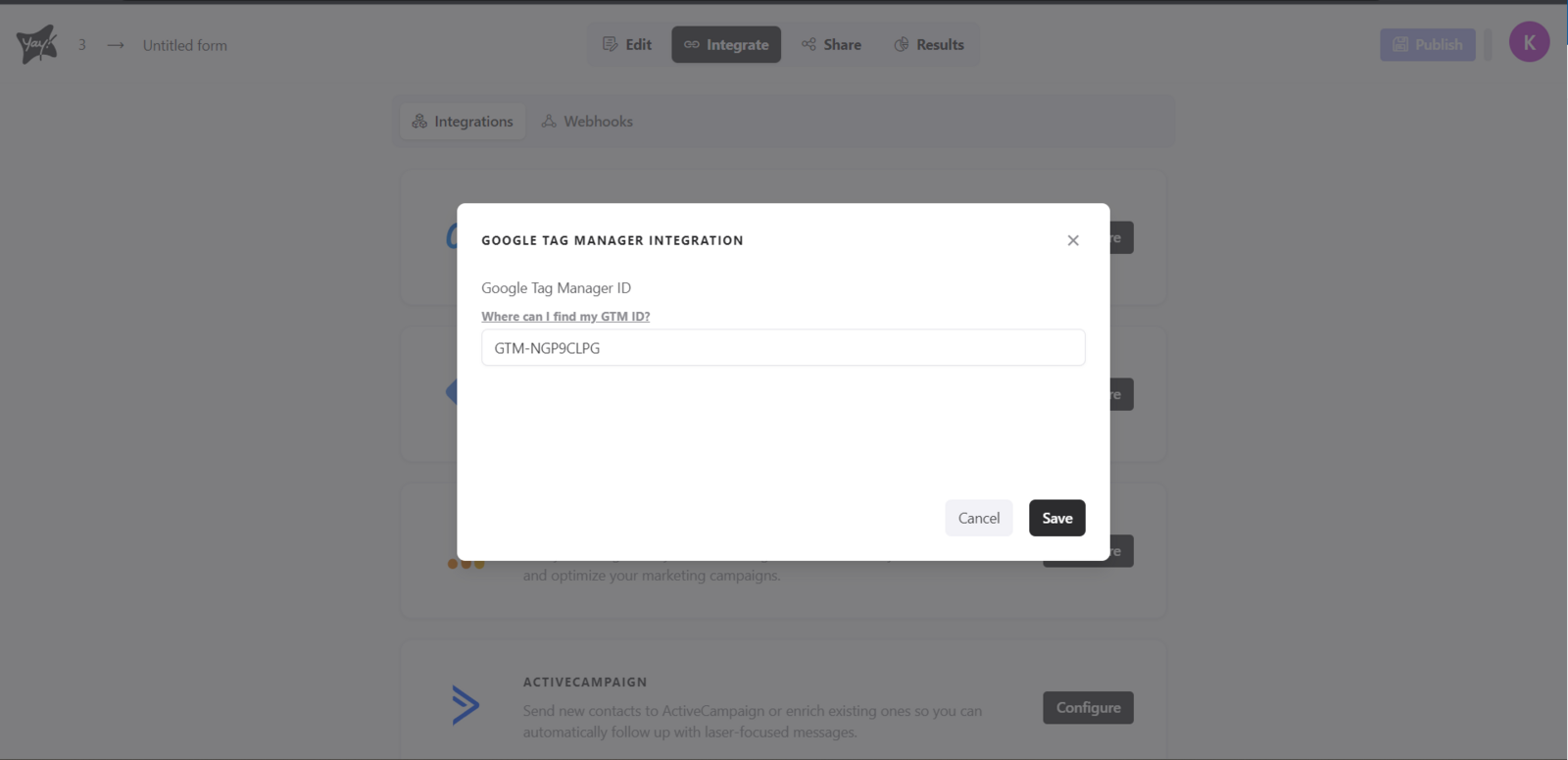
After you get your GTM ID, just add it to your form like this:
Support and feedback
We hope you enjoy the new integration :)
If you have any questions or suggestions, send an email to [email protected].
Conclusion
You learned how to access the Google Tag Manager integration in Yay! Forms, locate your GTM ID in Google Tag Manager, and add it to your form to complete the setup.