This article will help you connect your Yay! Forms form to HubSpot, understand how to configure the integration, and map form fields to create contacts, deals, and companies in HubSpot, including optional conditional sending and sending previous responses.
Demonstration video
Before we begin the tutorial, I recommend watching this demo video. In it, you will see how the integration with HubSpot works.
Steps to connect Yay! Forms with HubSpot
Follow the steps below to connect your Yay! Forms form with HubSpot:
1. Access the form
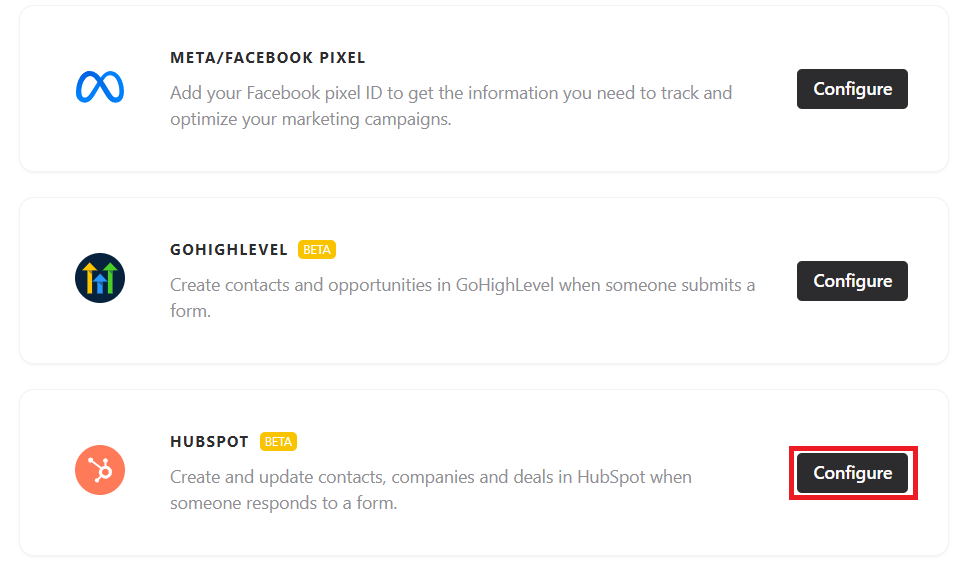
Open the desired form and go to the Integrate tab. There, you will find the integration with HubSpot. Click Configure to start setting up your HubSpot account.
2. Connect your HubSpot account
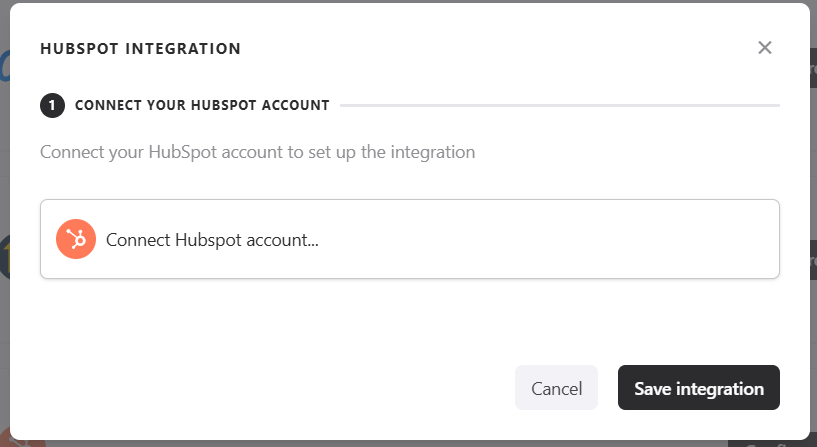
When accessing the integration screen, you will need to connect your HubSpot account.
3. Create contacts
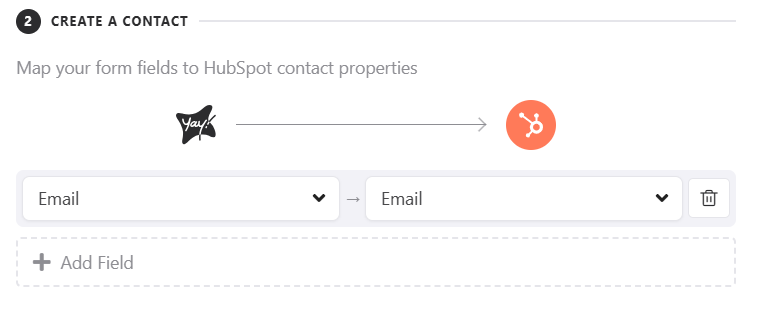
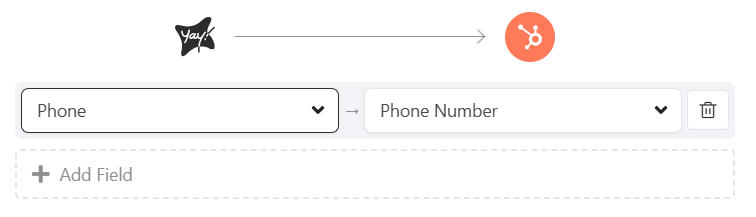
You can now map the fields in your form to the fields in your HubSpot contact, so the contact is created with responses from the mapped fields.
4. Create negotiations
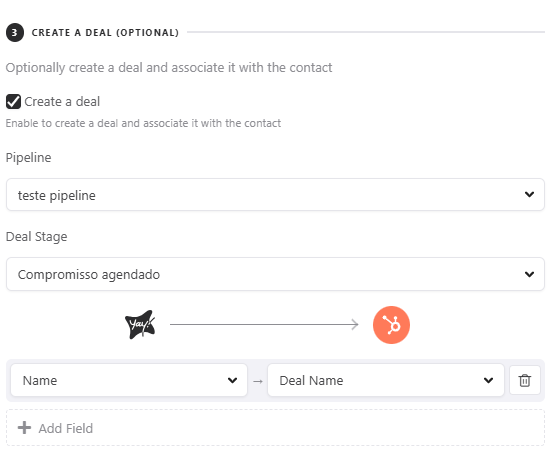
You can also map the fields in your form to the fields in your HubSpot deal. To do this, you first need to select a pipeline and the stage the deal will be in.
5. Create companies
You can also map the fields in your form to the fields in your Company created in HubSpot. To do this, you first need to select which industry the company is in (if you leave it blank, it will have no industry).
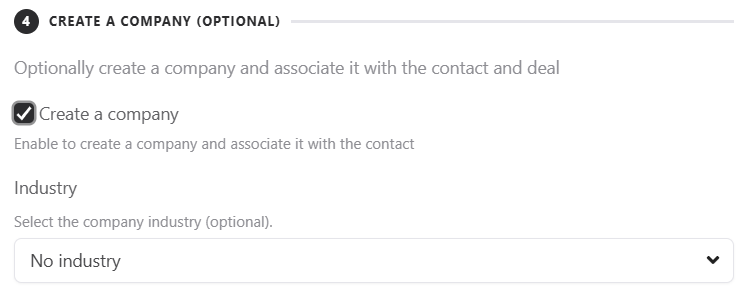
Right after that, you can map the fields of your newly created company.
6. Conditional Forwarding Based on Responses
This feature lets you set conditions for sending data to HubSpot. Thus, depending on the user's response, the information will only be sent to the platform if the established condition is met.
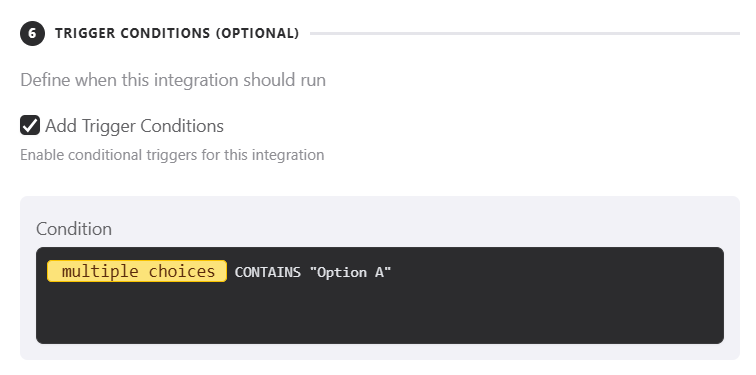
If you are interested in better understanding how our conditional system works, you can access our help file for Conditional Execution of Integrations.
7. Submit previous answers
You can enable the Run on Previous Responses option. When enabled, all responses recorded to date will be sent to HubSpot, not just new ones.

Support
We hope you enjoy this new integration! 😊If you have any questions or suggestions, please get in touch with us at [email protected].
Conclusion
By the end of this guide, you will have learned how to access the HubSpot integration in Yay! Forms form, connect your HubSpot account, map fields to create contacts, deals, and companies, and optionally control when data is sent or send previously collected responses to HubSpot.