This article will help you connect your Yay! Forms form to Mailchimp, choose the target audience, map form fields to Mailchimp fields, and configure tags (including dynamic tags based on multiple-choice answers). It also highlights important formatting requirements to avoid sync failures.
Steps to connect Yay! Forms with Mailchimp
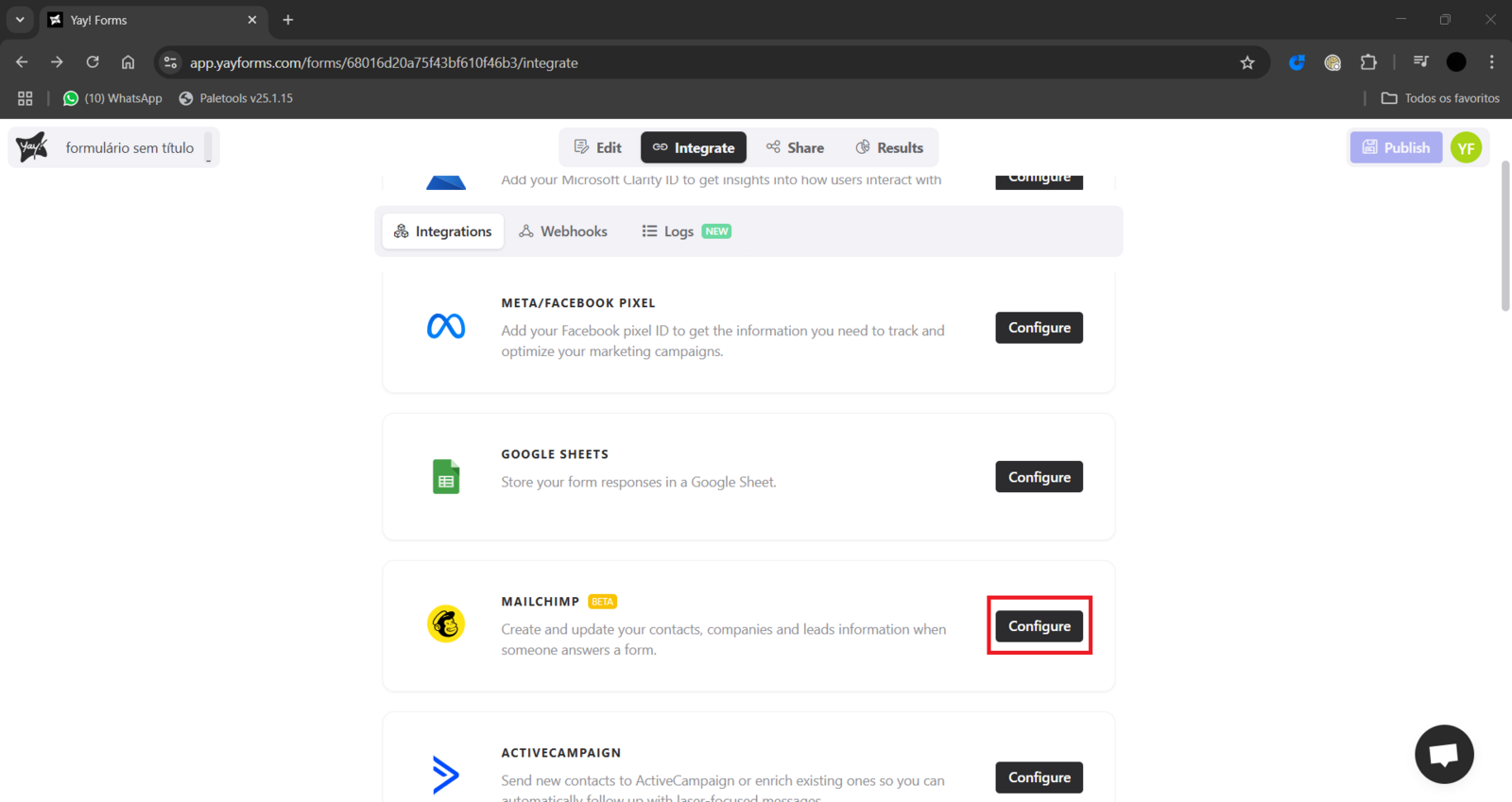
1. Access the form
Open the desired form and select the Integrate tab. At this point, you will find the option related to Mailchimp. Click Configure to start setting up your Mailchimp account.
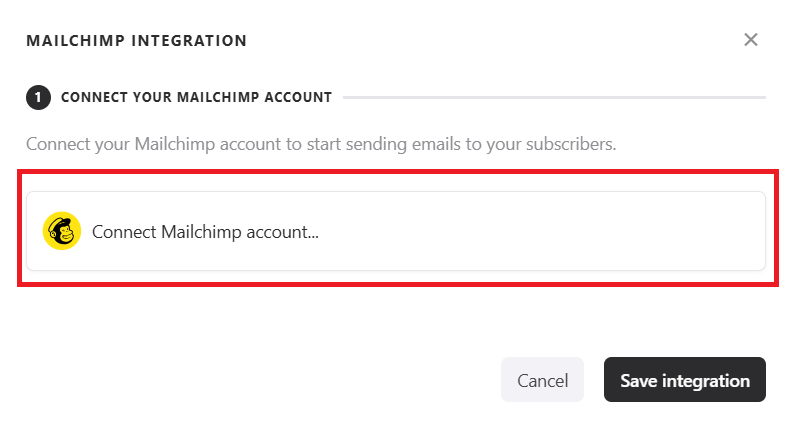
2. Connect your Mailchimp account
As soon as you access the integration screen, you will need to connect your Mailchimp account. After that, select the list (audience) you want to send the form data to.
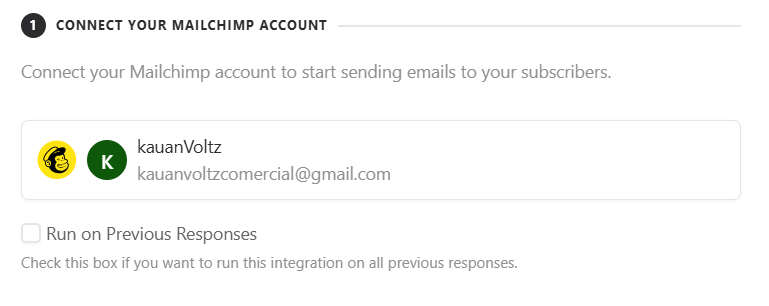
2.1 Send previous responses
After connecting your account, you can enable the option Run on Previous Responses. When enabled, all responses recorded up to that point will be sent to Mailchimp, not only new ones.
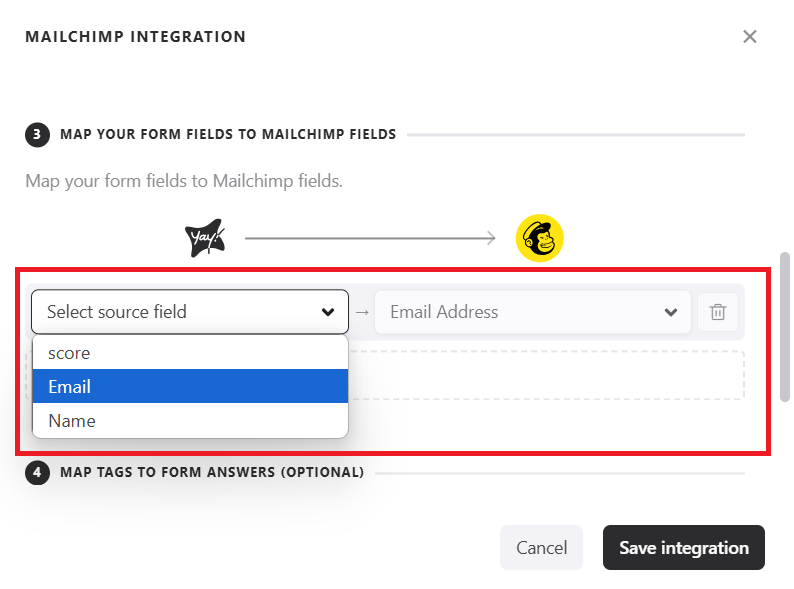
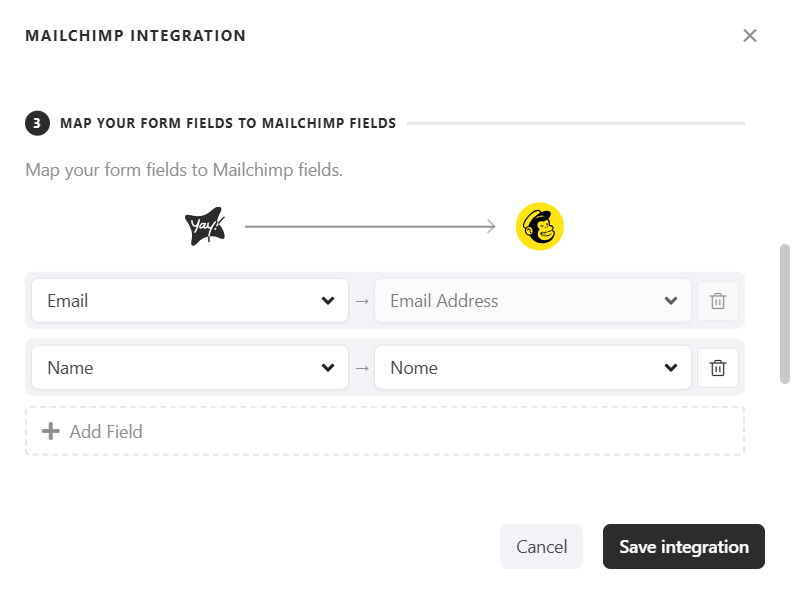
3. Map the fields
You can now map the fields from your form to the fields in your Mailchimp list.
Keep in mind that it is mandatory to map the Mailchimp email field. This must be a field of the email type or a hidden field.
4. Additional fields
You can also map other Mailchimp fields using:
- Form fields
- Hidden fields
- Variables
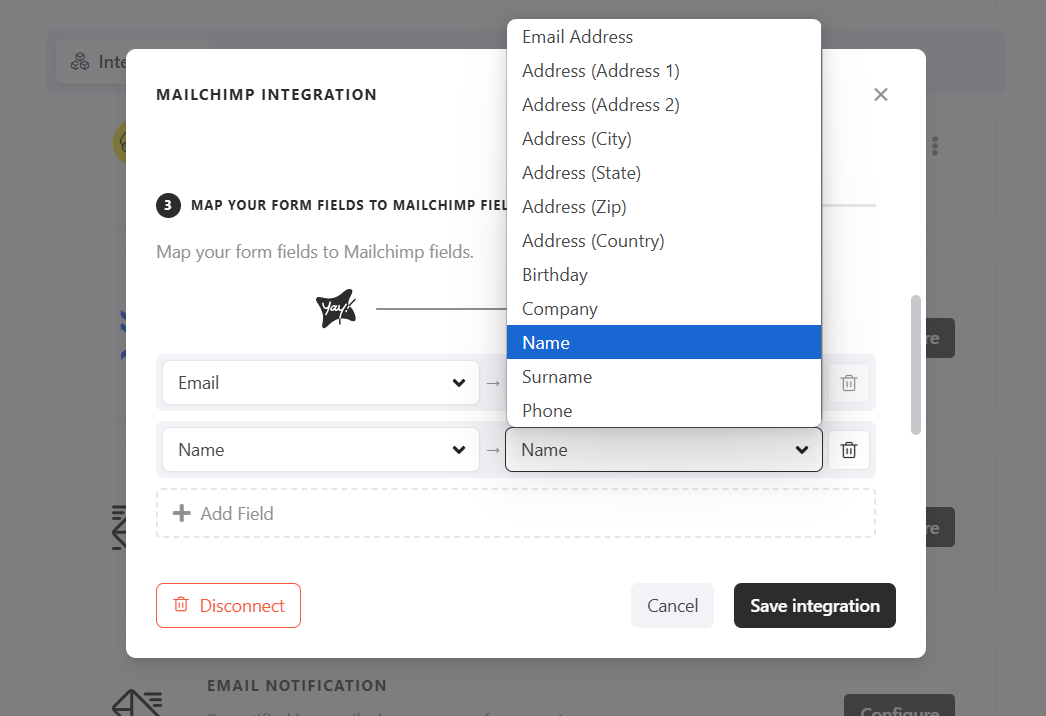
Below, the list with all available fields for mapping from your Mailchimp list will be displayed:
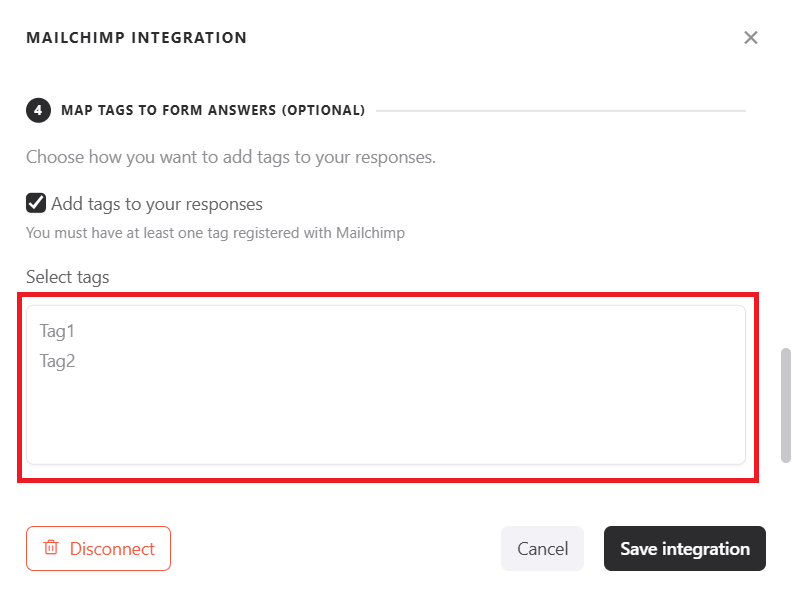
5. Add tags to responses
If you want, you can add tags to the responses being sent. To do this, simply click the option Add tags to your response and select a Tag.
6. Dynamic tags based on multiple choices
You can also assign tags automatically based on the selection made in multiple-choice fields, as shown below:
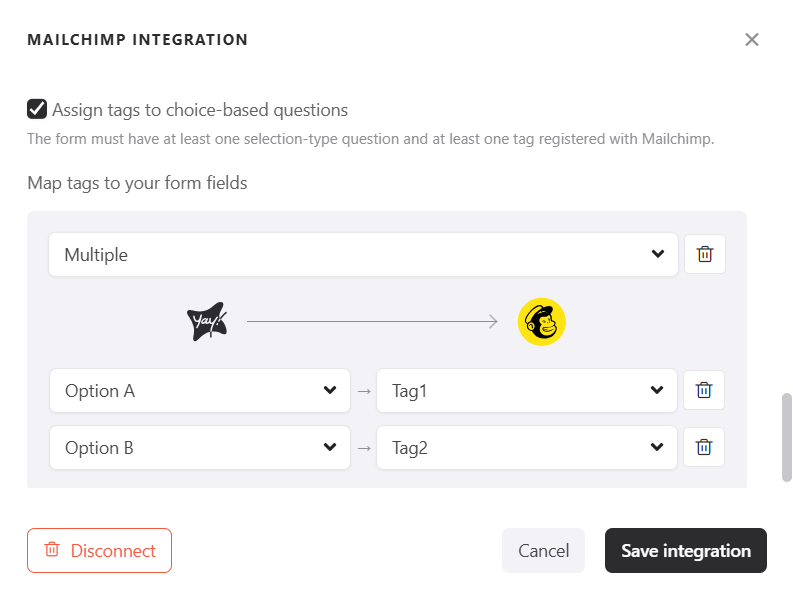
Keep in mind that to use this feature, you must have at least one tag created in Mailchimp and at least one multiple-choice field in your form.
⚠️ Important notes
-
Fields with a specific format
Some fields require a specific format. For example, the "Birthday" field must follow exactly the format expected by Mailchimp. Make sure the user's answer is correct. -
Full address
If you choose to send the address field, you must include:Address 1 (Address 1) City (City) State (State) Zip Code (Zip Code)
Otherwise, the submission may fail. You can choose not to send the address, or send it with all of these required fields.
- Country format
For country fields, the recommended format is ISO 3166-1 alpha-2, i.e., the two-letter code (e.g.,BR,US,GB).
Although it is possible to send the country name, Mailchimp does not recommend it, as it can cause recognition failures.
Conclusion
You now have the essential guidance to integrate Yay! Forms with Mailchimp, including selecting an audience, mapping required and additional fields, and applying static or dynamic tags, along with the key formatting considerations that help ensure data is sent successfully.