This article will help you configure the Email integration in Yay! Forms, including how to set up notification recipients, save the configuration, and manage or test the integration after it’s created.
Configure the Email integration
- Log in to your Yay! Forms account and create or edit an existing form.
- Click Integrate in the form builder at the top of your screen.
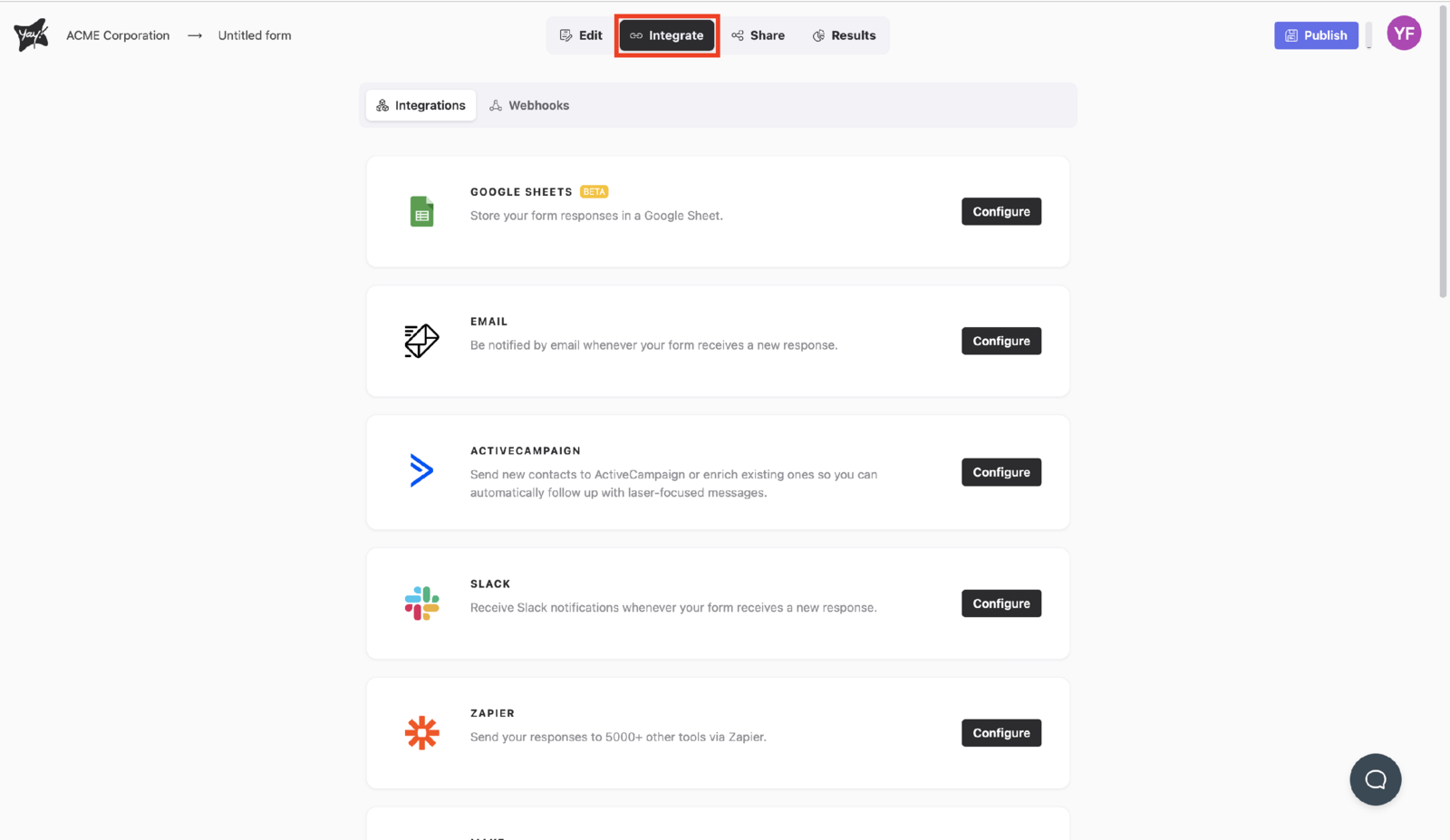
- Search for Email and click Configure.
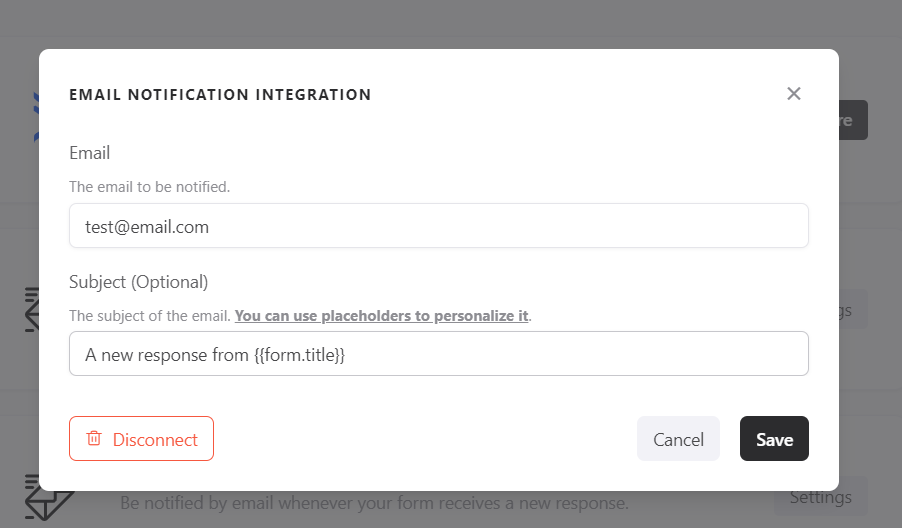
- Enter the email address to be notified.
- Click the "Save" button.
- Keep in mind that you can use placeholders in your message. If you have any questions about how to use them, you can follow this explanation link: https://suporte.yayforms.com/article/181-guia-de-placeholders-para-personalizacao-de-emails-e-mensagens
Manage and test the integration
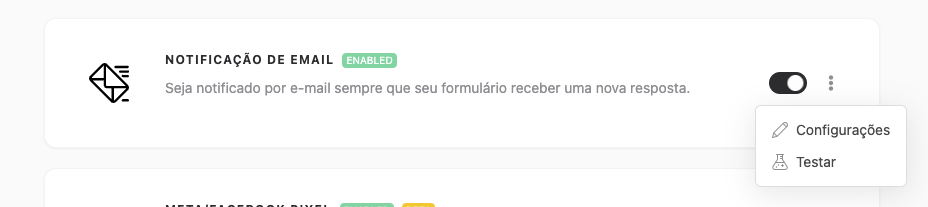
After configuring your integration, you can easily enable or disable it by clicking the button below. In addition, you can adjust the settings or test it by clicking the three dots.
Important Notes
-
Fill Out the Form
For the test to be sent correctly, the form must have at least one valid response filled out. -
Data Sending
The test will send the data from the last valid response submitted. -
Sending Status
Please note that the test does not mark the response as sent in the integration being tested. This is only a procedure to verify the integration.
Conclusion
You learned how to set up the Email integration in Yay! Forms, use placeholders in messages, and manage the integration by enabling, disabling, adjusting settings, or testing it while understanding what test sends include and how they are recorded.