This article explains how AI Feedback works in Yay! Forms and how to configure it so respondents automatically receive personalized feedback based on their form or quiz answers, including how to insert the generated content into an email using a placeholder.
What AI Feedback Is
AI Feedback is a feature that lets you automatically send personalized feedback to respondents of a form or quiz based on the answers they provided. Artificial intelligence analyzes the submitted responses and generates relevant feedback according to a prompt that you define yourself. This feedback can be sent by email via the Email Feedback integration, and it is embedded in the message using the {{ai_feedback}} placeholder.
How to Configure the AI Prompt in Yay! Forms
To use the AI Feedback feature in Yay! Forms, follow the steps below to configure the AI prompt.
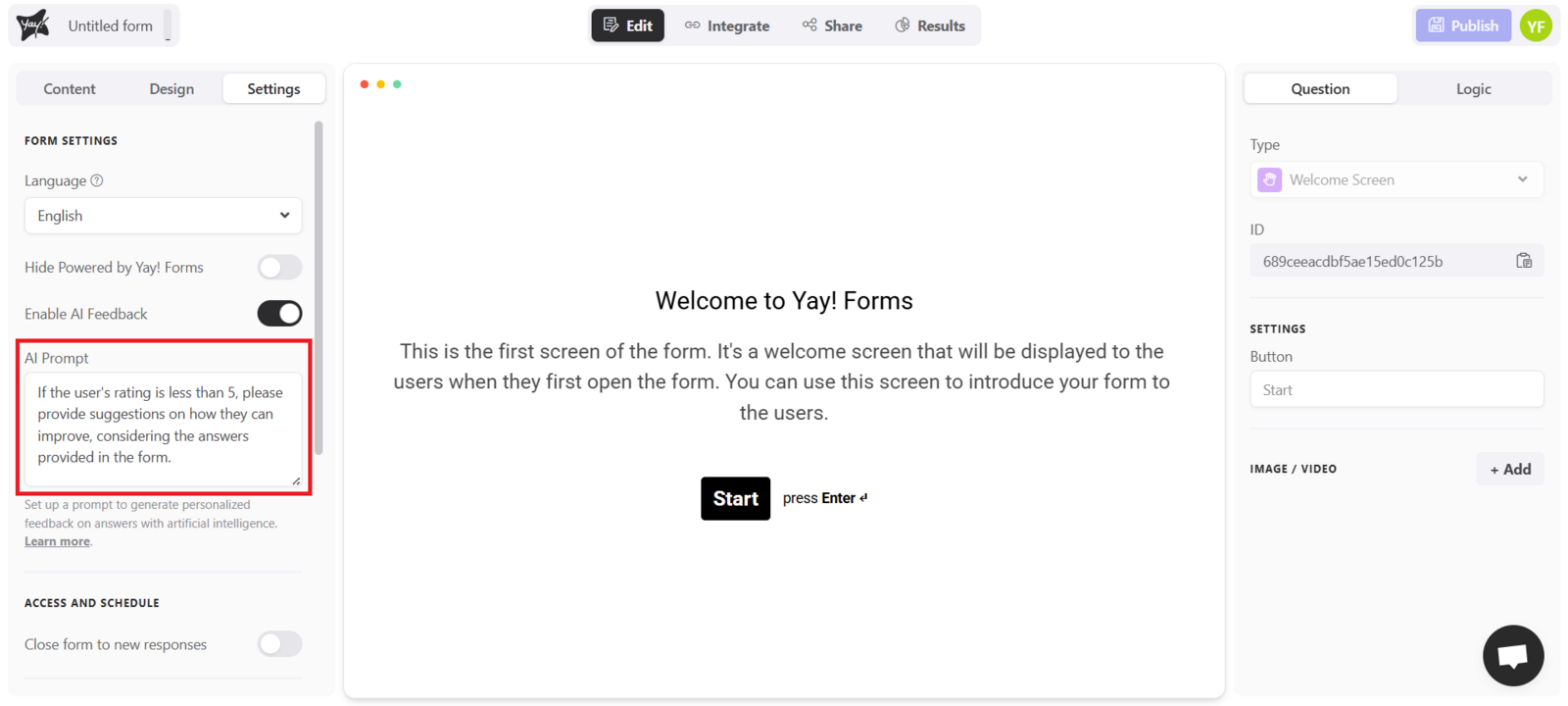
Inside your form, go to the settings section. First, enable the AI feedback option and define the AI Prompt with clear instructions to guide the feedback generation, as shown below:
How to Send AI Feedback by Email
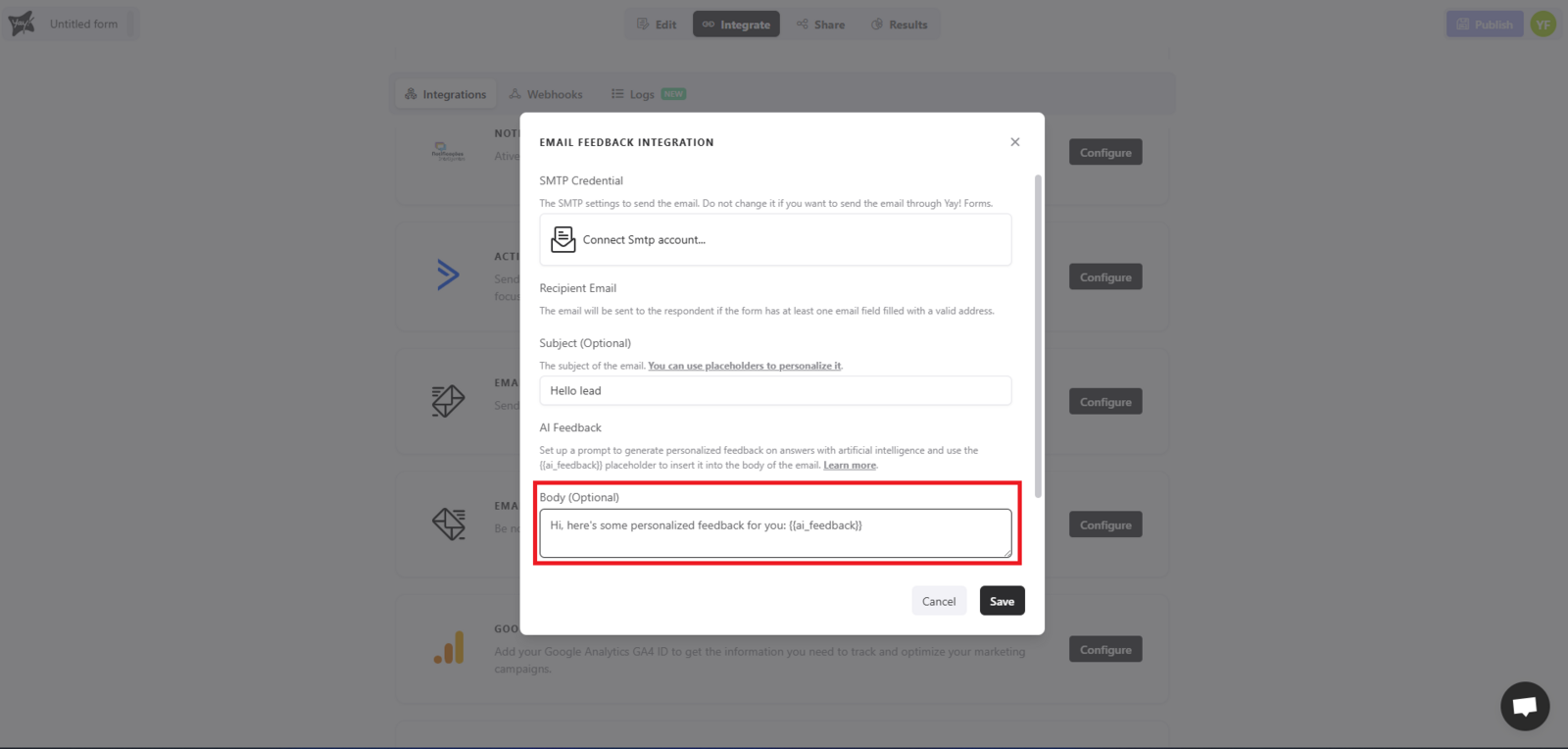
To send AI feedback by email, go to the Integrations tab and select Email Feedback. In the email body, insert the {{ai_feedback}} placeholder where you want the AI-generated feedback to appear, as shown in the example below:
Basic prompt examples to guide users
Here are some practical AI Prompt examples that help guide automated feedback generation:
-
Prompt 1: "If the user's score is below 5, offer clear suggestions on how to improve based on the form responses."
-
Prompt 2: "For a score above 8, praise the user; between 5 and 7, give tips to improve; below 5, recommend resources or next steps."
-
Prompt 3: "Analyze the responses and create balanced feedback, highlighting strengths and opportunities for improvement."
-
Prompt 4: "If the user expresses frustration, acknowledge the feeling and suggest practical, supportive solutions."
Important Notes:
- Email field in the form: Make sure your form includes an email-type field to capture users' addresses. The system will use the first email field found in the form to send the feedback.
- Testing: Before sending emails at scale, run tests to ensure the AI-generated feedback is accurate and relevant.
- Other Placeholders: In addition to
{{ai_feedback}}, you can use other placeholders to further personalize your messages. See the Guia de Placeholders for more details. - Prompt generation: Keep in mind that the more detailed and clear the prompt is (specifying context, format, audience, tone, or examples), the more accurate, relevant, and useful the AI-generated feedback will be.
Conclusion
By setting up an AI Prompt and using the {{ai_feedback}} placeholder in the Email Feedback integration, you can deliver automated, personalized feedback that improves the respondent experience and makes your communications more relevant.