This article explains how to enable automatic redirect on the final screen of a form, how redirect behavior affects final screen content, and how to use mentions as URL parameters or as a button on the final screen when redirecting.
Enable automatic redirect on the final screen
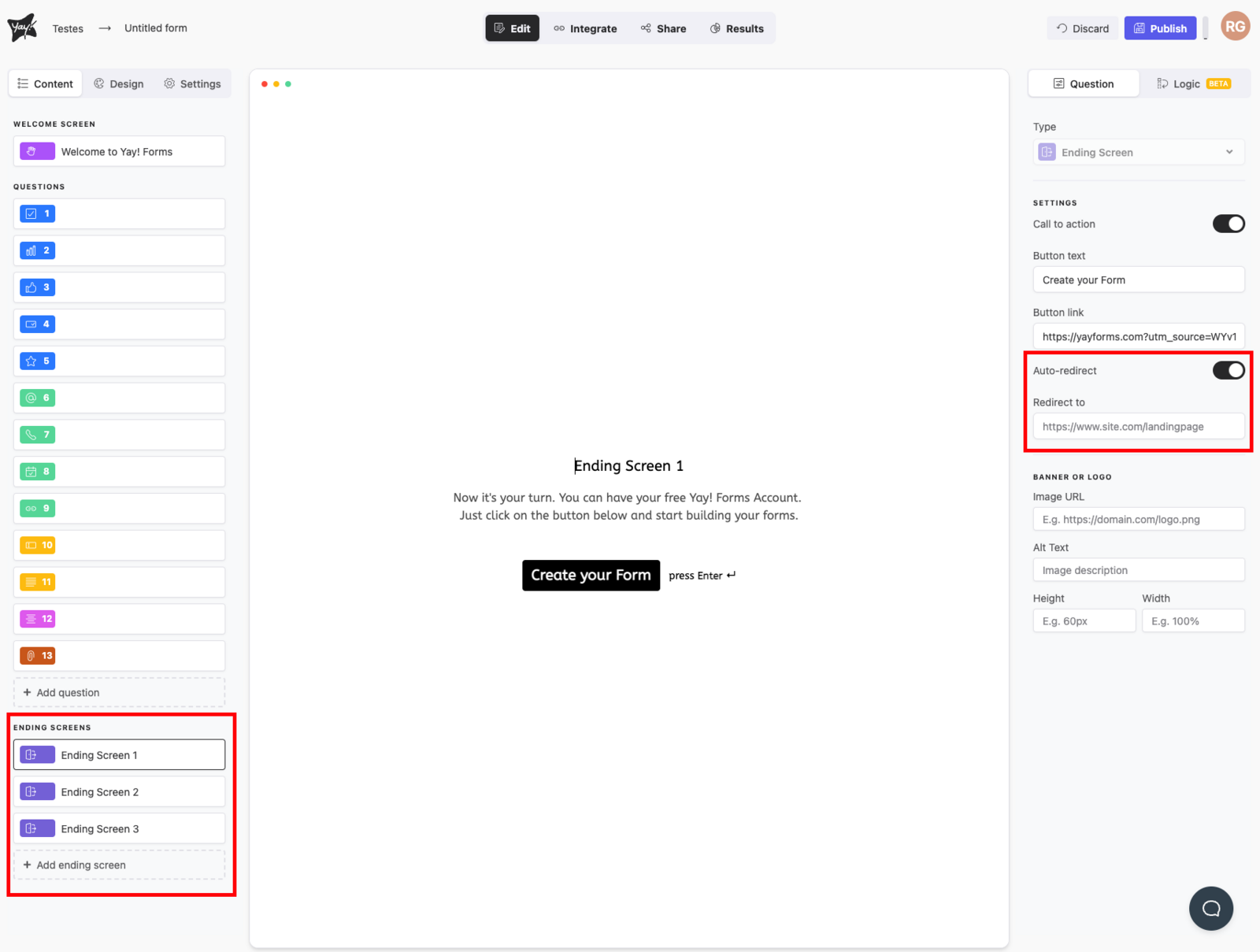
- In the Final Screen settings, enable the "Auto-redirect" option.
- Enter the URL you want to redirect to after the form is submitted.
- The form will automatically redirect to the specified URL after submission.
The Auto-redirect option takes priority over the final screen content, so when you enable this feature the form will automatically redirect without displaying its content.
Use mentions in the redirect URL
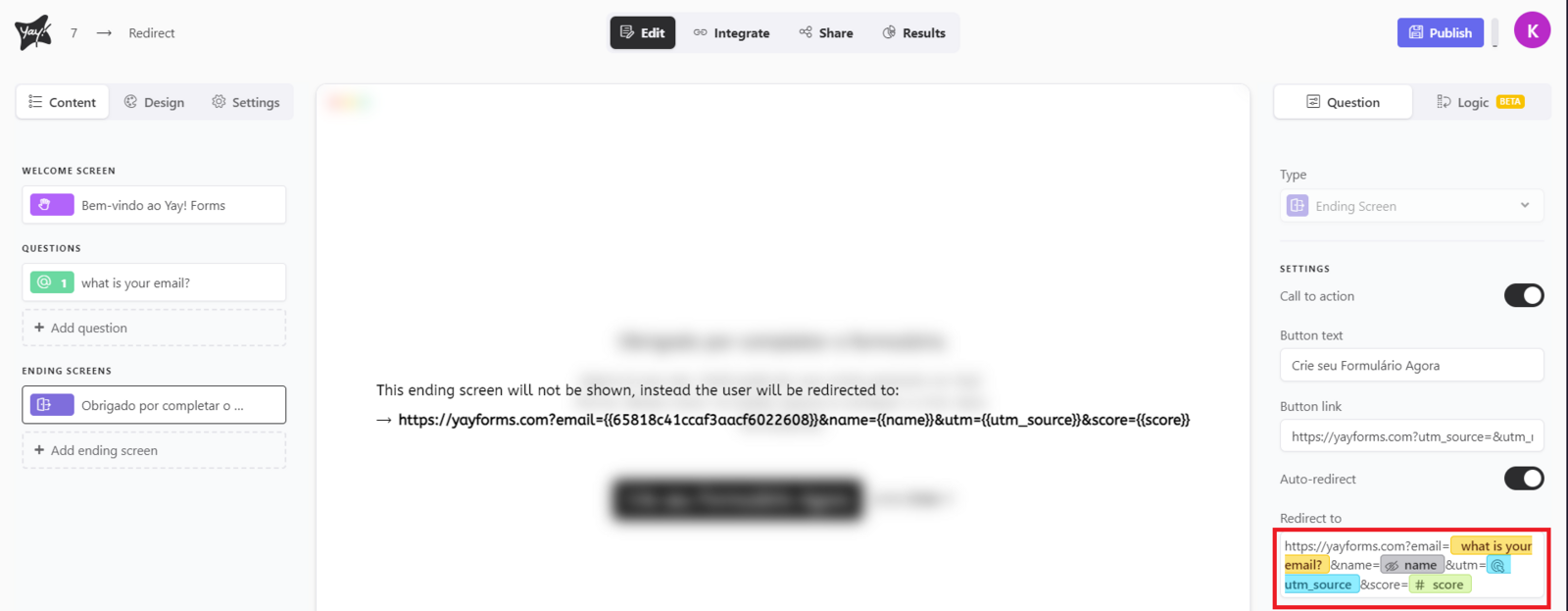
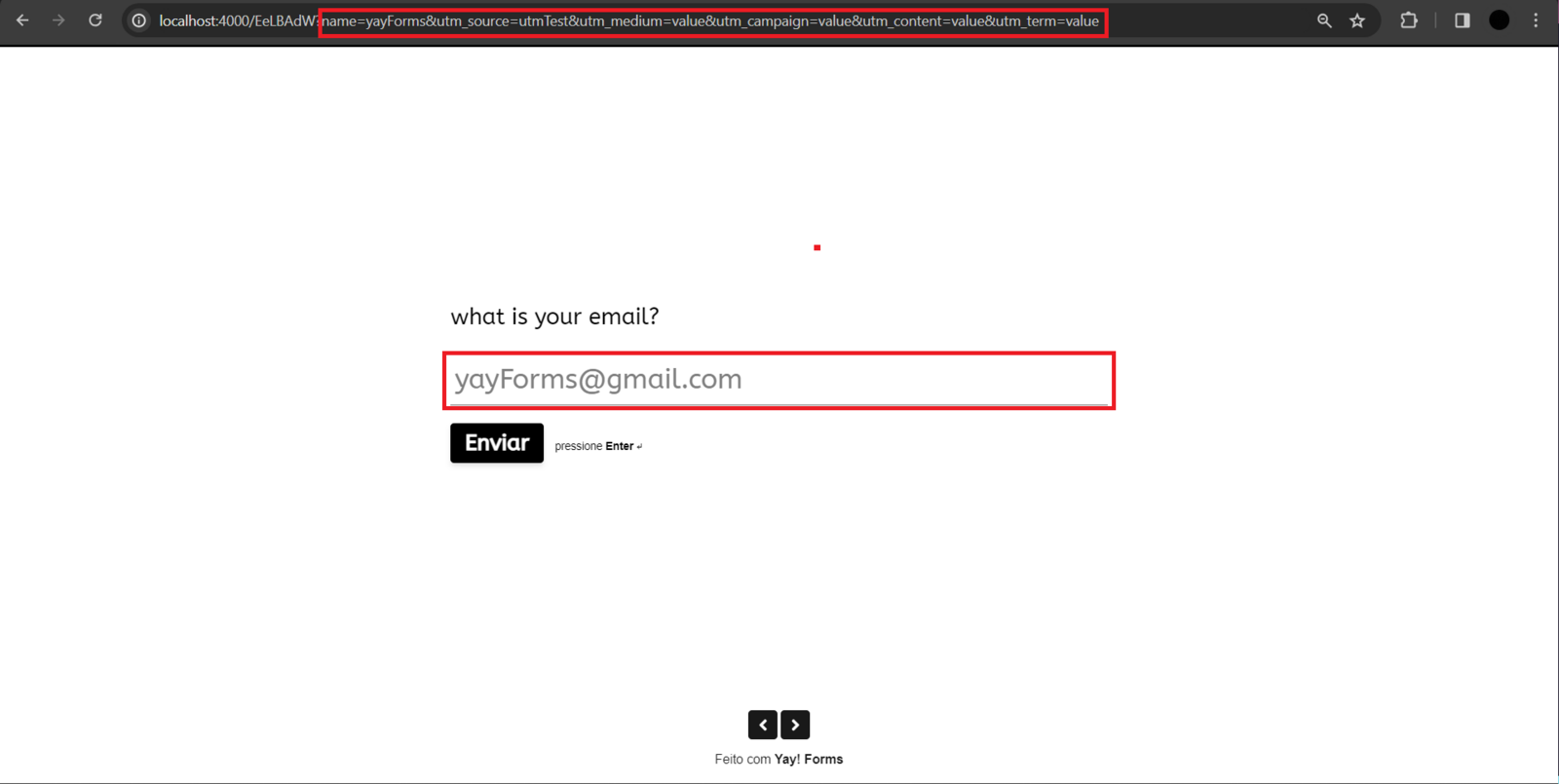
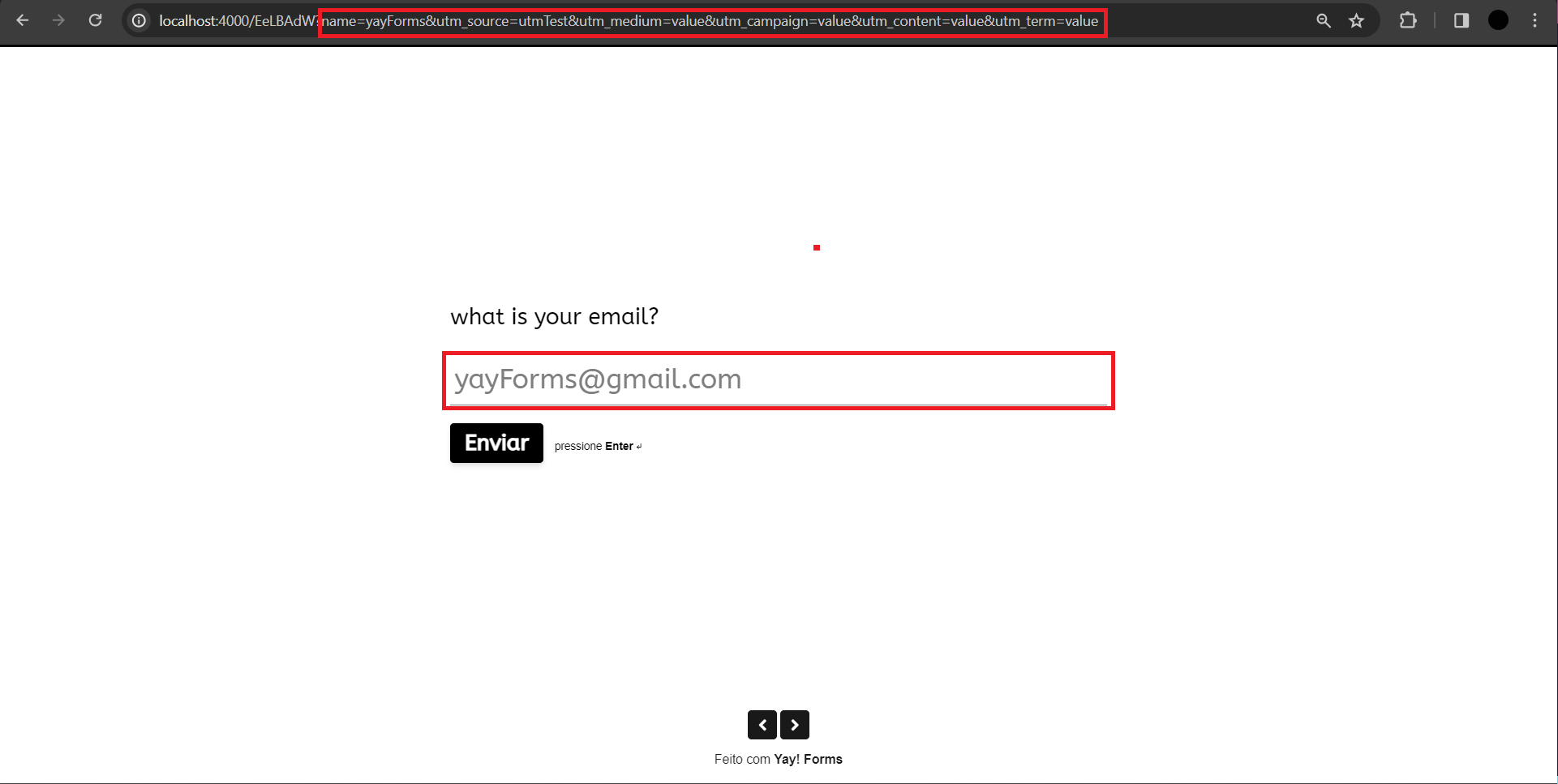
To use mentions on the final screen when you want to automatically redirect, use the values as parameters in the desired URL, as shown in the examples below:

Use a mention in the redirect as a button on the final screen
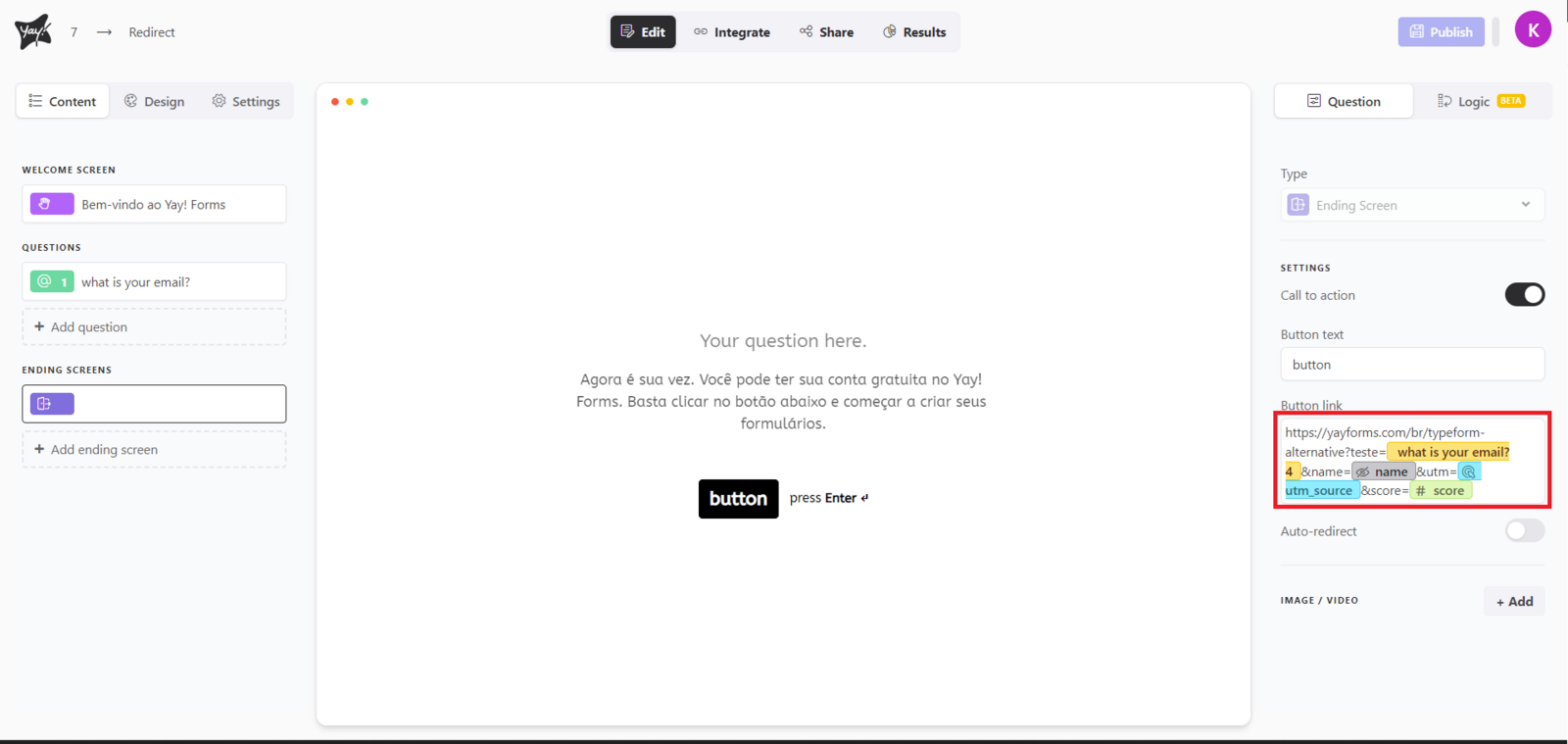
You can also use the mention in the redirect as the button on your final screen, as shown below:

Conclusion
You learned how to turn on automatic redirect for a form’s final screen, how it overrides the final screen content, and how to pass mentions through the redirect URL or use them as a final-screen button.