Placeholders are variables you can include in email and message content to automatically insert dynamic information, making each email more relevant and personalized for the recipient. This guide provides a detailed overview of the placeholders that can be used to personalize emails and messages.
What placeholders are and what they are used for
Placeholders are variables that you can include in email and message content, allowing dynamic information to be inserted automatically, making each email more relevant and personalized for the recipient.
This guide provides a detailed overview of the placeholders that can be used to personalize emails and messages.
Available placeholders
Below are the available placeholders you can use to personalize your email or message:
Form information
{{form.id}}: Inserts the form ID. Example: "Your form #{{form.id}} has been received"{{form.title}}: Inserts the form title. Example: "Submission confirmation: {{form.title}}"
Response information
{{response.id}}: Inserts the response ID. Example: "Response #{{response.id}} successfully recorded"{{response.created_at}}: Inserts the response creation date and time.{{response.submitted_at}}: Inserts the response submission date and time. Example: "We received your response on {{response.submitted_at}}"
Hidden fields
For each hidden field added to the form, use {{hidden_field_name}} to insert its value. Example: "Use the coupon "{{promo_code}}" to get 20% off."
UTM tracking
For each UTM parameter provided, use {{utm_name}} to insert its value. Example: "Campaign: {{utm_campaign}}"
Custom variables
In addition to placeholders specific to form information, response information, hidden fields, and UTM tracking, you can also use custom variables to include specific data that is important to your communication. These variables are defined by you within the form logic section.
{{variable_name}} : Inserts the value of the custom variable. Example: "Congratulations! Your score is {{score}}"
Form field answers
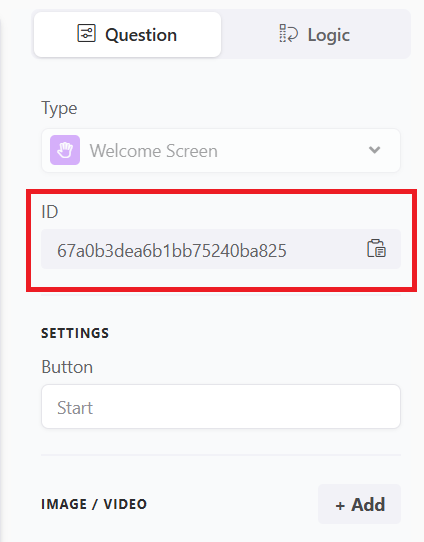
To insert the answer from a specific field, use {{field_id}} where field_id is the field ID. Example: "We will contact you by email: {{65a05283a852bf41g00876c3}} "
☝️ You can find a question’s ID on the form edit screen by going to that field’s settings. Just select the desired field and locate the ID in the settings section, as shown in the image below.
Using AI Feedback and the AI prompt
The placeholder {{ai_feedback}} is a powerful tool that allows you to include personalized feedback generated by artificial intelligence directly in your emails.
This feedback is created based on users’ responses to your form, offering an additional level of personalization and interactivity in communications.
To use this feature, first define the AI prompt in the AI Prompt field of your email feedback integration. This prompt should guide the AI on how to analyze the user’s responses and generate relevant feedback.
Example of using the AI prompt
Within the form settings, you can set up a prompt to generate personalized feedback from responses using artificial intelligence:
Here is an example prompt:
"If the user's score is below 5, provide suggestions on how they can improve, considering the responses provided in the form."
After configuring the prompt, insert the placeholder {{ai_feedback}} in the email body where you want the personalized feedback to appear. When the email is sent, the placeholder will be replaced by the AI-generated feedback, based on the instructions provided in the AI Prompt and the user’s responses.
Personalizing emails and messages
To personalize the email or message, insert the relevant placeholders in the text where you want dynamic information to appear. When the email is sent, the placeholders will be replaced by the corresponding values from the form responses.
Personalization examples
- "Hello, your registration for
{{form.title}}on{{response.created_at}}was received successfully!" - "Hello {{name}}, your final score for
{{form.title}}is{{score}}!"
Example of email personalization with {{ai_feedback}}
Insert the sentence below in the Email Body field, within your email feedback integration:
"Hello, here is personalized feedback for you: {{ai_feedback}} "
This feature not only enriches the user experience with constructive, personalized feedback but also increases engagement by making each communication more relevant and tailored to individual needs.
Important: Be sure to test the AI-generated feedback before sending messages at scale to ensure the accuracy and relevance of the information provided.
Additional notes
- Make sure to use the placeholders exactly as shown, including the braces
{{and}} - Spaces inside the braces are optional. For example,
{{ form.id }}is treated the same as{{form.id}}
Conclusion
You learned what placeholders are, which placeholders are available for forms, responses, hidden fields, UTM parameters, custom variables, and field answers, and how to use them to personalize emails and messages—including inserting AI-generated feedback with {{ai_feedback}} by configuring an appropriate AI prompt.