This is a technical guide intended for those who want to create scoring forms in Yay! Forms, with the goal of redirecting users to different pages or websites, depending on the most selected answers.
Step-by-step setup in Yay! Forms
Step 1: Create the Variables
First, access the Variables area in Yay! Forms and create one variable for each option you want to score, as shown in the image below:

Step 2: Configure Points on the Questions
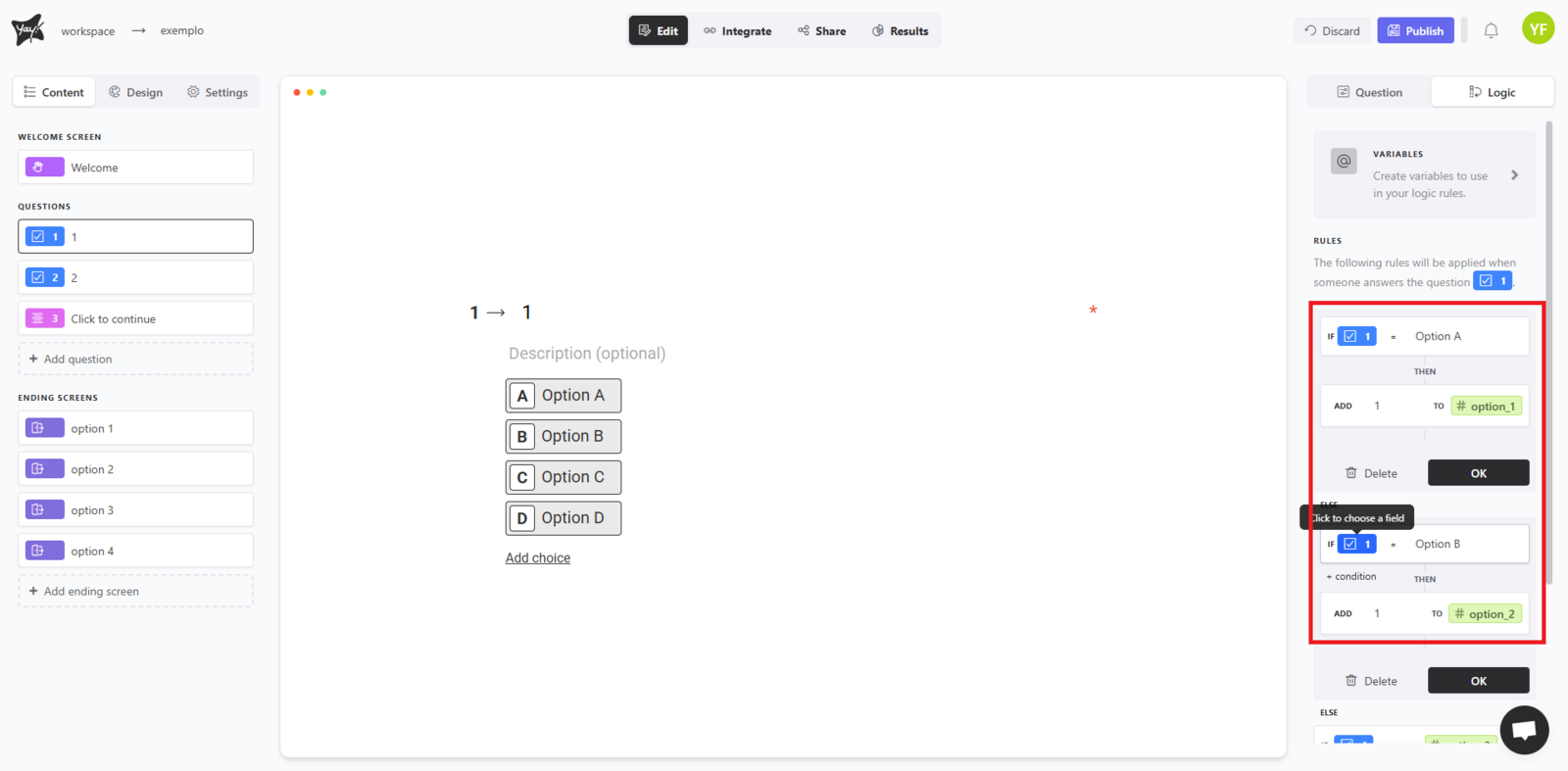
For each question in the form:
In the logic section of your question, choose the corresponding variable and add 1 point if the answer matches the desired variable (e.g., for option A, add 1 to the variable option_1) (or more, if you want to assign different weights), repeating the process for all answers to the question, as shown in the example below:
Step 3: Configure Redirect Logic on the Last Question
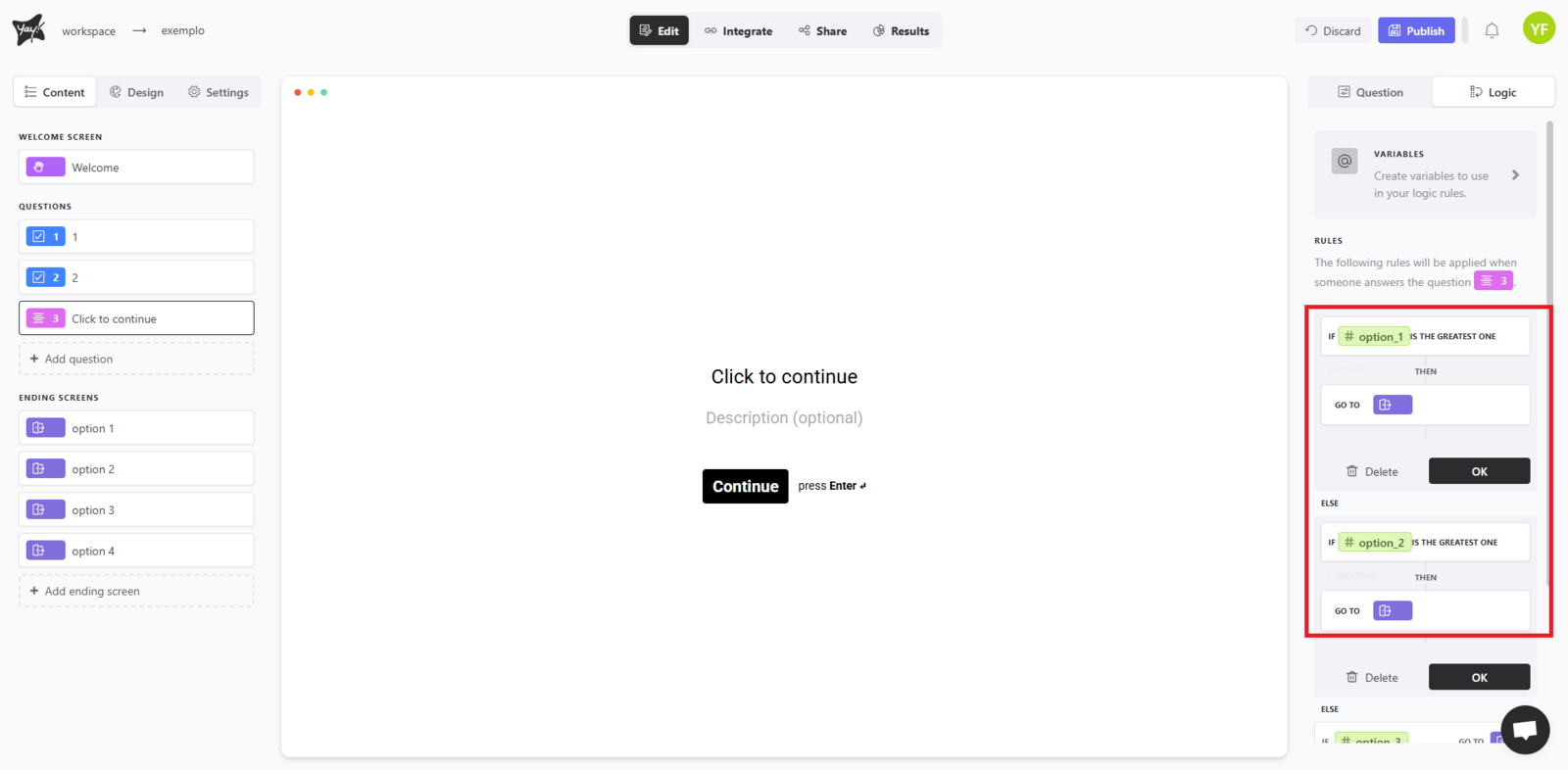
On the last question of the form, add logic to define the path to follow based on the variable that received the most responses, using the Has the highest value operator, as shown in the image below:
If you want to see a video tutorial on how to build this scoring system, you can take a look at the video our team prepared:
Conclusion
You learned how to set up variables, assign points to answers across questions, and configure final-question logic to redirect users based on the highest-scoring option in Yay! Forms.