This article will help you understand what “logic” is in Yay! Forms and how it enables dynamic, personalized form experiences. You’ll learn what logic can be used for and how to set up rules, conditions, and actions so your form adapts based on each user’s answers.
What is logic in Yay! Forms?
Logic in Yay! Forms allows you to create dynamic, intelligent forms that adapt based on the user’s answers.
With it, you can:
- Perform lead scoring and lead qualification.
- Show or hide questions;
- Send the user to different sections;
- Create quizzes, assessments, and personalized question flows;
- Add up points and automatically display final results.
👉 In practice, this means each user will have a personalized experience, answering only what makes sense for their profile or context.
Video lesson
Before we begin, we have a video lesson explaining, step by step, the content of this file, in case you want to check it out.
How to add logic to the form
1. Access the form
Open the form you want and select the question you want to use as the trigger for the logic.
2. Go to the “Logic” tab
On the right side of the screen, click “Logic”.
Within the tab, press the “Add Rule” button.
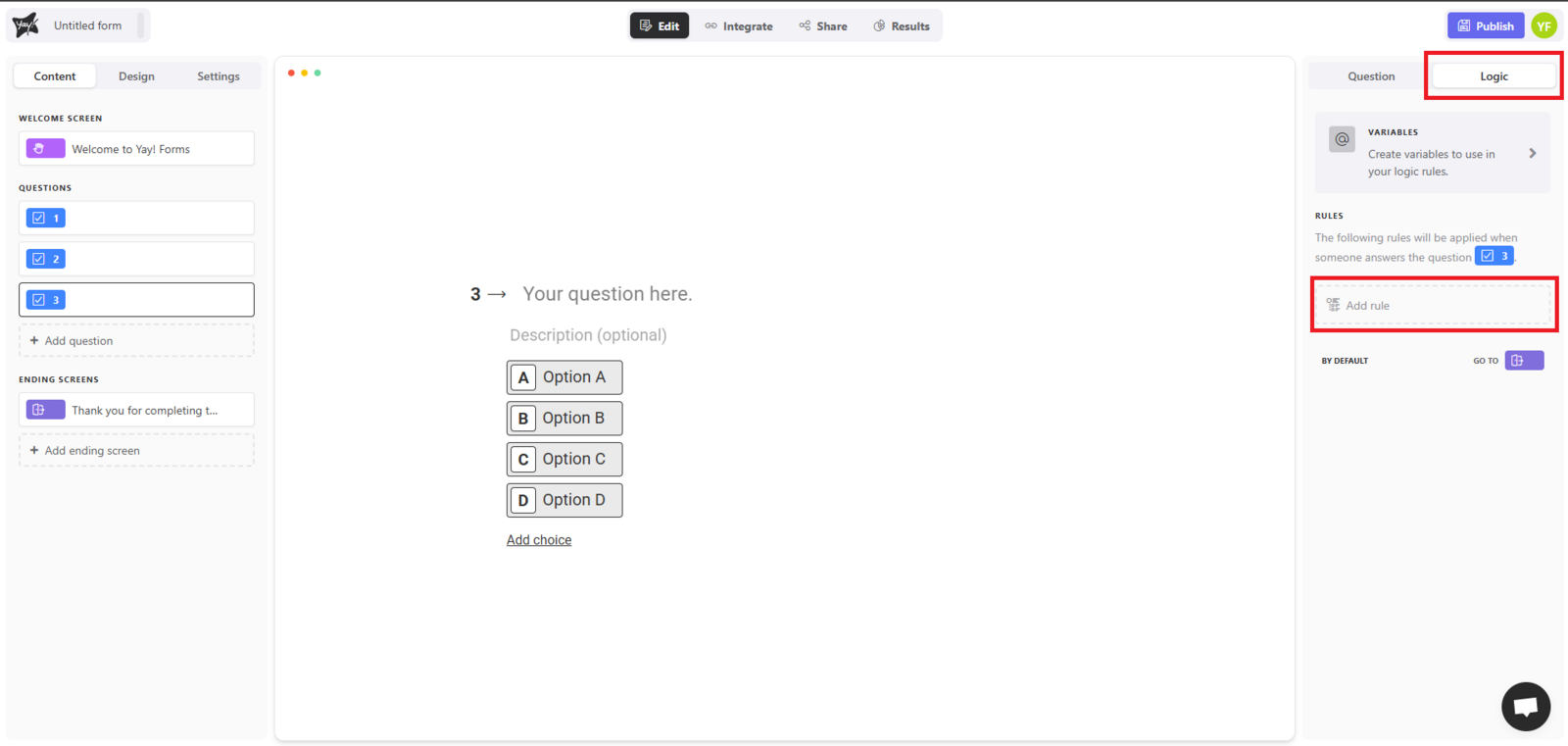
3. Define a condition
For example:
IF (your question) = Option A → THEN go to (end screen 1).
IF (your question) = Option B → THEN go to (end screen 2).
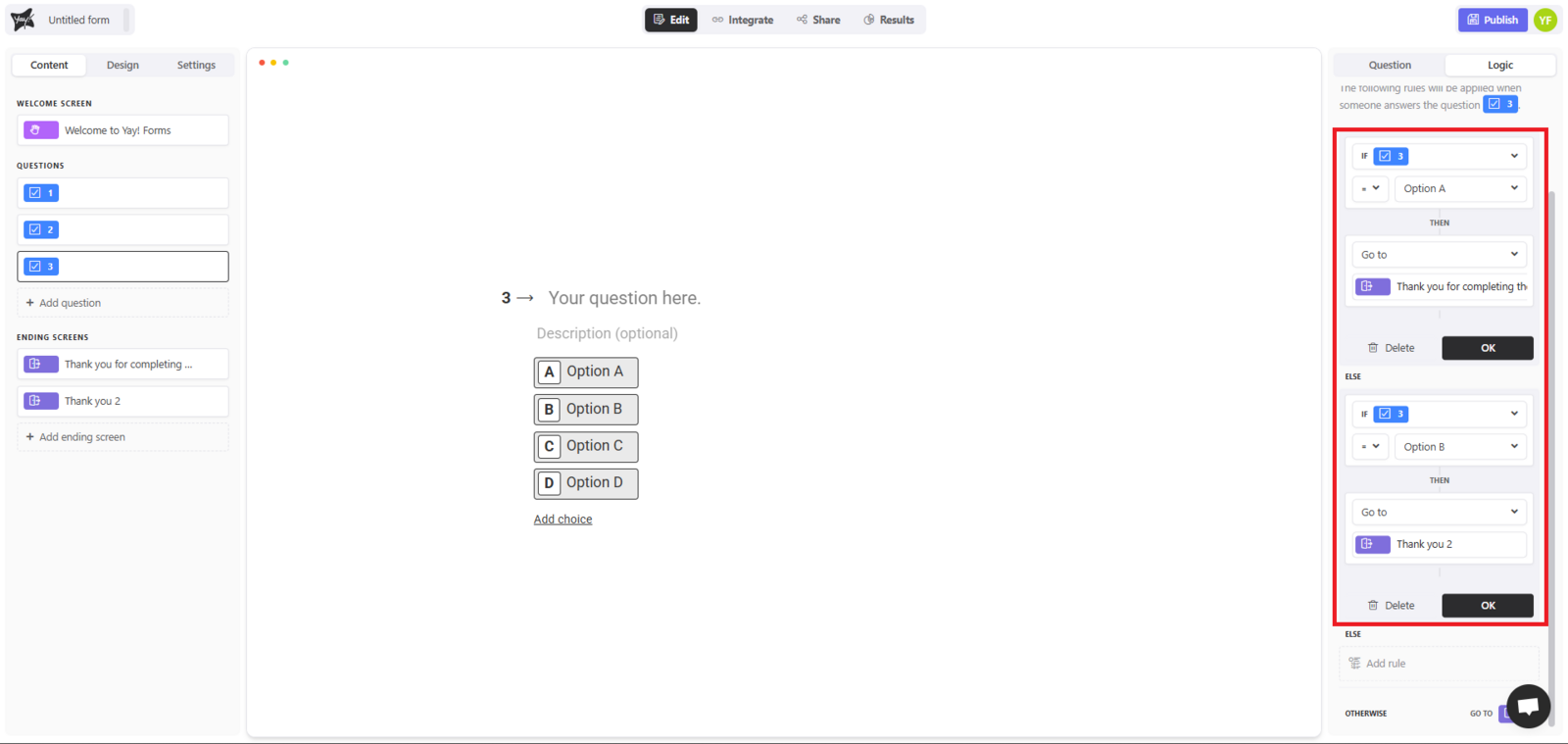
👉 Practical example: when creating a DISC profile quiz, each answer adds points to a variable (such as “Dominance” or “Steadiness”) and, at the end, the logic automatically shows the participant’s profile.
See the blog: Como criar um quiz de perfil.
Another possible feature is adding one or more conditions by clicking on "+ condition".
4. Add multiple conditions
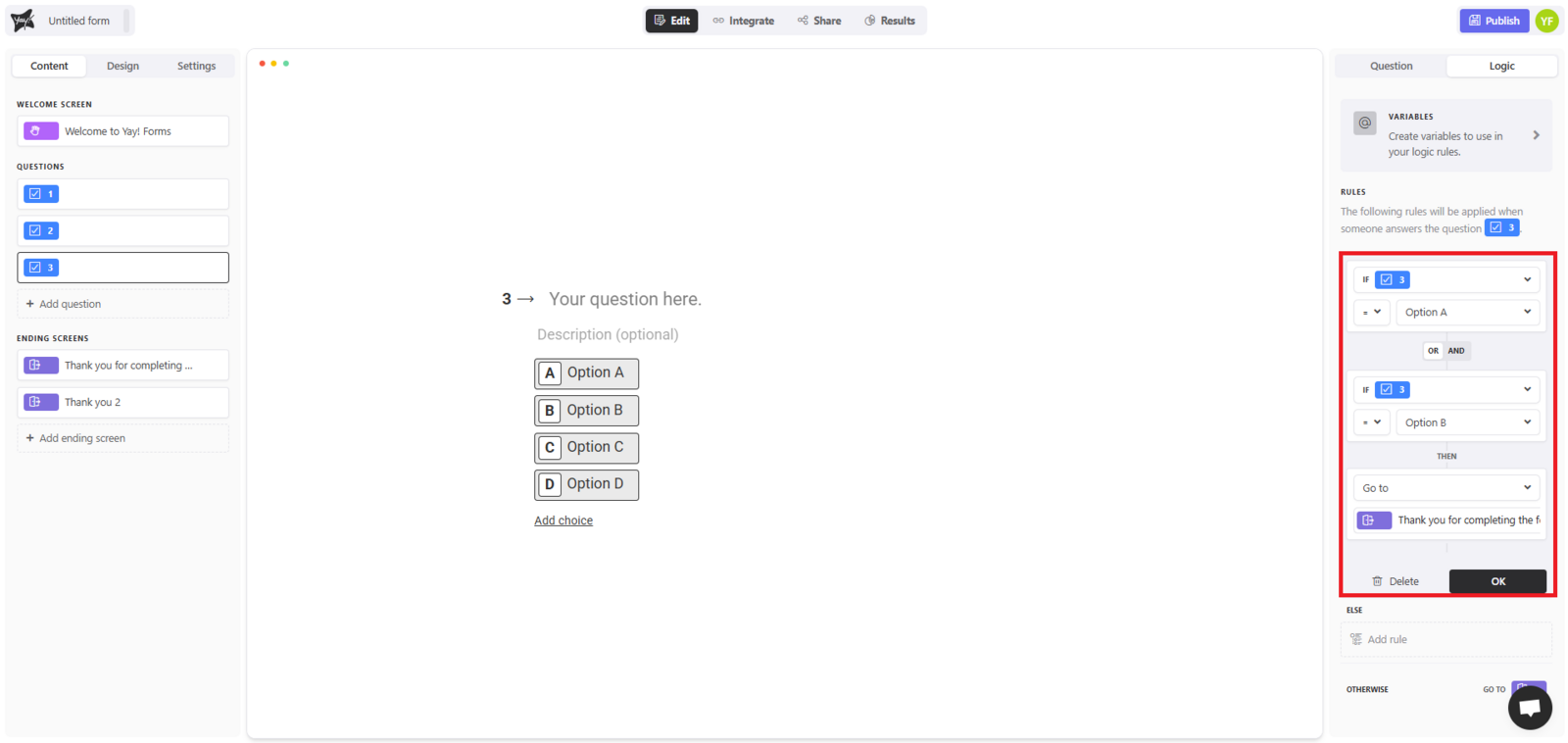
You can add conditions with AND and OR.
Example:
- IF (your question) = Option A → go to end screen
OR - IF (your question) = Option B → go to another screen.
5. Add extra actions
You can create as many actions as you want for the same rule.
Example:
- IF (your question) = Option A → go to end screen and add 10 points to the variable
score.
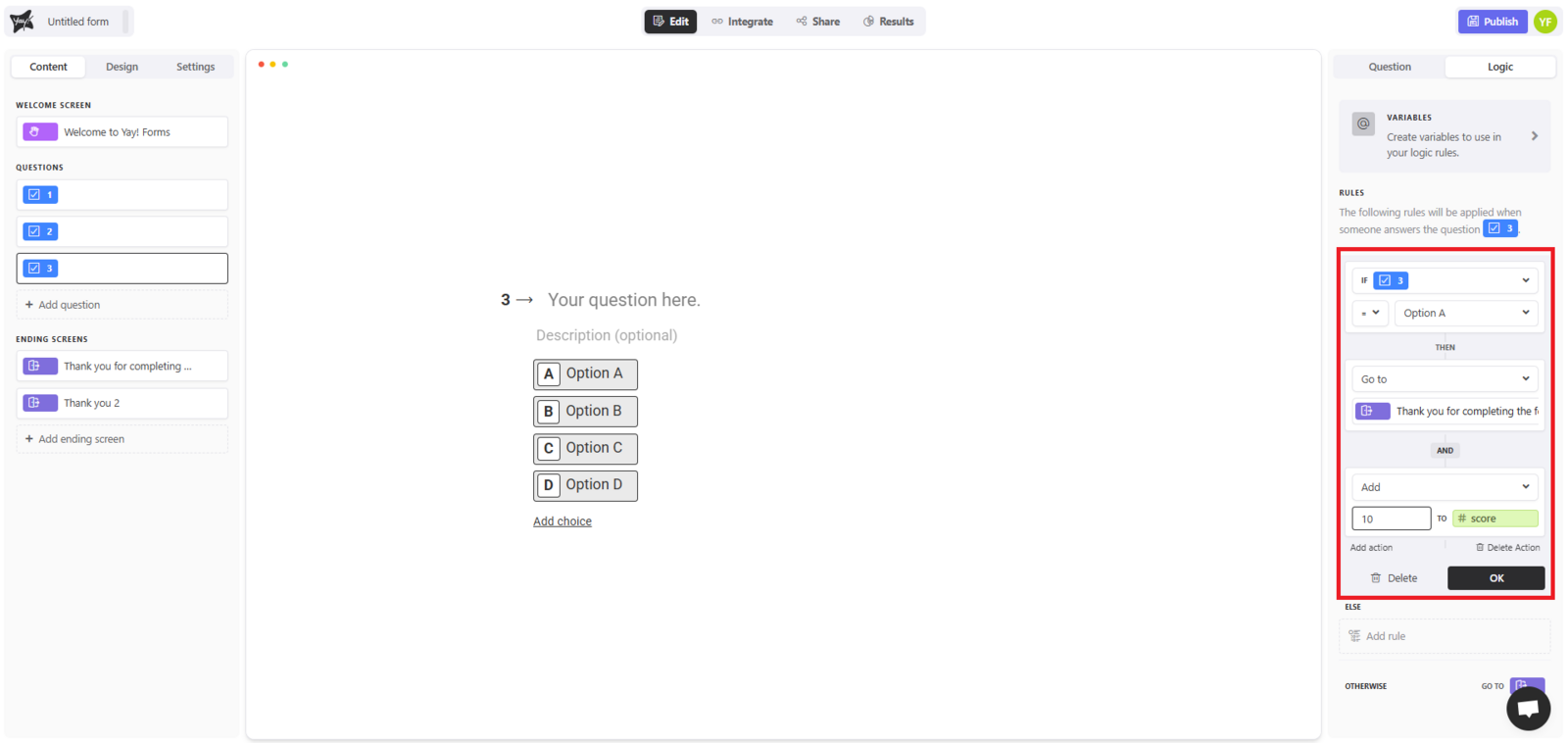
👉 Practical example: in knowledge assessments, each answer can add or subtract points. In the end, the logic displays the result adapted to the user’s performance.
See the blog: Avaliação de conhecimento com quizzes.
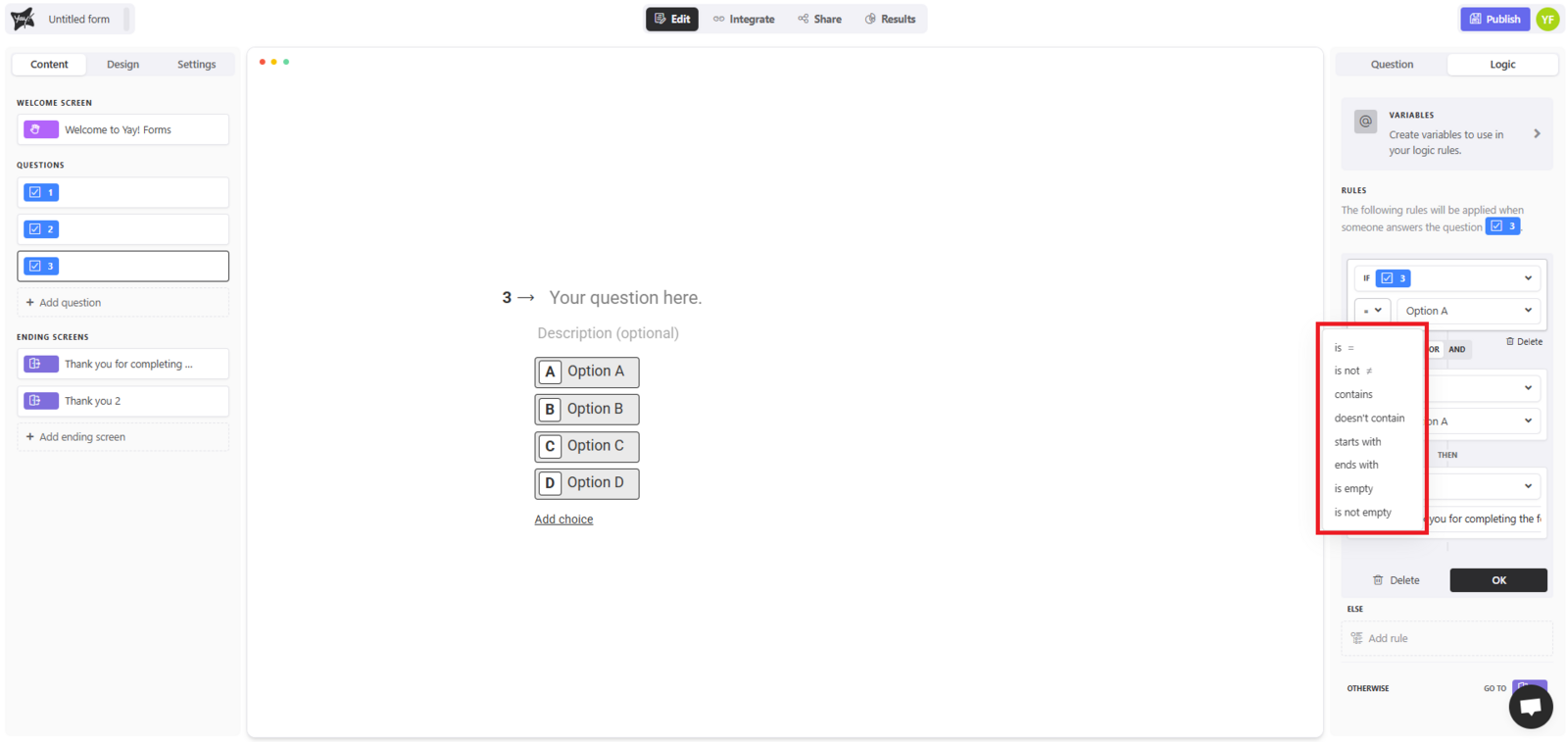
6. Types of conditions and actions available
Depending on the question type, you can configure conditions such as:
- “is”, “is not”, “contains”, “does not contain”,
- “starts with”, “ends with”,
- “is empty”, “is not empty”,
- “is greater than”, “is less than”, etc.
And actions such as:
- “Go to”,
- “Add”, “Subtract”, “Multiply”, “Divide”.
Support
If you have any questions or suggestions, send an email to [email protected].
Conclusion
You now know what logic in Yay! Forms is, what it can be used for, and how rules, conditions, and actions can personalize form behavior based on user responses. This enables dynamic flows such as lead qualification, quizzes, and automatic scoring with tailored outcomes.