This article will help you create variables in your Yay! Forms form, understand the available variable types, and use variables as mentions so their values appear automatically during the form experience.
Creating a variable in your form
Follow the steps below to create a variable in your form with Yay! Forms:
- Navigate to the question where you want to insert the variable.
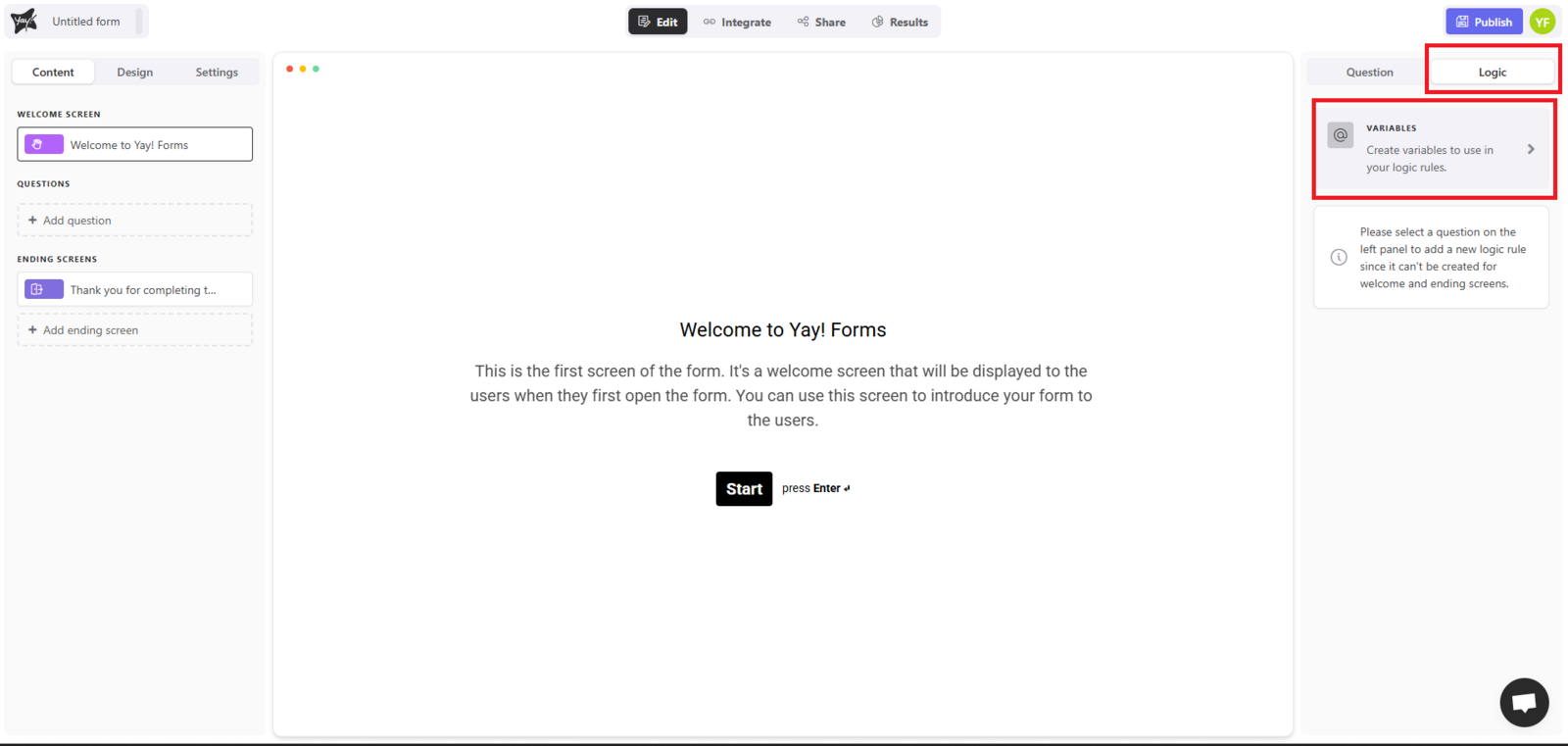
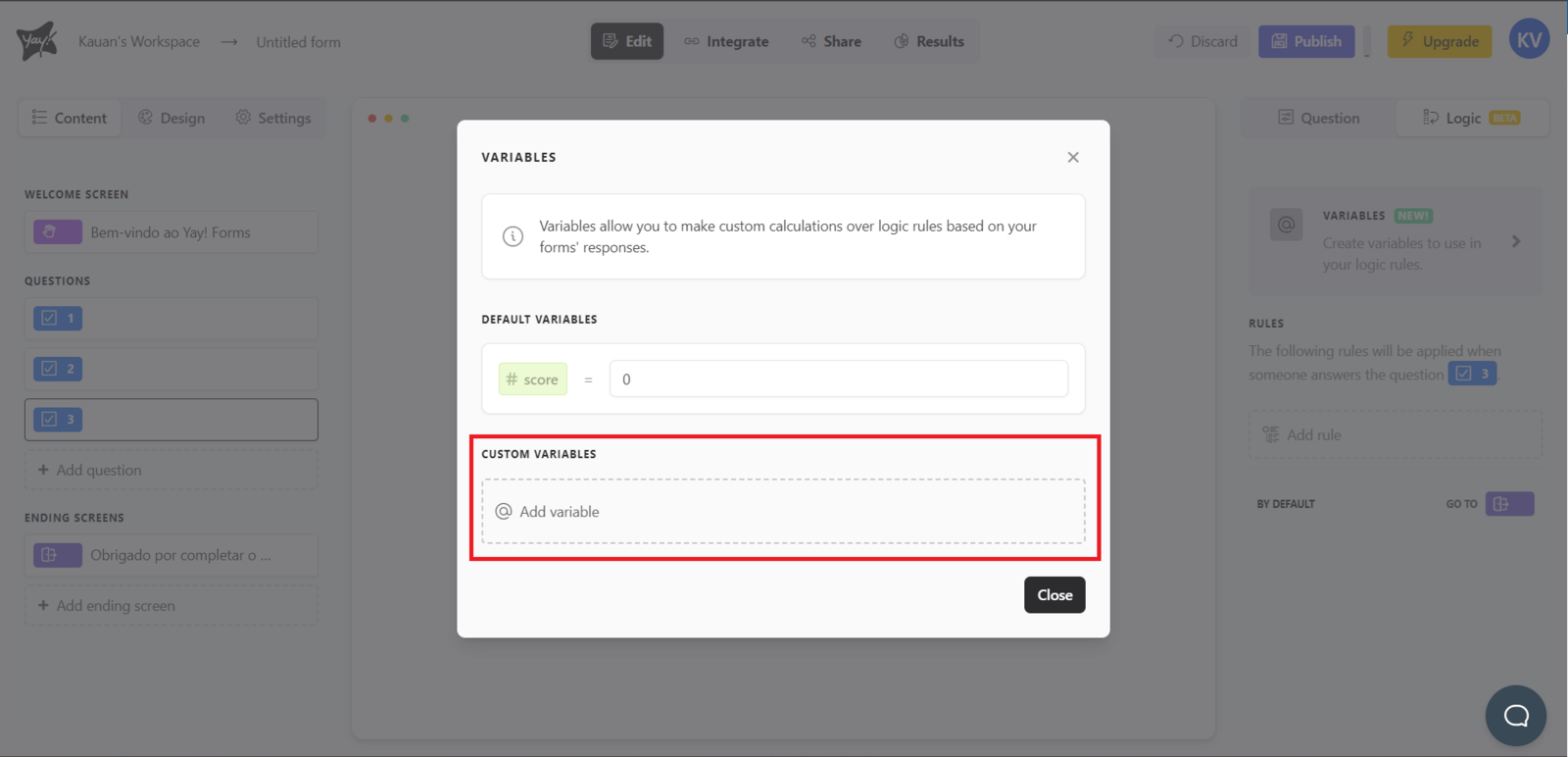
- On the right side of the screen, you’ll find a tab called "Logic". Click that tab, then click "Variables". Click "Add variable" and enter as many variables as you want.
Variable types
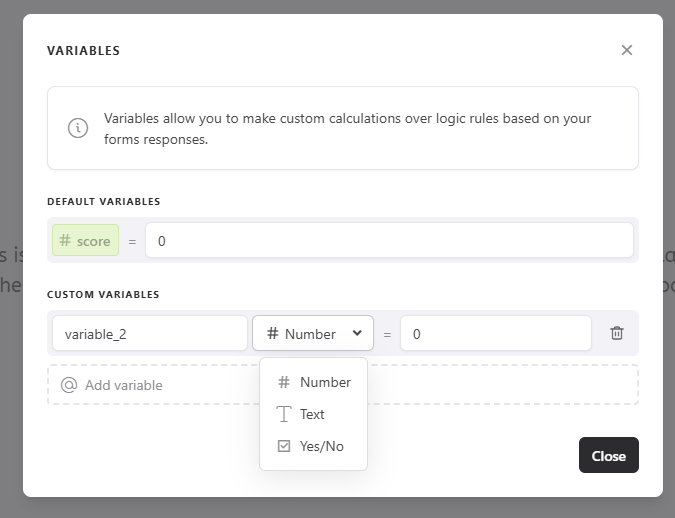
When you add a variable, you’ll see that there are three variable types:
Number: a variable type that accepts numbers, where you have the options to add, subtract, multiply, divide, and replace the variable value in the question’s logic section.
Text: a variable type that accepts text, where you have the option to replace the variable value in the question’s logic section.
Yes/No: a variable type that accepts true or false, where you have the option to replace the variable value in the question’s logic section.
☝️ The replace variable option means you will change the variable’s value if the condition is met, regardless of the previous value.
Using a variable as a mention in your form
Follow the steps below to use a variable as a mention in your form with Yay! Forms:
- Navigate to the question or screen where you want to insert the variable.
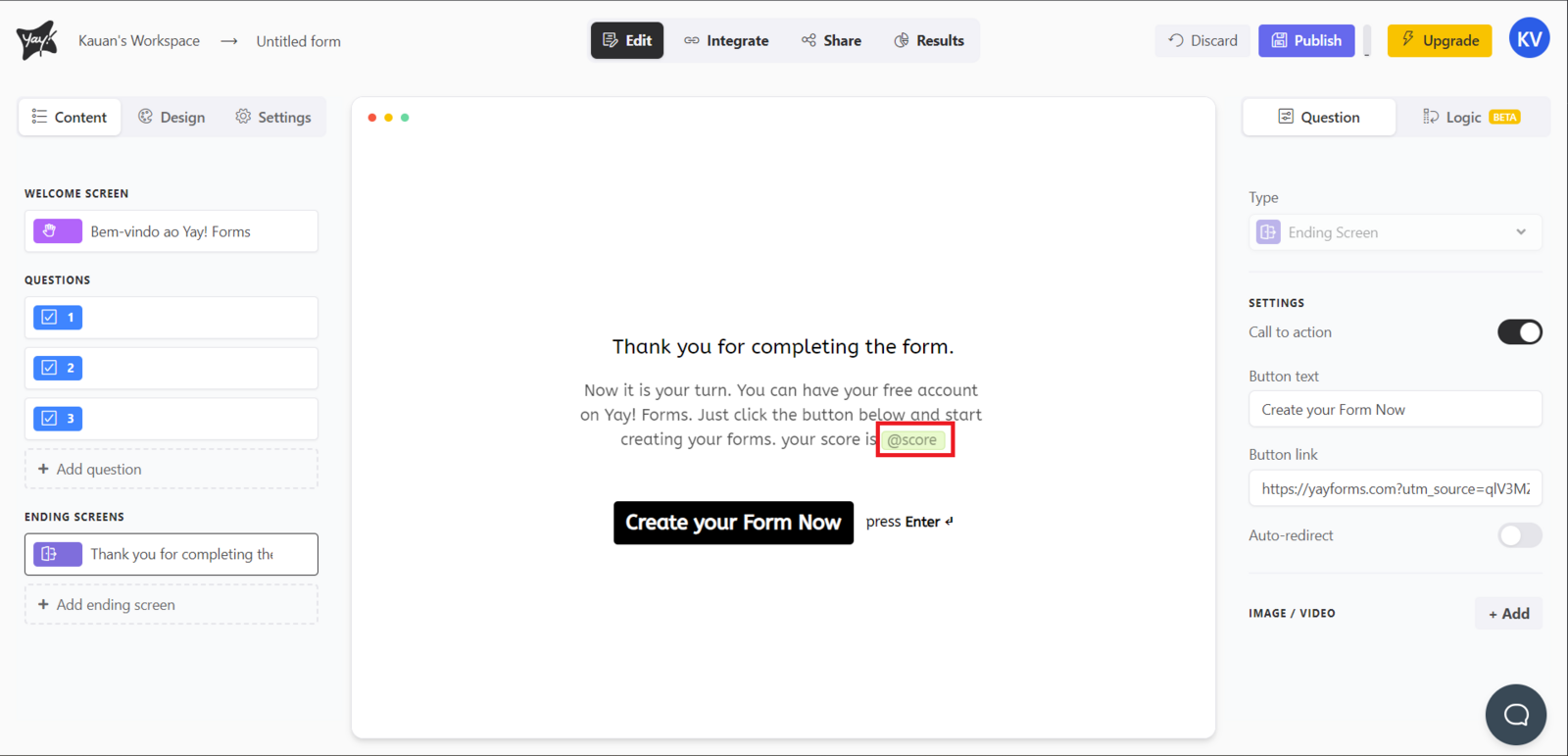
- Start typing the name of the variable you want to use, but don’t forget to start with the @ symbol. For example, "@score"
- With the variable inserted, the value will be automatically filled in on the form when the user reaches the desired screen.
Conclusion
You learned how to add variables to a question in Yay! Forms, what each variable type is used for, what it means to replace a variable value, and how to reference a variable with an @ mention so it populates automatically in the form.