This article will help you export your form responses and import them into Google Sheets or Excel, including where to download the responses and which options to choose during the import process.
Downloading your form responses
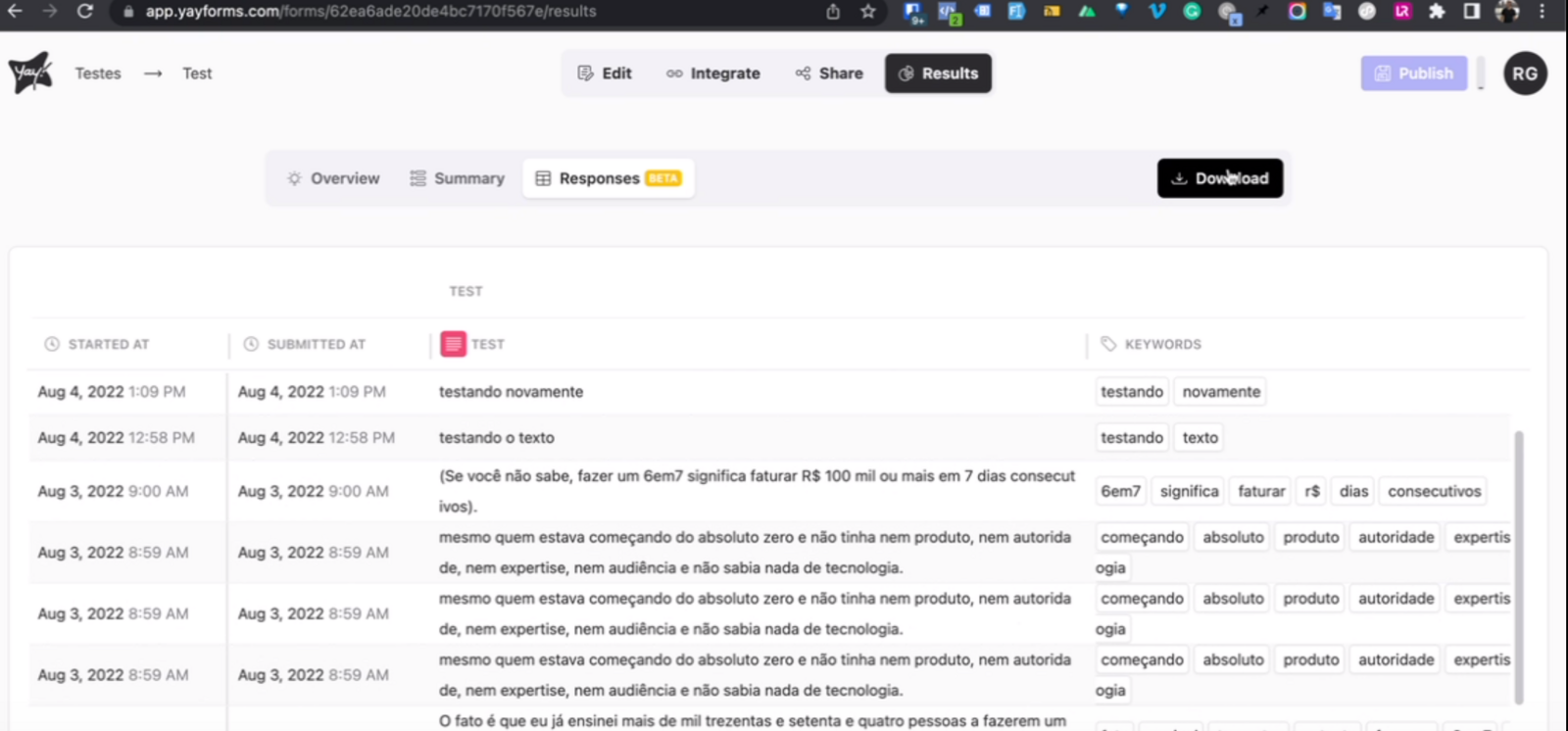
To import your form into Excel, click 'Results' at the top of the screen. Then click 'Responses' and click 'download' to download your responses.
Importing responses into Google Sheets
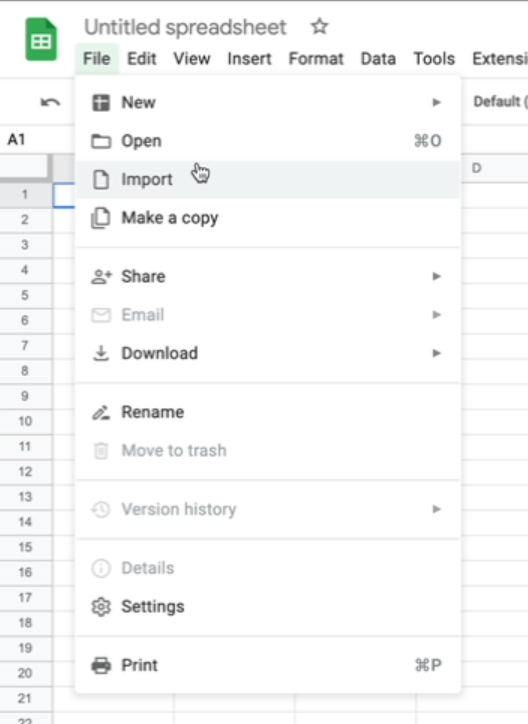
To add them to Google Sheets, go to the desired spreadsheet, click 'File', and then click 'Import'.
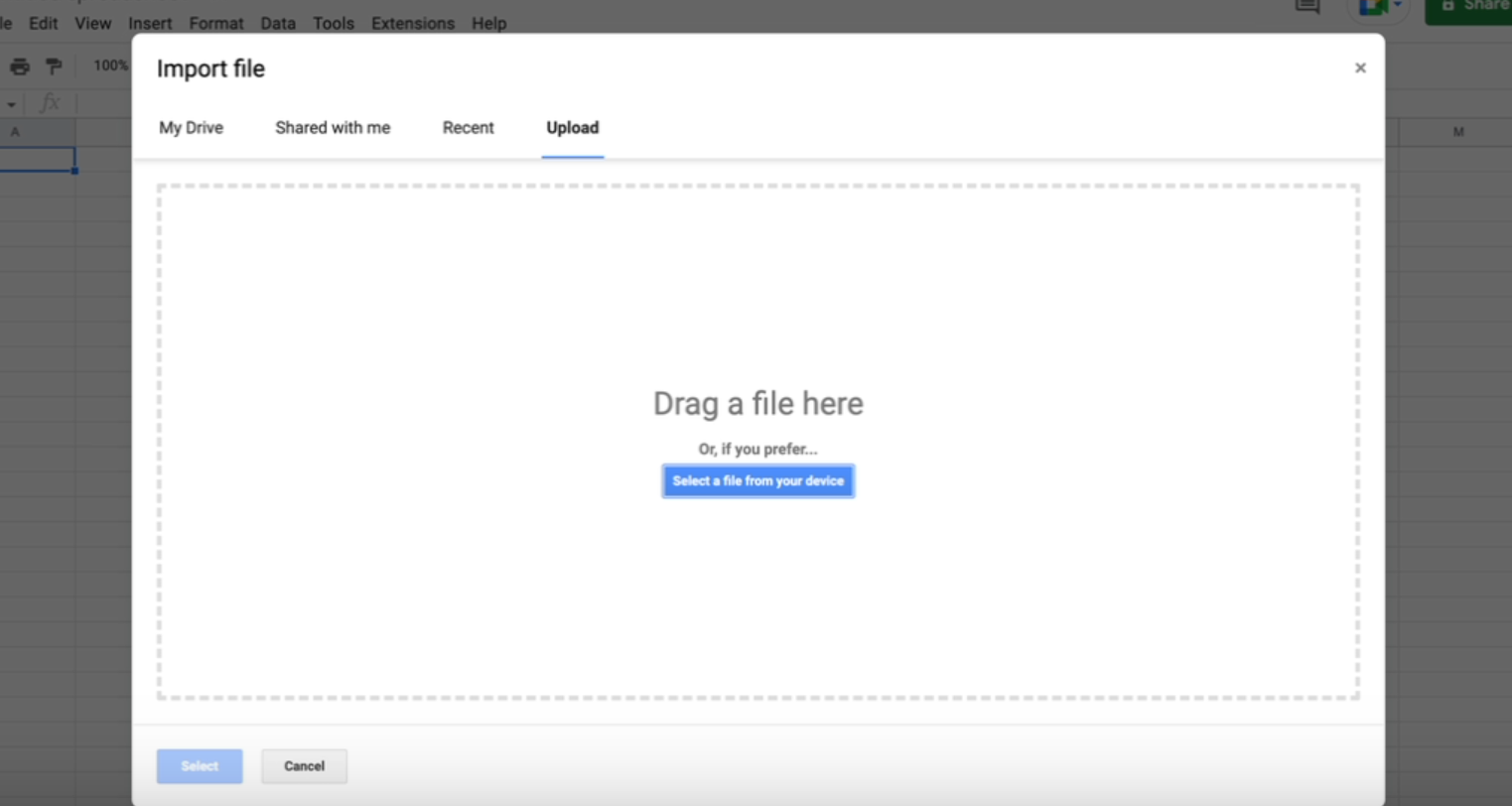
You may have noticed that a window opens; in it, click 'upload' and upload the file you downloaded earlier.
After that, click 'import data' and your upload to Google Sheets is complete.
Importing responses into Excel
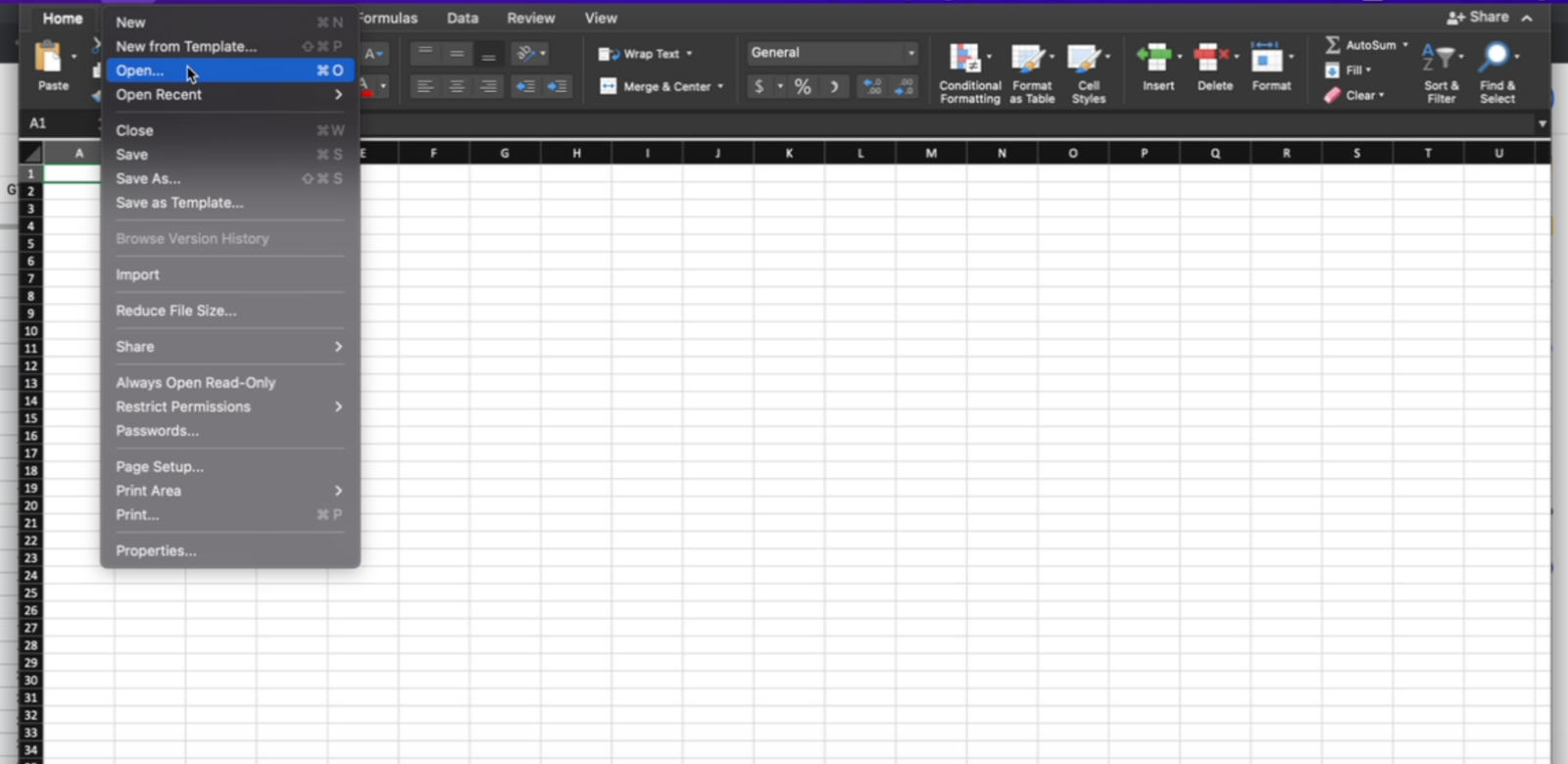
If you want to import your responses into Excel, go to the desired spreadsheet, click 'Open', and choose the file you downloaded earlier.
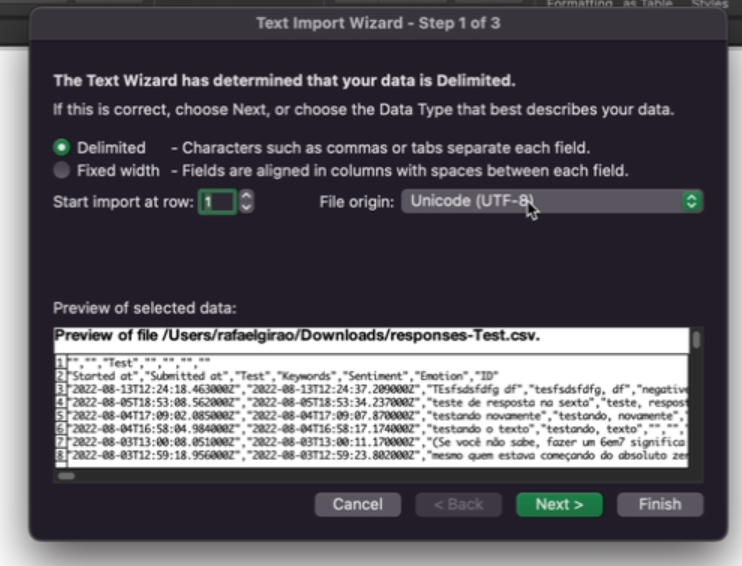
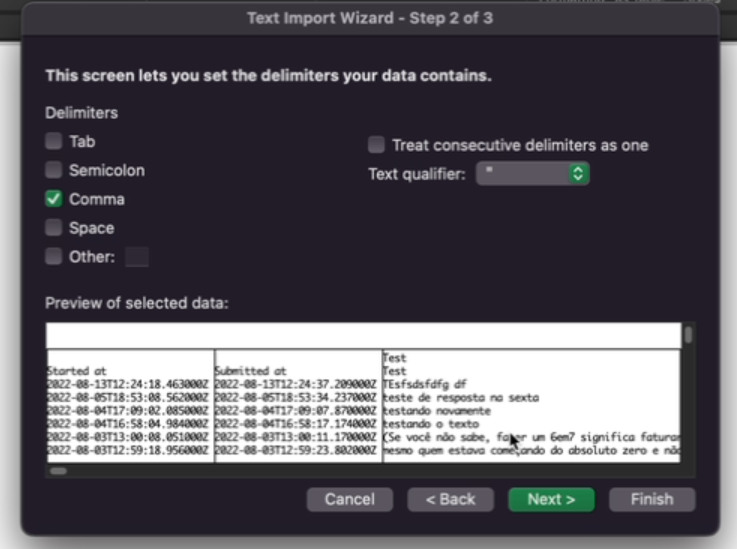
Right after that, a window will open asking how you would like to import your data. Our suggestion is to choose the delimited option and separate them by comma.
Support
If you have any questions or suggestions, send an email to [email protected].
Conclusion
You now have guidance on where to download your form responses and how to import the downloaded file into Google Sheets or Excel, including the suggested import option to organize the data correctly.