This article will help you understand what Kanban is and how to use the Kanban/CRM view in Yay! Forms to organize form responses, manage stages, assign owners, configure card details, and apply filters for better workflow tracking.
Introduction to Kanban
Kanban is a visual management method created in Japan by Toyota, used to optimize processes and bring clarity to the workflow.
The main concept is to divide tasks into stages and represent them on cards that move between columns.
This brings benefits such as:
- Clearly visualizing what needs to be done, what is in progress, and what has already been completed;
- Improving task organization and prioritization;
- Reducing bottlenecks and identifying where the process can be optimized;
- Increasing team collaboration.
In Yay! Forms, Kanban is used to organize the responses received in your forms.
You can:
- Create custom columns to represent your team’s flow;
- Move responses between columns as progress is made;
- Assign team owners to each response;
- Add labels, quick links, and comments.
This way, Yay! Forms Kanban works as a mini-CRM, helping you turn responses into an efficient follow-up workflow.
How to access Kanban in Yay! Forms
- Access the desired form.
- Go to the Results screen.
- Click the Kanban/CRM tab.
Kanban columns
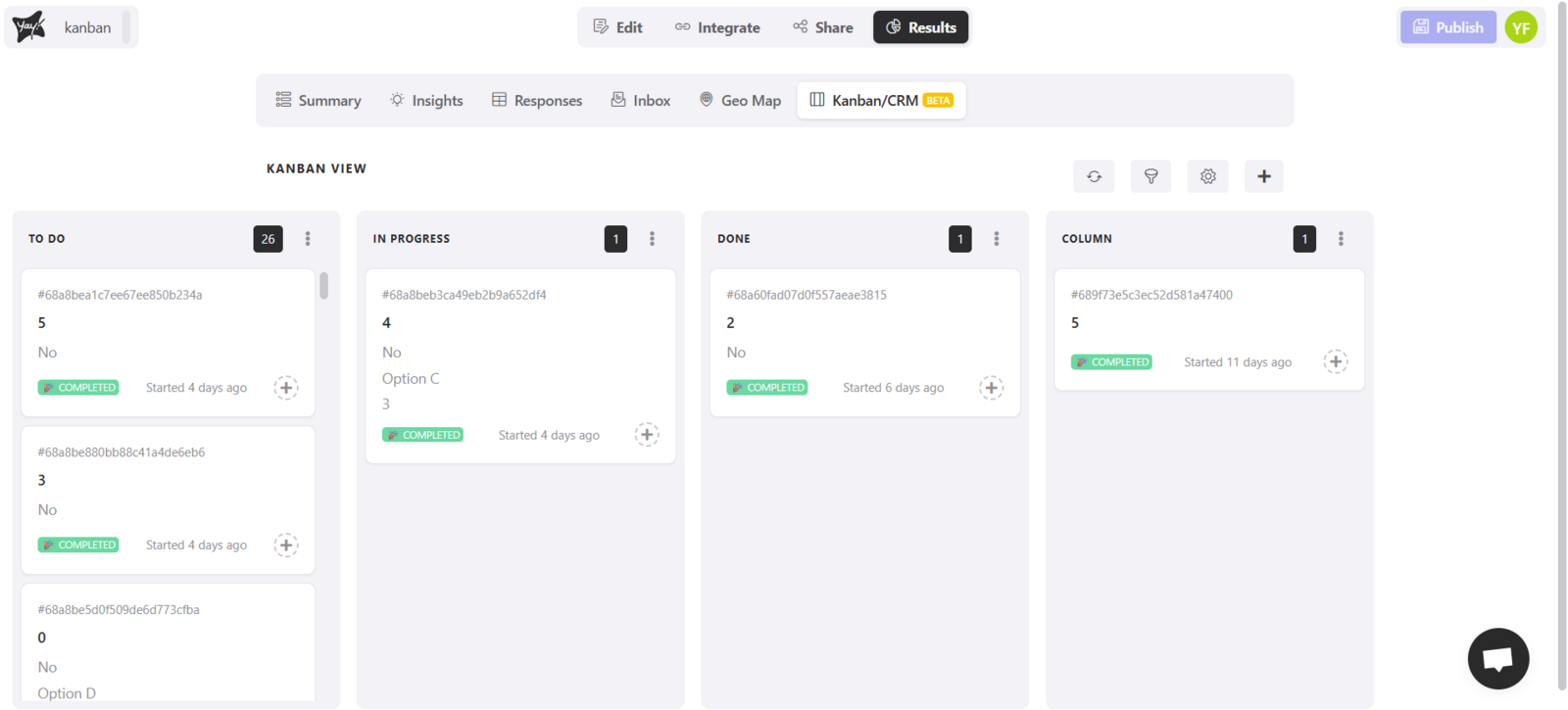
- By default, you will have three initial columns:
To do, In progress, and Done
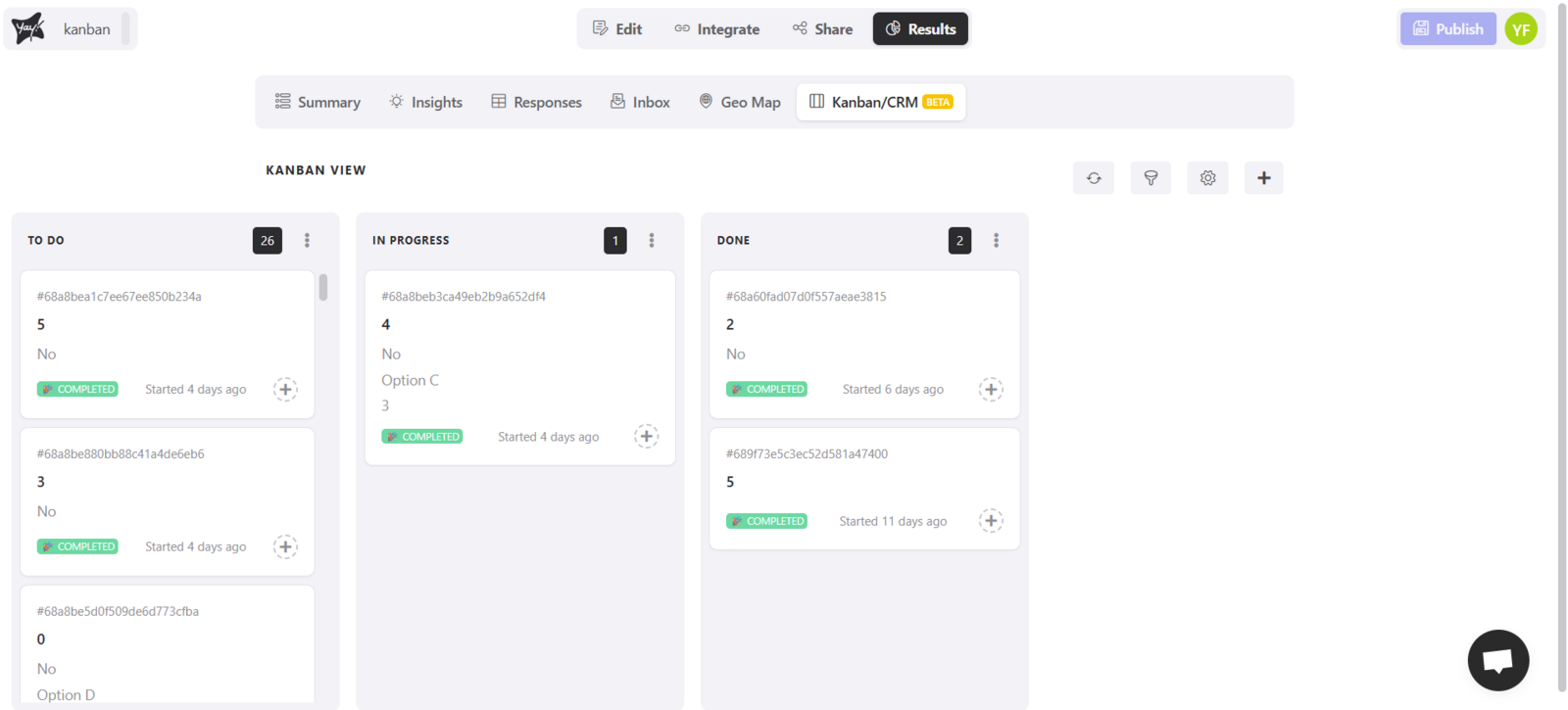
Create new columns
- Click the “+” button to add a new column.
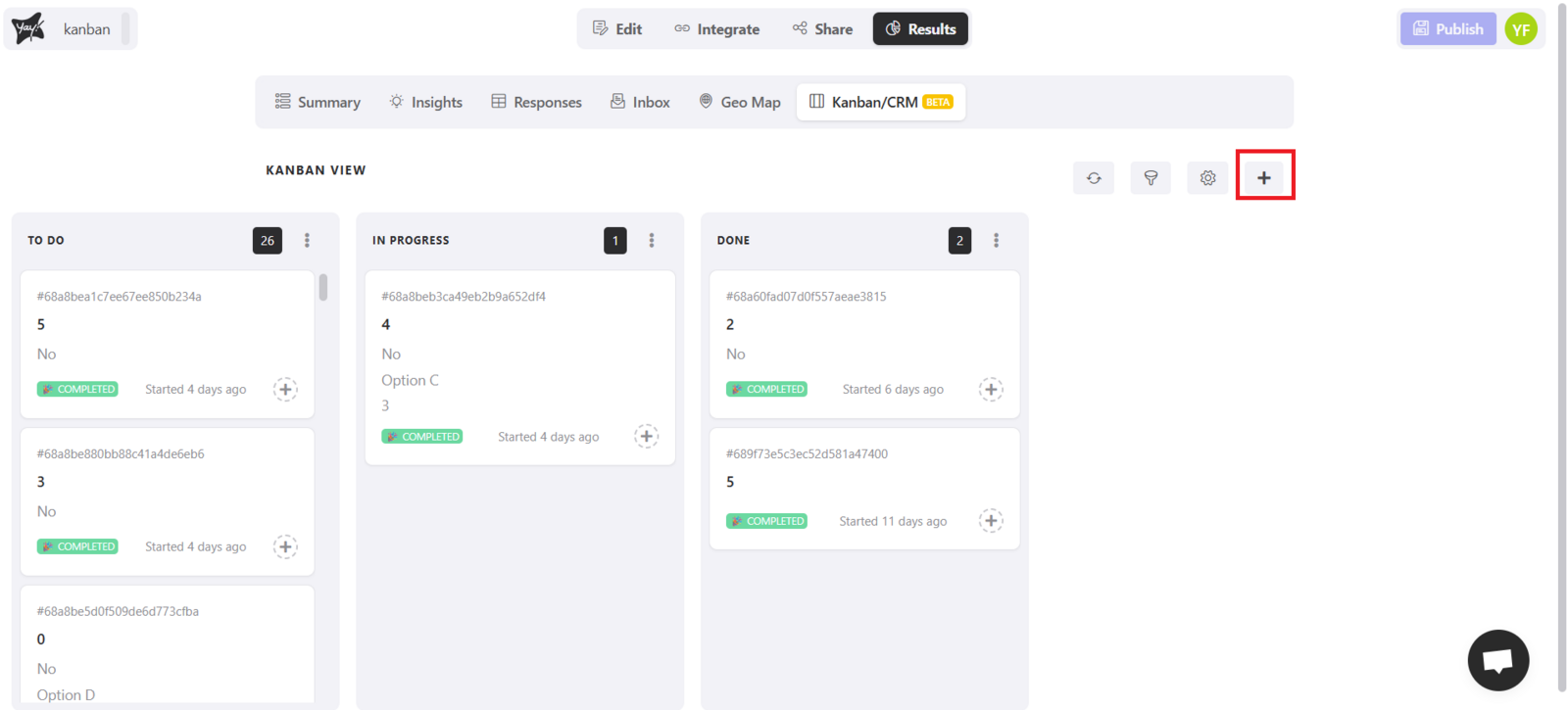
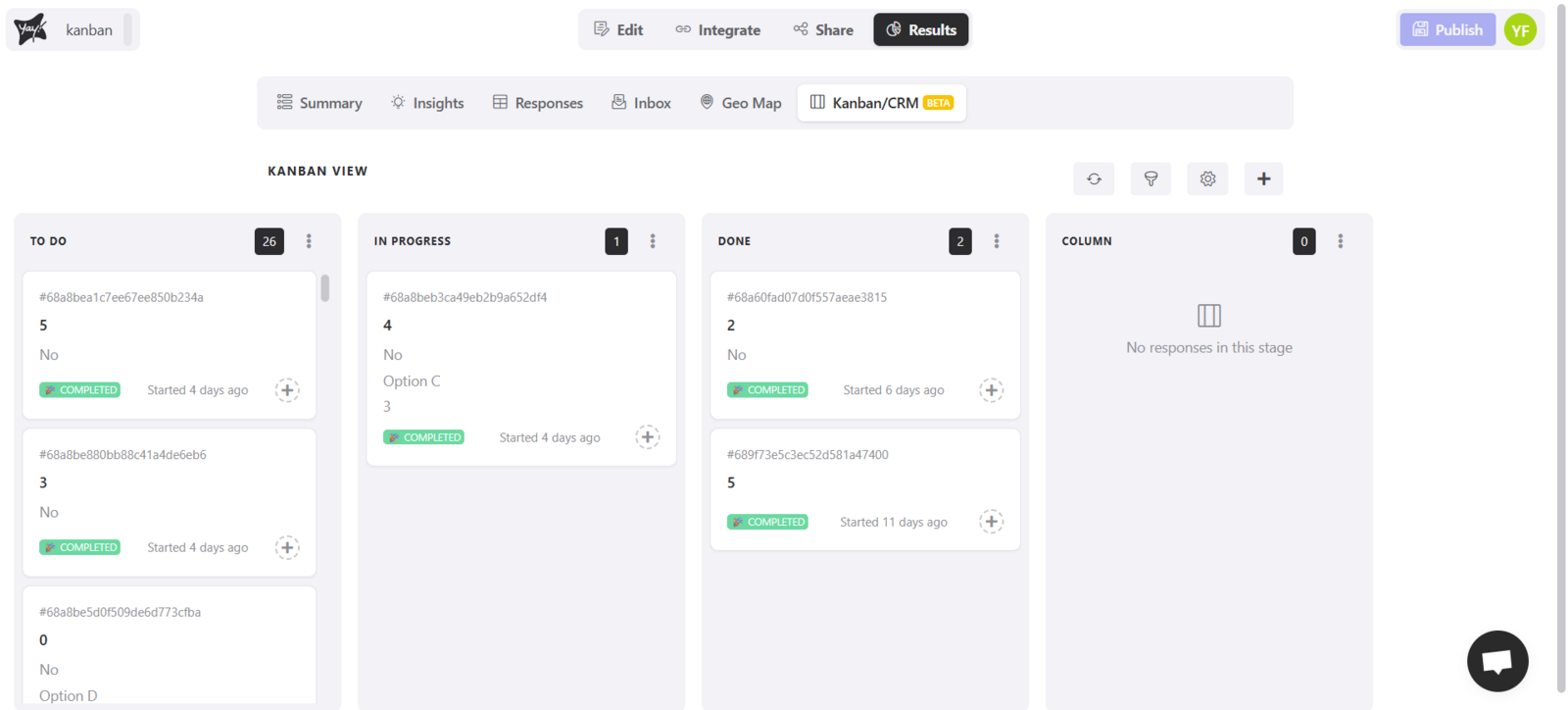
As in the example below, it was named Column
Move responses between columns
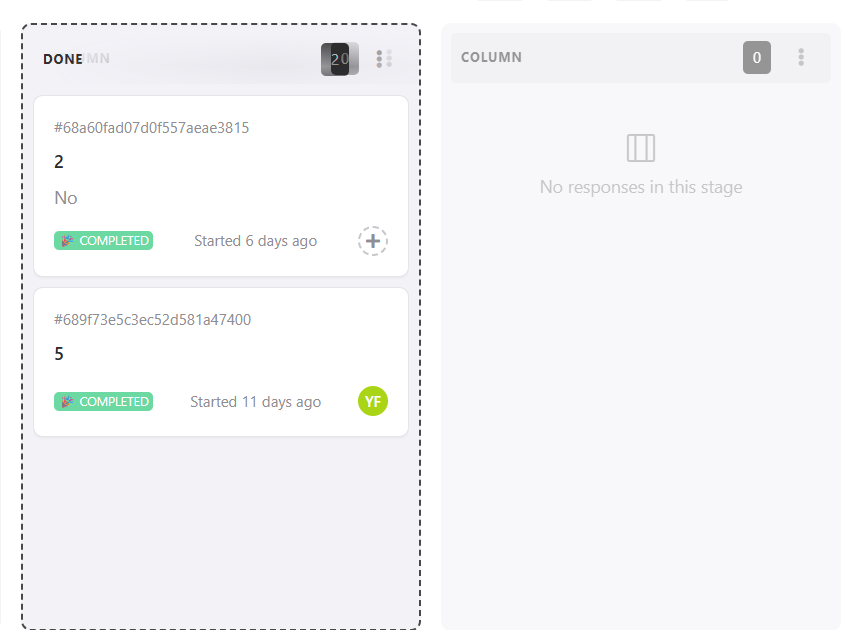
- Click, hold, and drag a response to the desired column.
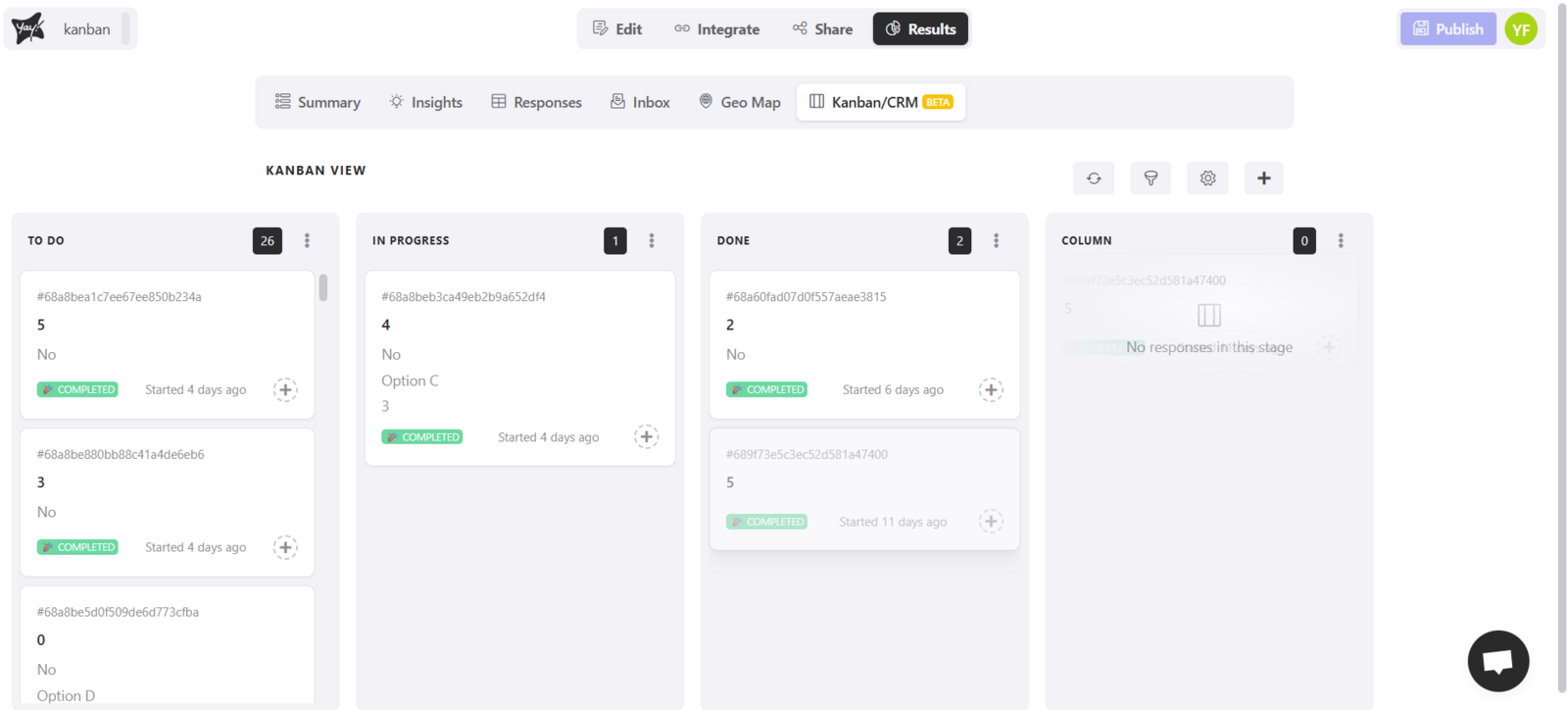
This was the result:
Reorder columns
- Click, hold, and drag the column to the desired position.
Rename columns
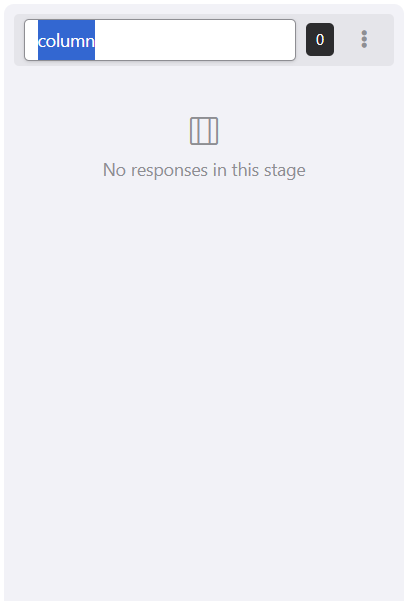
- Click the column name and change it as you prefer.
Delete columns
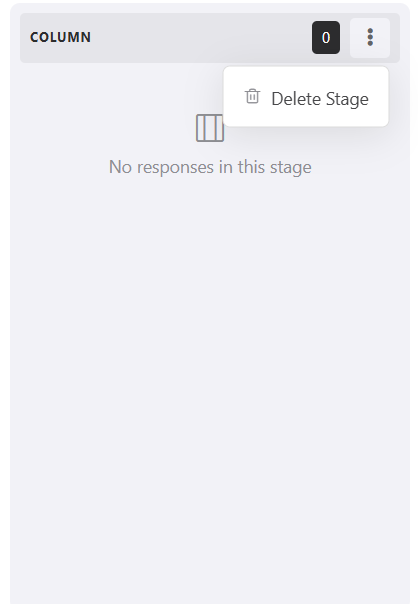
- Click the three dots on the column and select Delete stage.
- Important: you can’t delete columns that contain responses.
Assigning owners to responses
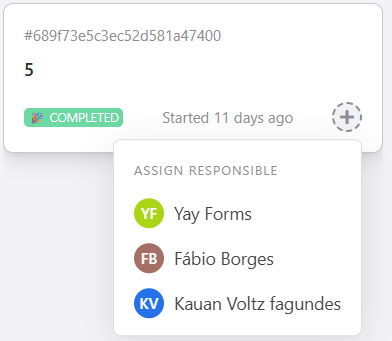
- In each card (response), you can assign a team owner: just click the “+” button inside the card and select who will be assigned. This helps organize who will take care of each response.
Kanban settings
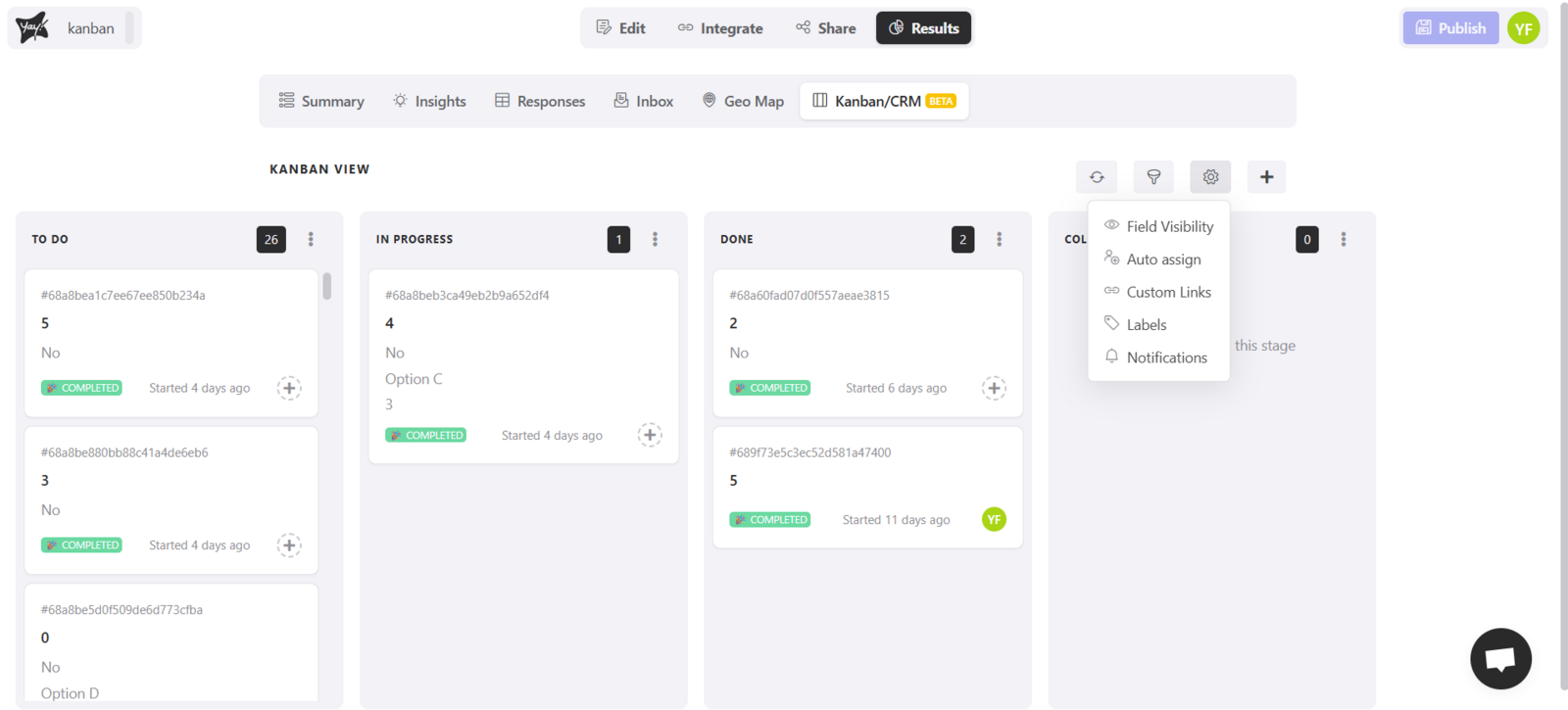
Click the gear icon to access settings:
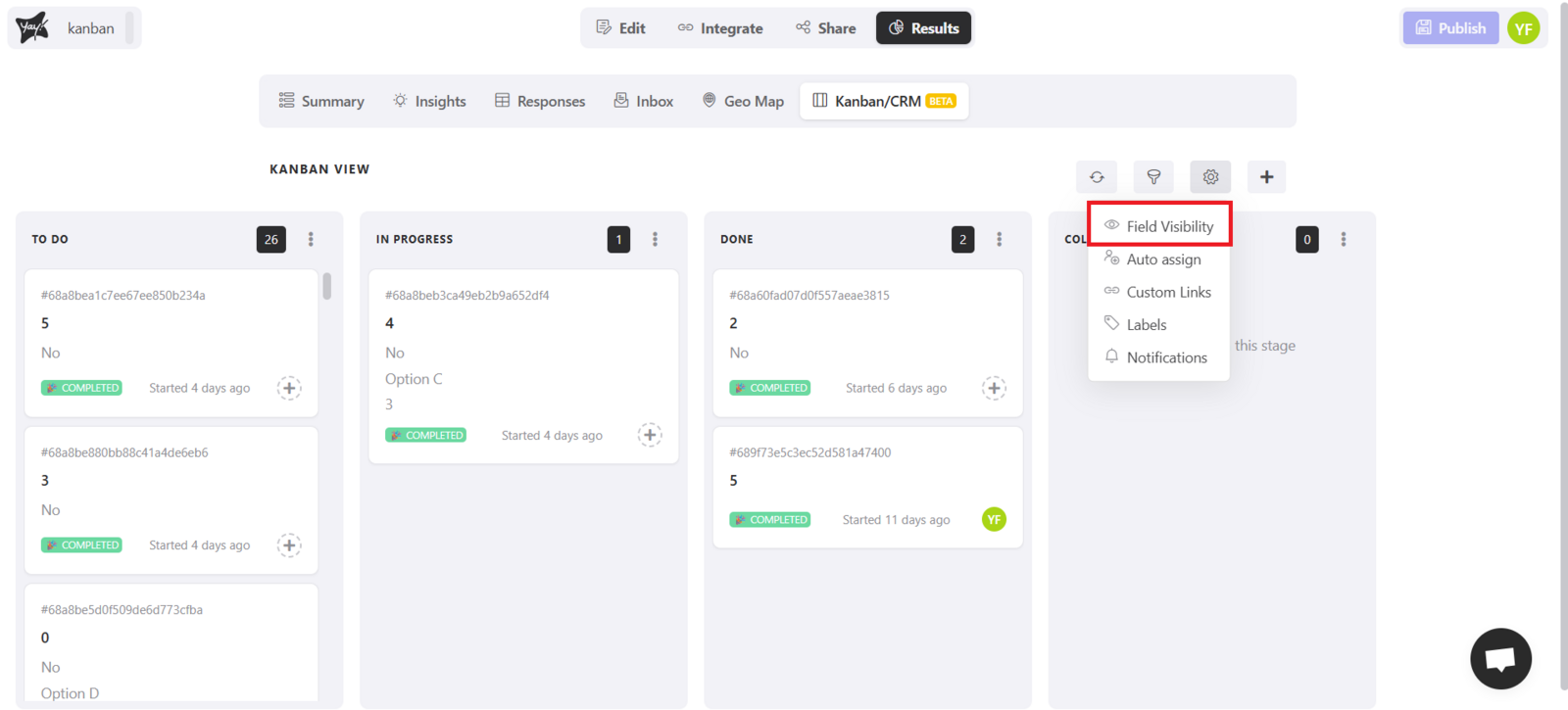
Field visibility
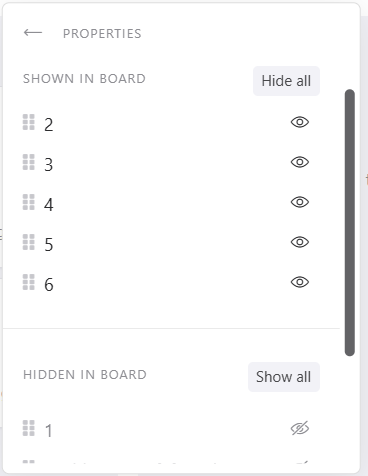
- Lets you choose which information appears on each card.
- You can show or hide fields and variables.
Auto-assignment
- Sets responses to be automatically assigned to team members.

- You can enable the toggle next to each profile.
- If more than one profile is selected, assignment will be done randomly between them.
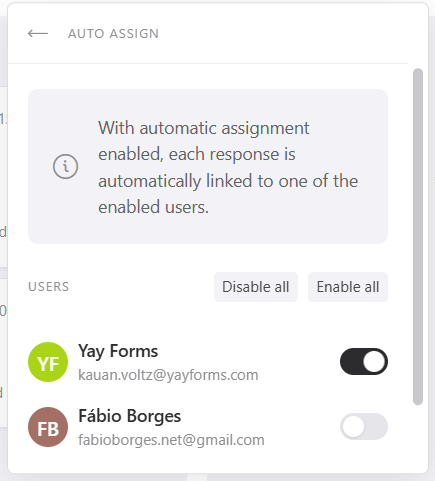
Important notes: Auto-assignment applies to new responses that arrive in the form. You can enable/disable profiles at any time (stopping/resuming distribution to that person). Even with auto-assignment, you can manually reassign a card to another member whenever you want.
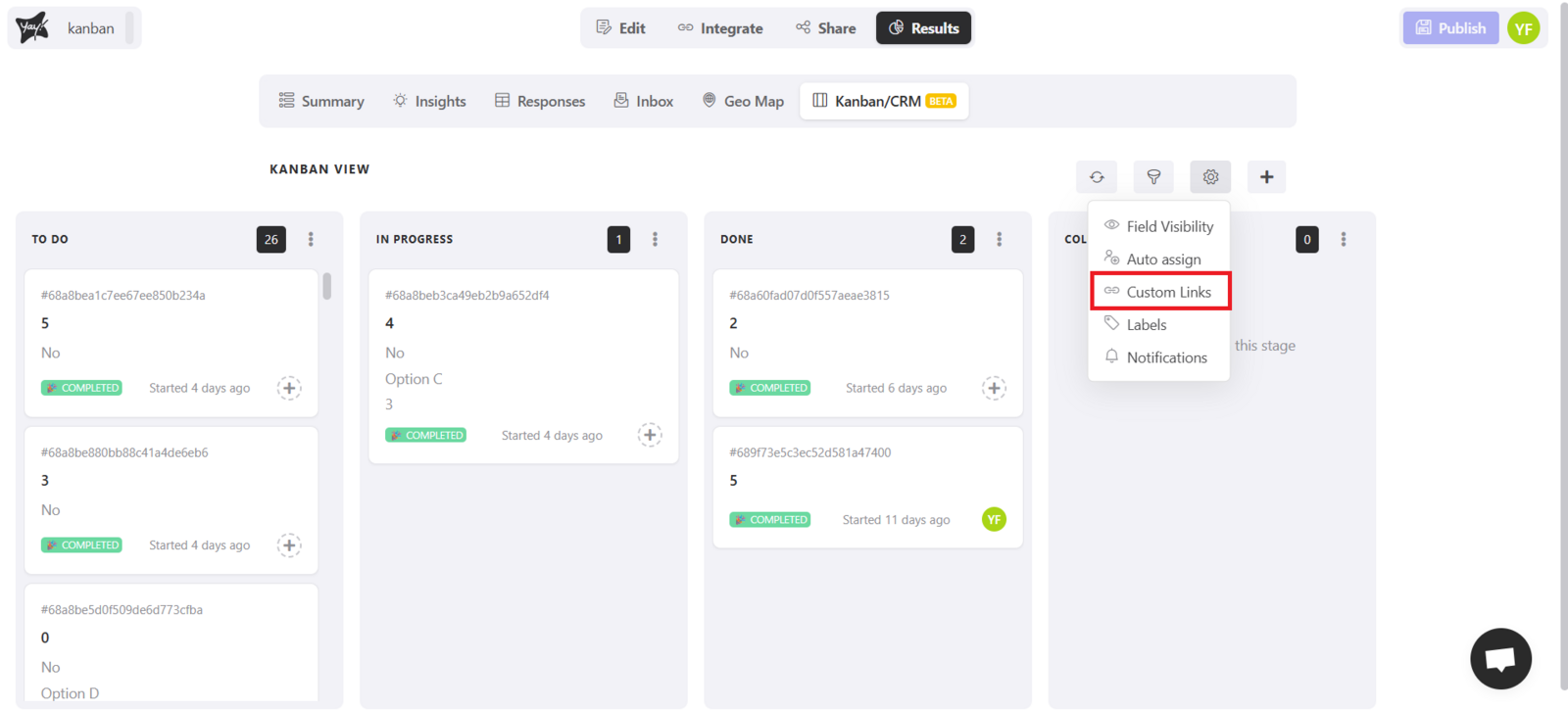
Custom links
-
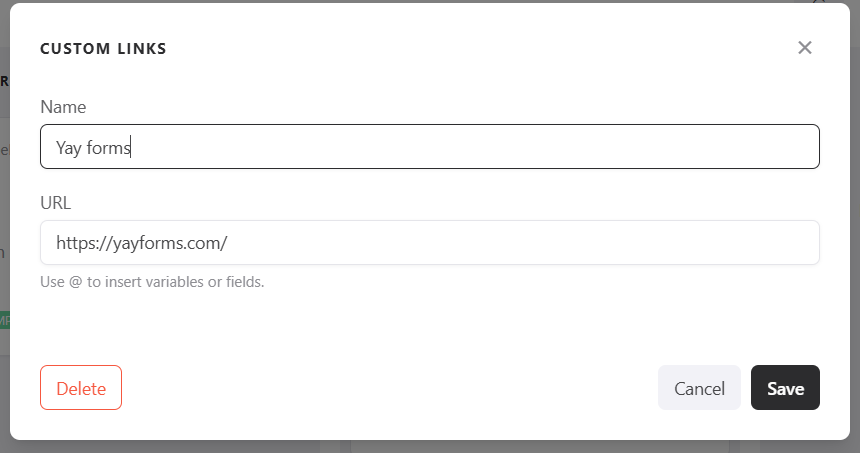
Add quick links inside each card (e.g., open WhatsApp, email, or an external CRM).
-
To add: click Add, fill in the name and URL in the modal. Keep in mind that you can use form responses as variables in the link—for example, using an answer that captures the phone number or email. Just use the same mention function. If you want to take a look, you can access this link: Como usar a função de menção no Yay Forms
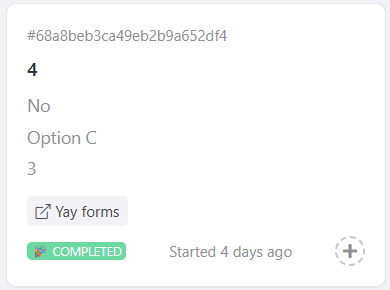
- The link will be available in each card’s menu.
Labels
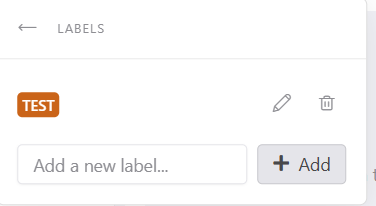
- Create and manage labels to visually categorize cards (e.g., High priority, New lead, Customer, Urgent). To do this, just click the option below:
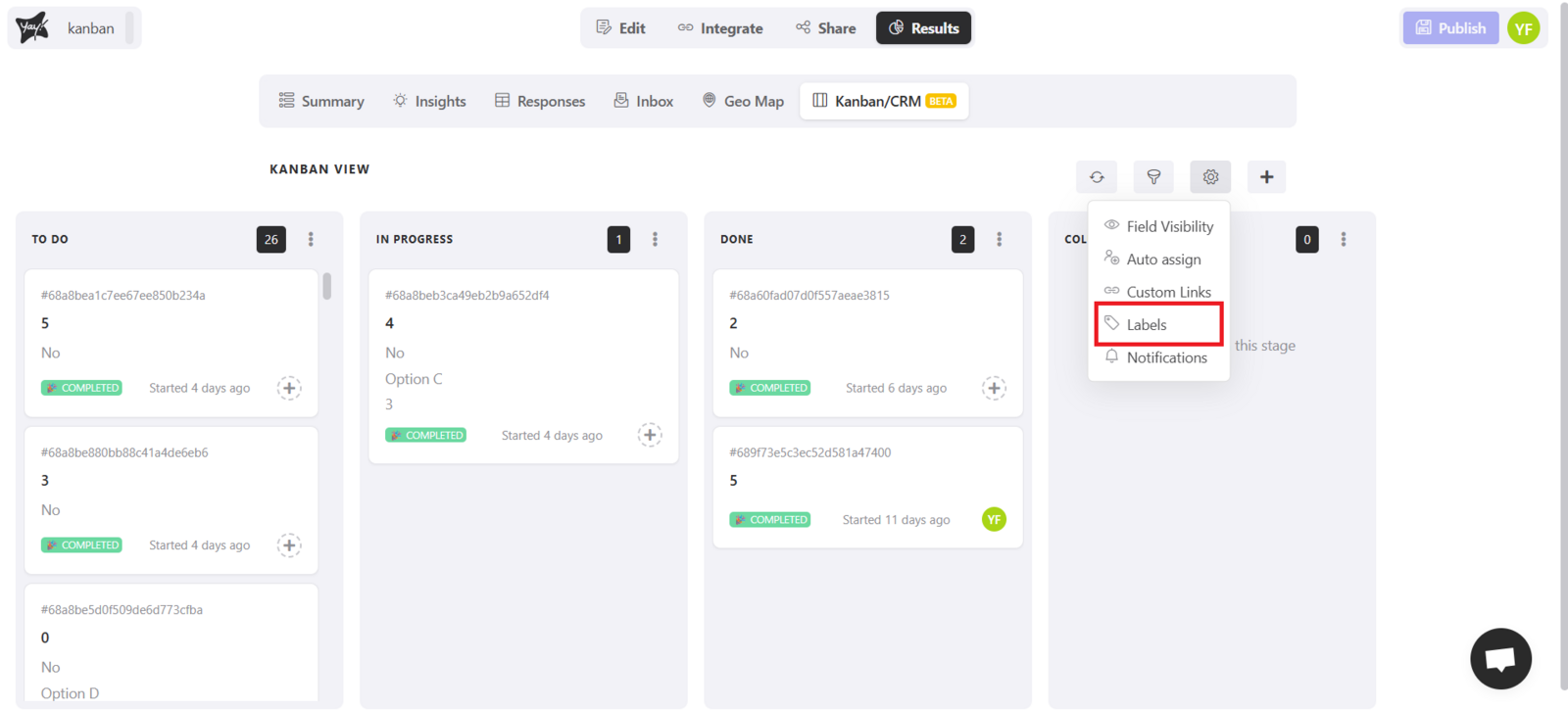
After that, just click Add and enter the label name you prefer.
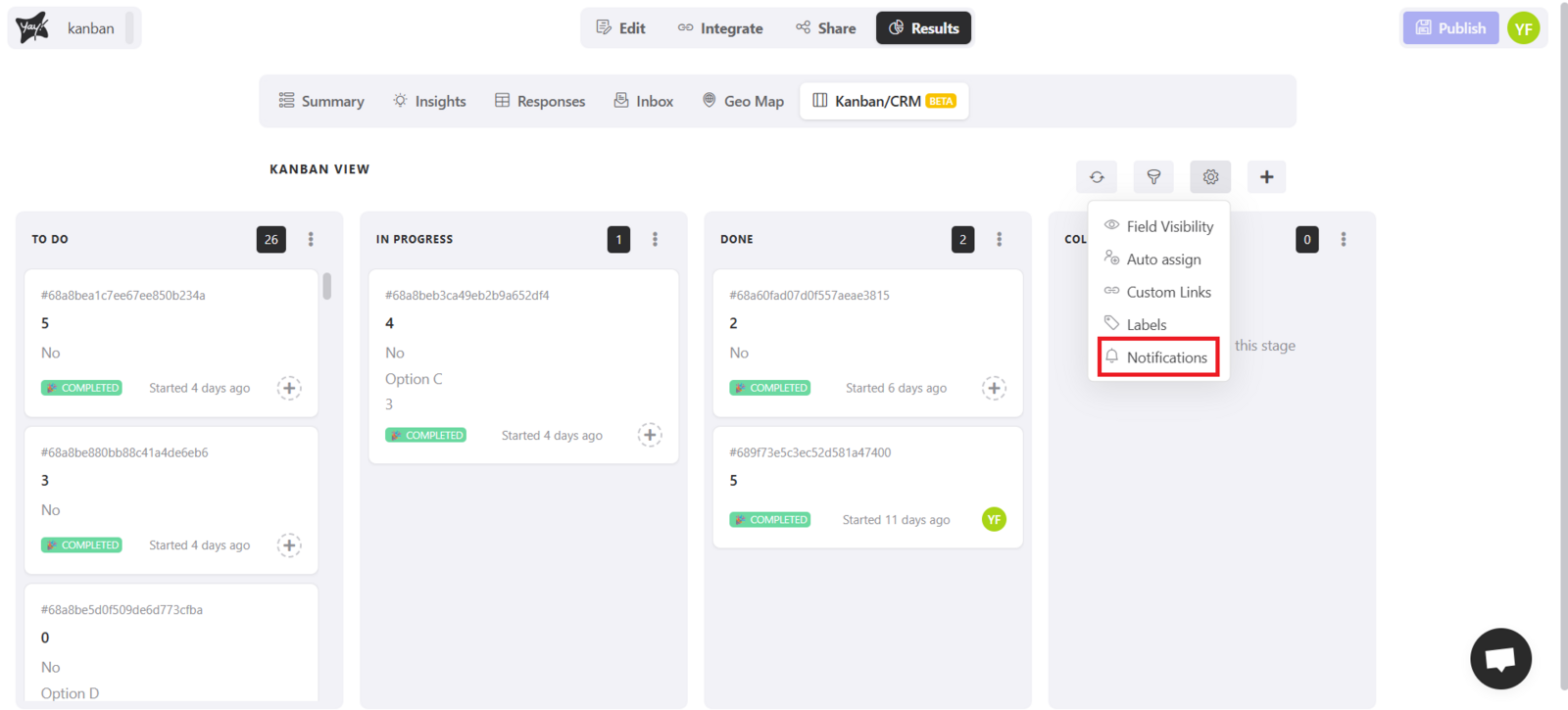
Notifications
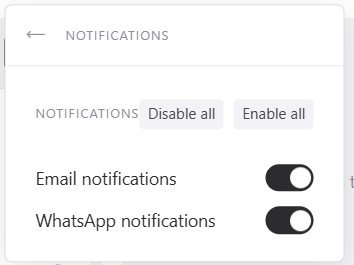
- By default, when a response is assigned to a collaborator, they receive a notification via email and WhatsApp. You can see this in the option in the image below:
If you want, disable these options by turning off the toggles shown below:
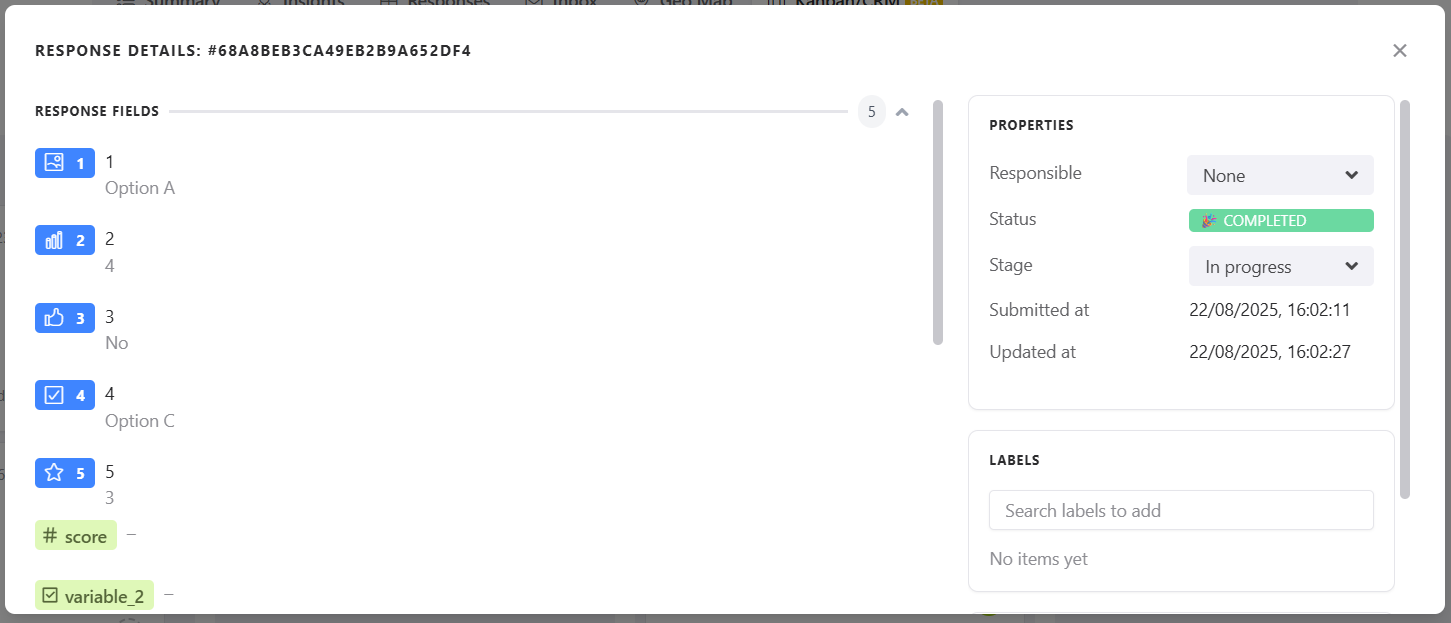
Card specifications
When you click a card (response), you will have access to more options:
- Change assignment (owner).
- Move column directly within the card.
- View all form responses.
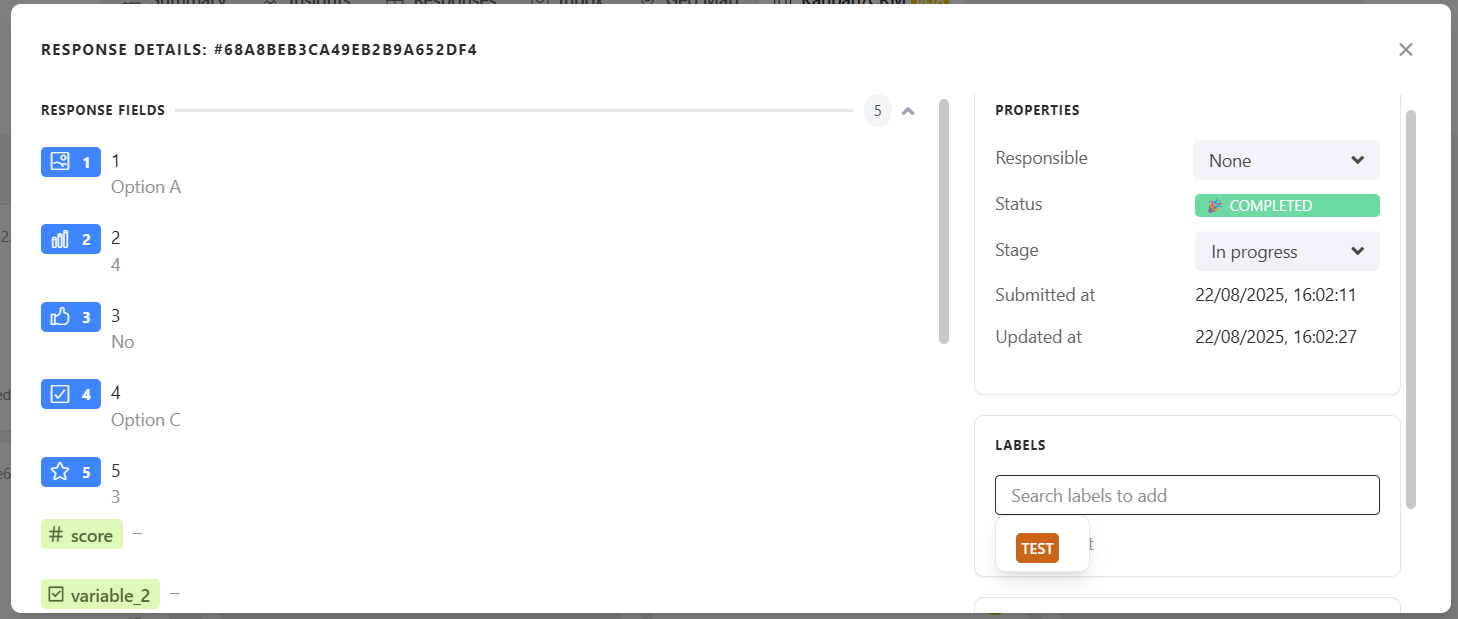
Labels on cards
- To add labels to a card, go to Labels and select the desired label as shown below.
Comments
- You can add comments to your cards so that you and your collaborators can view them.
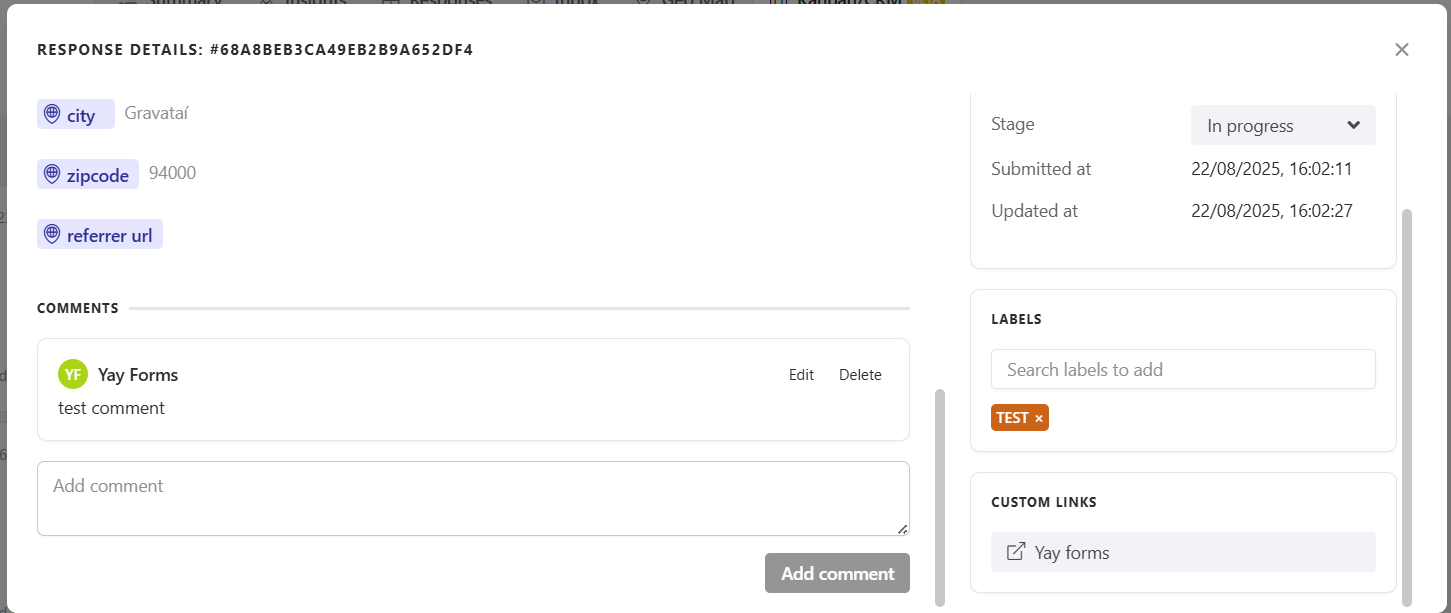
☝️ Keep in mind that comments appear for all collaborators who have access to the form.
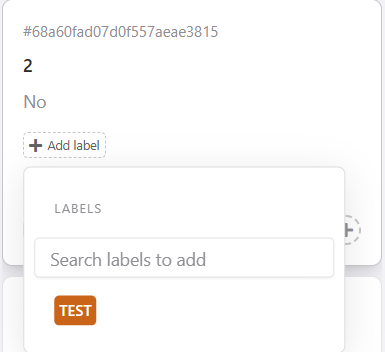
Add labels
You can add labels to your cards in a simple way: just go to the desired card and click add label, as shown below:

Then, by clicking add label, you can choose the label you want for your card.
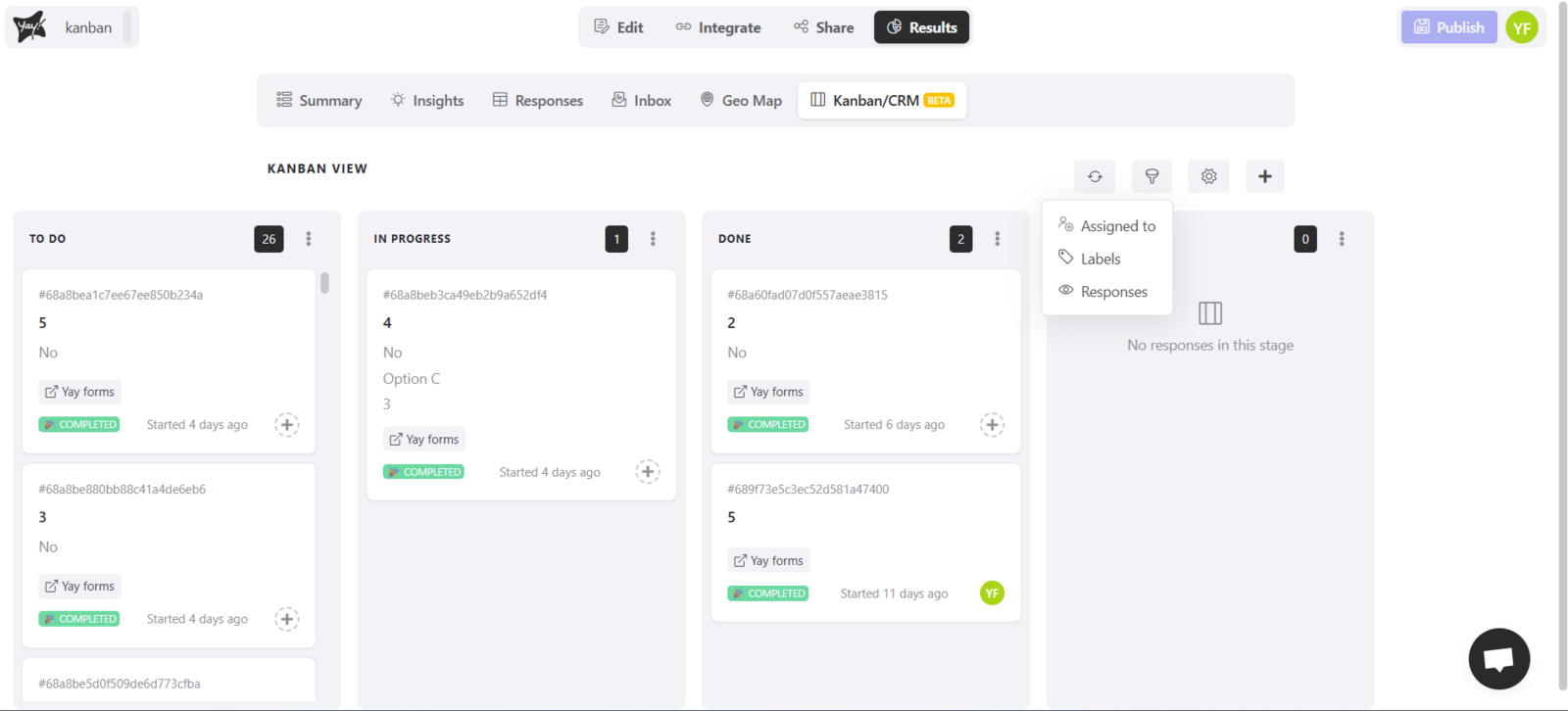
Card filters
Next to the gear icon, you’ll find the filters option.
You can filter cards by:
- Assignment (who the owner is);
- Labels;
- Specific responses.
Note: Please note that if the user has the Facebook Pixel integration and moves a card to another column, a custom event with the column name will be automatically sent to Facebook.
Contact
If you have any questions or suggestions, send an email to [email protected].
Conclusion
You learned how Kanban works in Yay! Forms to organize form responses into columns, manage and customize stages, assign team owners, configure card visibility and automation, use labels, links, and comments, and apply filters to track and manage your workflow more effectively.